Help and how-to
How to read this manual
This is the complete manual for the Yapmesh app, version 1.1.1, as it stood on 23 October 2026. It walks through every screen in the order you meet them, names every switch and button by the exact words on the screen, and quotes every message the app can show you so that you can search this page for the sentence you are looking at. Words that appear on a screen are set like Join the mesh, and a path through the app like Menu → Settings → Safety → Blocked people. Menu is the ⋮ at the top right of the home screen.
The name. The app calls itself Yap on most of its screens and Yapmesh on its formal ones. They are one thing: Yap is the short name, Yapmesh the full one, and the website, the package and the legal pages use Yapmesh.
The pictures. Every picture is a real screen of the real app, nothing is drawn or mocked up. Most are from a Samsung Galaxy A07 running the 11 September 2026 build; screens that show only static settings, dialogs and empty states were taken from the same build's browser client (the copy of the app a phone serves to a laptop, see Using Yapmesh on a laptop), which is the same program drawn by a browser. The browser copy wears the app's own teal; on a phone with Android 12 or newer the colours follow your wallpaper, so your screens may be blue, green or amber instead. Names in the pictures (Amina, Bea, Zak, Ward 4) are test names on test phones. Since then the menus were made shorter and new screens were added; those are described in words, so a few pictures show an older layout than your phone.
Honesty labels. Where it matters, a feature carries one of three labels. Verified on phones means it has been exercised between real phones and logged. Partly verified means part of it has. Built, not yet on a phone means it passed the automated tests but has not yet run on a phone at all. The last section lists them together.
What Yapmesh is, in one page
Yapmesh is a messenger that runs from your phone to the phones around you. It needs no internet, no SIM card, no phone number, no account and no server. Phones find each other over Bluetooth, Wi-Fi Direct and any Wi-Fi network, pass sealed messages along from phone to phone, and carry them in their pockets until they meet the phone they are for. When there is internet it can use that too, without any server of ours.
- What it needs
- An Android phone on Android 8.1 or newer, including older 32-bit phones. About 55 MB of space. Bluetooth or Wi-Fi switched on to reach other phones.
- What it does not need
- Internet, a SIM, a phone number, an email address, a password, an account, a server, an app store.
- Your identity
- A key pair the phone makes on first run. Its public half is you: people add you by scanning it, everything private is sealed to it, and your avatar colour is derived from it so you look the same on every phone.
- What it costs
- Nothing. No adverts, no paid tier, no trial. The protocol is published.
- iPhone
- It runs: on 11 September 2026 a release build was installed on an iPhone 17 Pro Max and exchanged messages with two Android phones over the same Wi-Fi. Over Bluetooth an iPhone can reach only other iPhones (Apple's Multipeer, built but untested), never Android. There is no App Store or TestFlight build yet, so nothing to download.
- Two editions
- The copy from yapmesh.com can hand itself to another phone, install updates that arrive over the mesh, and receive SMS. The copy from Google Play cannot do those three things, because Play does not allow them; it shares a link instead.
Getting the app
Download it
The signed installer, its size, its SHA-256 and the signing-key fingerprint are on the download section of the technical page. Android will ask you to allow installs from your browser the first time; that is normal for an app that is not from the store. Samsung phones with Auto Blocker on refuse every install until it is switched off under Settings → Security and privacy → Auto Blocker.
Get it from a friend's phone
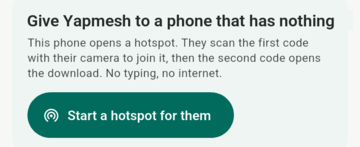
A phone that already has Yapmesh can install it on a phone that has nothing, with no internet at all. Verified on phones
- On the giving phone: Menu → Share the app, then under Give Yap to a phone that has nothing tap Start a hotspot for them. The screen shows two codes: 1. Scan to join … with the network name and password, and 2. Then scan this to open the download.
- On the receiving phone: open the camera and scan the first code to join the hotspot. The phone will say the network has no internet; that is expected. If it offers to keep using the network, accept, and switch mobile data off while you download.
- Scan the second code. A page opens on the giving phone's address; tap Download, allow the source when Android asks, open the file and tap Install.
- Check the Signer fingerprint line on the giving phone's screen against Menu → Share the app → ⓘ → About on the new phone. If the lines differ, it is not the same app.
- On the giving phone tap Stop the hotspot when done.
The giving phone shows an error if it cannot: “This build cannot host a hotspot.”, “Android needs the location or nearby-devices permission to start a hotspot.”, “The phone refused to start a hotspot (is Wi-Fi off, or another hotspot on?).”. The 7 September 2026 log (Session 3) records a fresh phone getting the 54.6 MB installer this way in about 45 seconds.
Use it in a laptop browser
Any browser on a phone's Wi-Fi or hotspot can open Yapmesh as a full node, with nothing installed on the laptop. See Using Yapmesh on a laptop.
First run
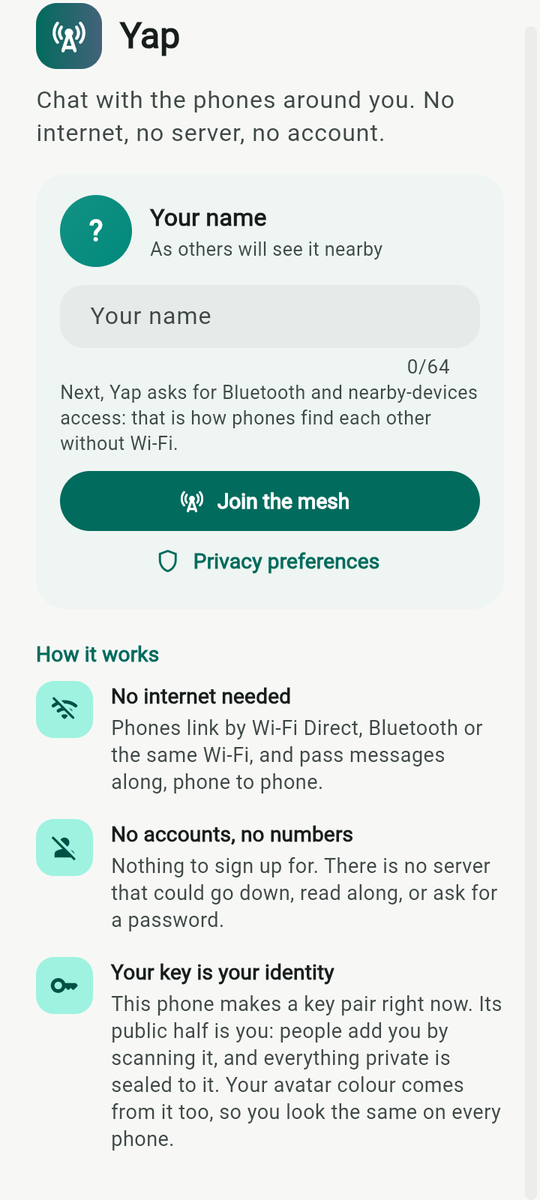
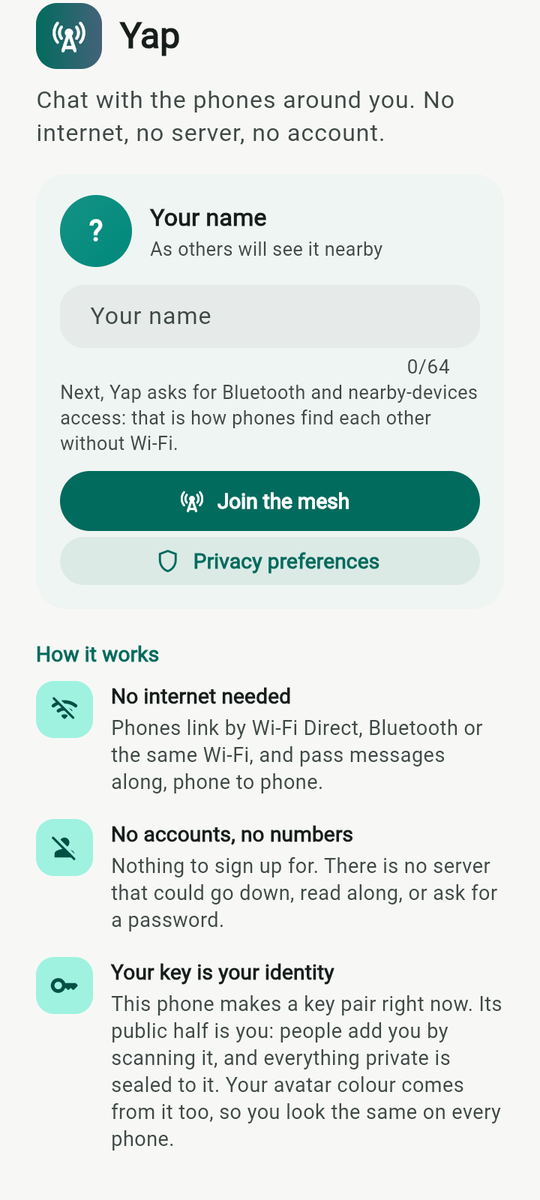
The first screen asks for one thing: a name. First name is fine, up to 64 characters. It is what other phones show next to your messages; it is not an account and nobody checks it. Under it the app tells you what happens next: “Next, Yap asks for Bluetooth and nearby-devices access: that is how phones find each other without Wi-Fi.”
Join the mesh makes your key pair and opens the app. An empty name is quietly refused.
I prefer to listen is for someone who would rather hear than read: “The phone reads messages out, says what happens, and shows six big buttons.” It turns on three switches in Chat settings at once; see Big tiles and listening. I already have Yapmesh brings back a key you backed up on another phone; see Back up your key.
Privacy preferences opens the permissions door before anything is asked for. “Yap only asks for what you leave on. Anything off is never requested; you can still allow it later from the Mesh tab. The app works without any of these over the same Wi-Fi, by hand-carry and by SMS.”
| Switch | What it grants | What off costs |
|---|---|---|
| Bluetooth | Bluetooth scan, advertise and connect (Android 12 and newer ask for these; older versions grant them at install). | “Reach phones with no Wi-Fi. Off: Bluetooth links stay idle.” |
| Nearby devices | Nearby Wi-Fi devices on Android 13 and newer; Location while in use on Android 12 and older, because those versions cannot scan for Wi-Fi Direct without it. | “Find phones for Wi-Fi Direct (Location on Android 12 and older). Off: only phones on the same Wi-Fi.” |
| Notifications | Posting notifications, including the one quiet notice that keeps the mesh running in the background. | “One quiet notice keeps the mesh alive in the background. Off: the mesh pauses when the app is hidden.” |
The button at the bottom reads Enter your name first while the name is empty, Join without any permission when every switch is off, and Join with these otherwise. A permission you refuse is never asked for again by the app; it shows as a grey chip on the Mesh tab (see idle rungs) that opens the phone's settings when tapped.
Camera, microphone and location are asked for only at the moment a feature needs them: scanning a code, recording a voice note, sharing a place. Each is explained where it appears in this manual.
The home screen
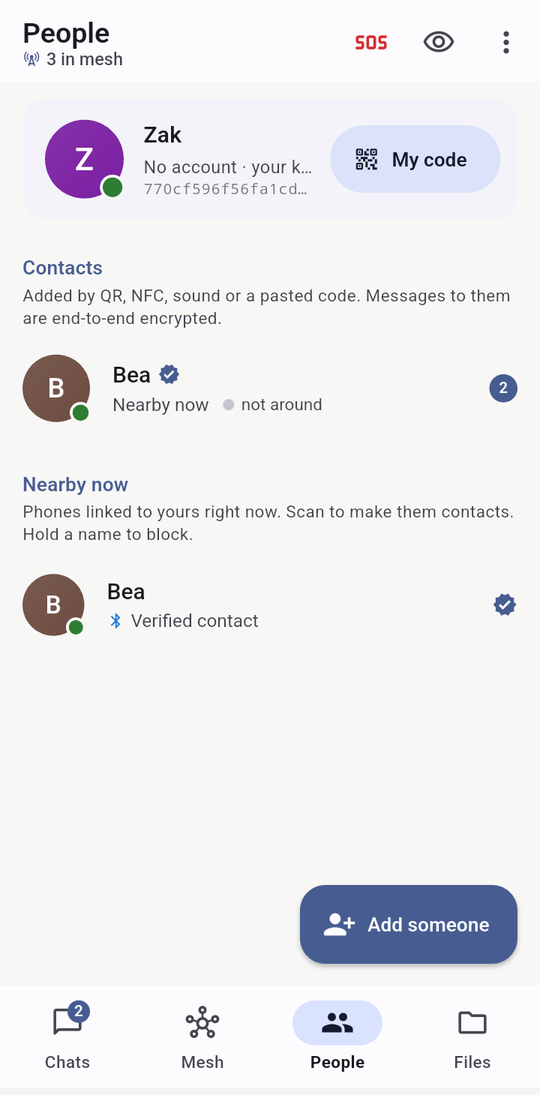
Home has four tabs along the bottom: Chats, Mesh, People and Files. The app bar shows the tab's title (Yap on the Chats tab) and under it a live line: “3 in mesh”, or “Hidden · 3 in mesh” while you are hidden. The small icon before it says whether any link is up.
The app bar buttons, left to right:
- Search (Chats tab only): replaces the title with Search chats. Matches names and previews. “No chats match “…”.” when nothing does.
- SOS (red, the only red button on the bar): a tap only shows “Hold the SOS button to send an alert”, unless you turned on Two-tap SOS. A long press opens the send sheet. See SOS.
- The eye: Hide me / Show me. One tap to vanish from nearby phones, one tap to come back. See Hiding.
- Menu (⋮), kept short on purpose: New group, Share the app, Hidden chats, then Settings and Help (this page), and Lock now once a screen lock is on. Everything else lives in Settings; the map of Settings lists where each thing went.
The microphone, bottom left, is push to talk; see below.
Lines that appear when they matter. A red strip under the app bar with a Retry button means the radios failed to start; the text is the error. A grey status pill on the Chats tab reads, for example, “Looking for nearby phones · 2 phones · Wi-Fi + Bluetooth” and expands to the ladder when tapped; it fades after six seconds. A one-line hint such as “Turn on Bluetooth to reach phones with no Wi-Fi” or “Allow nearby devices in Settings to reach phones with no Wi-Fi” appears when no link has come up for 30 seconds and a radio is idle, and goes the moment a link is up. A red SOS banner appears when someone nearby sent one.
Leaving. Pressing Back on a tab shows “Press back again to leave the mesh”; a second press within two seconds closes the app. While the app is open, or in the background under its “Yap is on the mesh” notification, your phone keeps relaying for others. Nothing runs once you close it.
Push to talk
The round microphone at the bottom left of Home is a walkie-talkie. A tap only shows “Hold to talk to everyone nearby”. Hold it and speak; the button grows and reads “Talking… let go to stop”. Let go to stop. (In Urdu and Arabic the button sits bottom right.)
- It is public, like the Nearby room: every phone in radio range with Yapmesh hears you, contact or stranger.
- It goes one hop only. Phones further away do not hear it, and nobody relays it.
- One person talks at a time. While someone else talks your button shows “Amina is talking” or “Someone else is talking”.
- Nothing is saved. The voice plays as it arrives and is gone; it is not a voice note.
- Only phones on the October 2026 build or newer hear it. An older phone in range simply hears nothing.
Partly verified On 23 October 2026, after a fix that stops one slow link holding up the others, a talk between two A07s got 276 of 276 voice packets through in a clean run. In other runs audio was lost when a Wi-Fi link was rebuilt in the middle of a talk. Treat it as a test feature for now.
Big tiles and listening
For someone who finds the chat list hard, Menu → Settings → Chat settings has three switches, all turned on together by I prefer to listen on the first screen:
- Read messages aloud when they arrive: “In every chat, with this phone's own voice. A chat's menu can turn it on for that chat alone.” For one chat only, open its ⋮, then More…, then Read this chat aloud.
- Speak what happens: “Sent, stuck, someone nearby, SOS — said out loud.”
- Big tiles home: “Six large buttons in place of the chats list: Talk, People, Files, SOS, I'm safe, Help.”
On the big tiles, Talk opens your chats (“Talk (3 new)” when some are unread) and I'm safe opens Safe & notices. The voice is the phone's own speech engine, so it speaks the languages the phone has installed. If it has none for the app's language, a bubble says “No voice for this language on this phone”. Built, not yet on a phone
The Chats tab
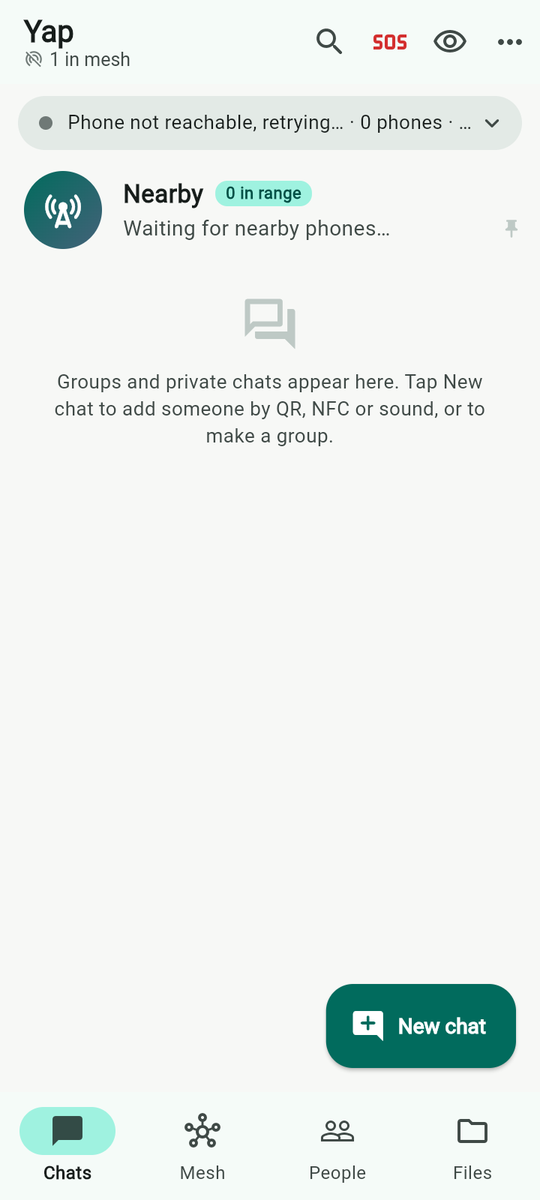
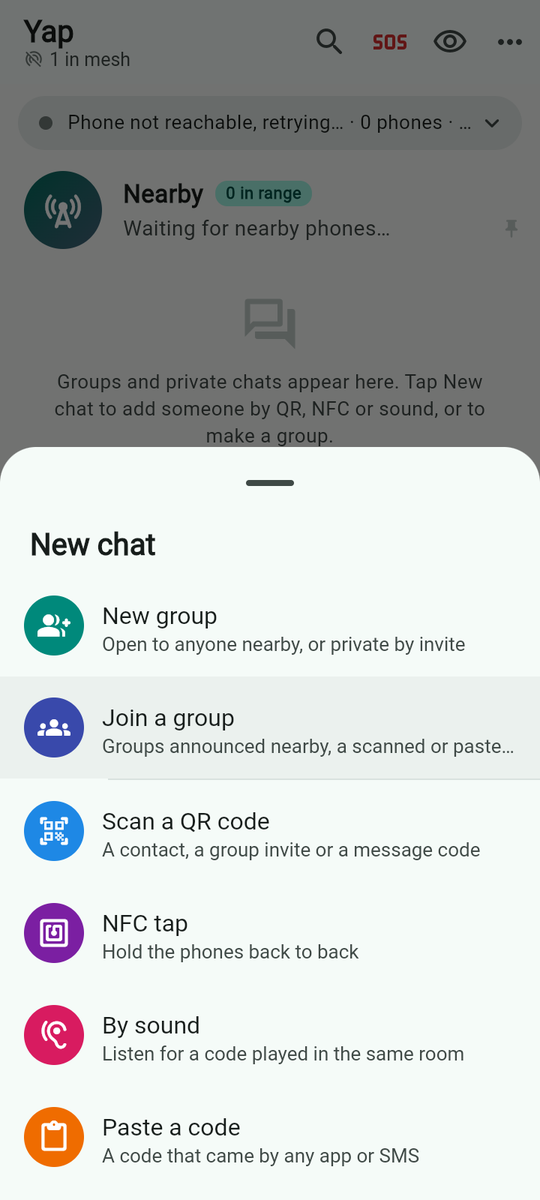
The list holds three kinds of row. Nearby is always first and pinned: the public room of everyone in radio range, with a badge “N in range” and the last line said. Group rows show the group's icon and name with “Open · anyone nearby can join”, “Private · invite code only”, “Fenced · …” or “You left …”. Contact rows show the person, a blue tick if you verified them in person, the small icon of the rung they were last reached by (its tooltip reads “Reached by Bluetooth” and so on), a bell-off icon if muted, a pin if pinned, and an unread count.
Previews say who spoke: “You: …” for your own, and the sender's name in rooms and groups. Attachments preview as “📷 Photo”, “🎥 Video”, “🎤 Voice note”, “📎 name”, “🎵 name”, “📍 Location”, “📍 Live place”, “👤 Contact”, “📊 question”, “Sticker”, “GIF” and “Message deleted”.
Pinned chats sort to the top. Archived chats collapse into one row, Archived, with a count. Hidden chats leave the list entirely and live under Menu → Hidden chats. Long-press any row for its actions sheet (see the person sheet and group actions).
Under the list, Groups nearby lists open groups other phones announced, each with Join.
New chat opens a sheet: New group (“Open to anyone nearby, or private by invite”), Join a group (“Groups announced nearby, a scanned or pasted invite”), Scan a QR code (“A contact, a group invite or a message code”), NFC tap, By sound, Paste a code (“A code that came by any app or SMS”), and then your contacts, each marked “Nearby now” or “Out of range · messages wait”.
Adding people and verifying them
The People tab
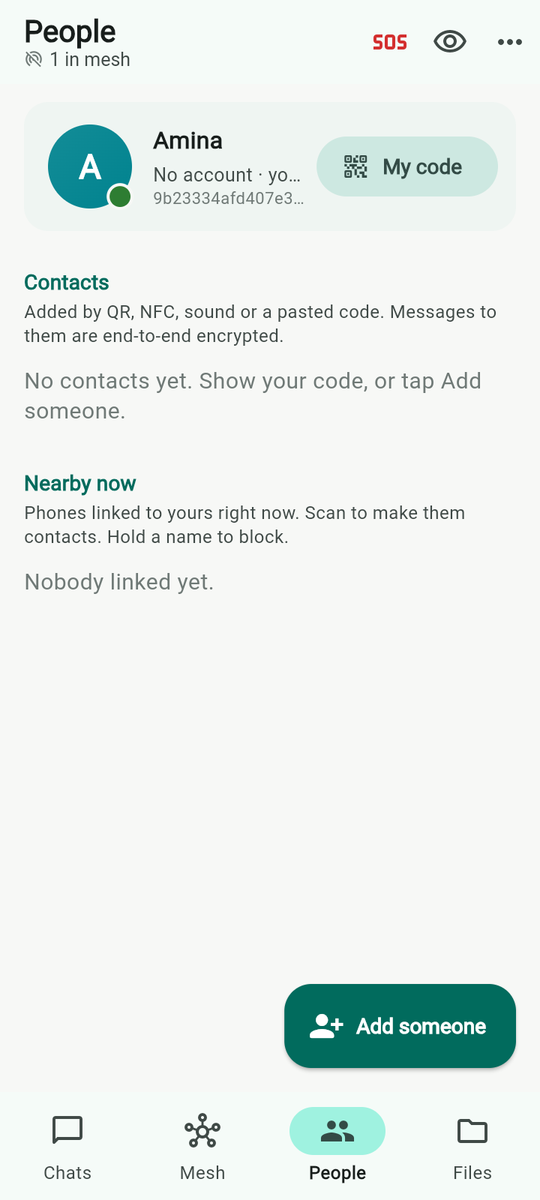
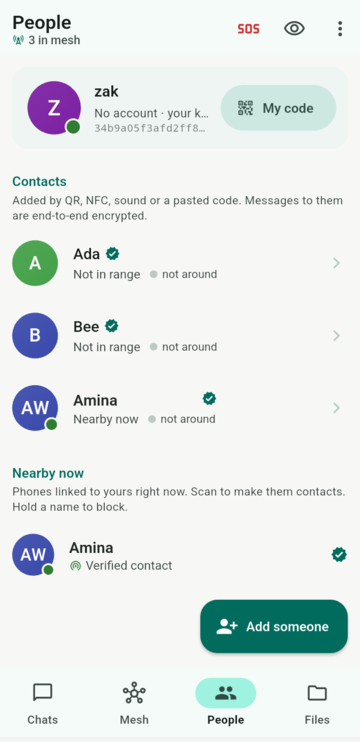
Your own card is first: your name, “No account · your key is you” (or “Hidden from nearby”), the first sixteen characters of your key, and My code.
Contacts — “Added by QR, NFC, sound or a pasted code. Messages to them are end-to-end encrypted.” Each row says “Nearby now” or “Not in range” and, if they let you sense them, the tier (“same room” and so on; otherwise “not around”). Tap to open the chat, hold for the person sheet.
Nearby now — “Phones linked to yours right now. Scan to make them contacts. Hold a name to block.” Each is “Verified contact” or “Not verified — nearby chat only”. A stranger here can only be reached in the public room until you exchange codes.
Blocked by the mesh appears only when the phones around you have voted someone out; see the mesh vote.
Add someone opens: Scan their QR code (“Line of sight: the surest way”), NFC tap, By sound, Paste a code, Scan any Yap code (“A group invite, a message code or an animated QR”) and Share the app for a phone that does not have it yet.
My code: the five ways to give your key
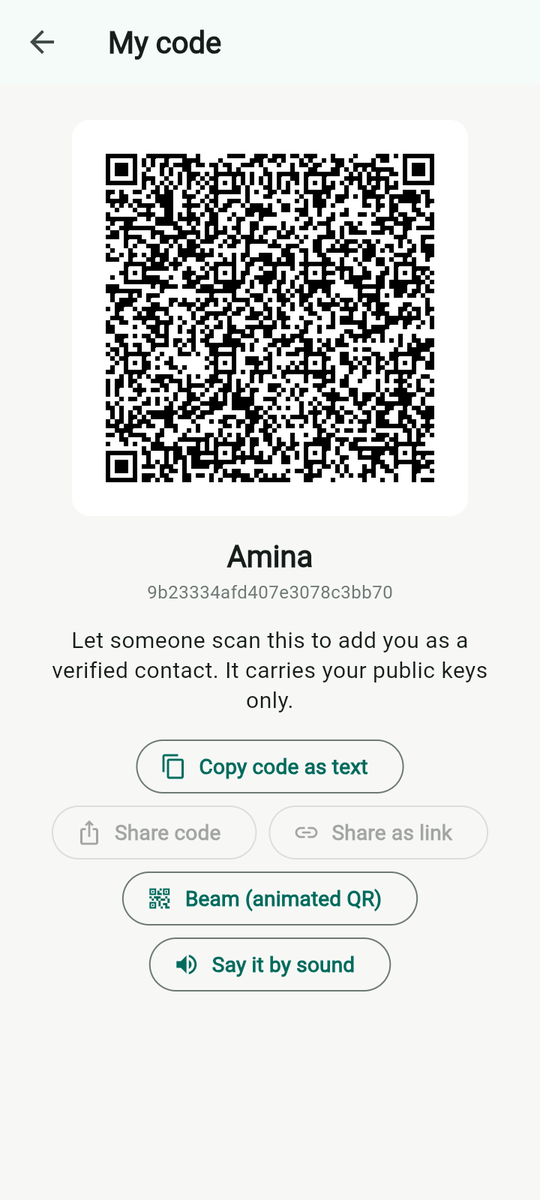
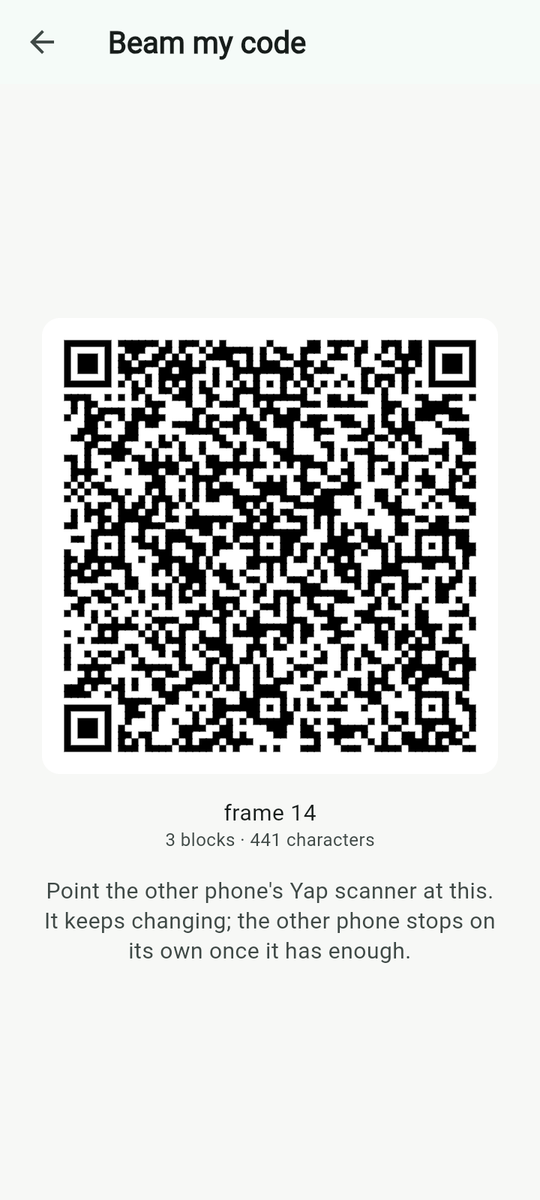
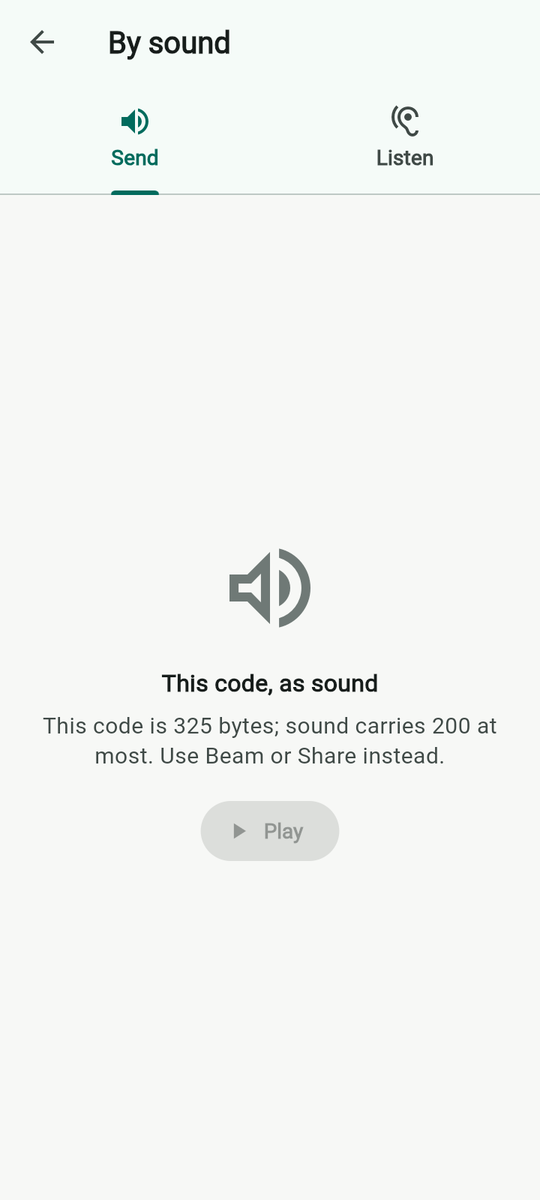
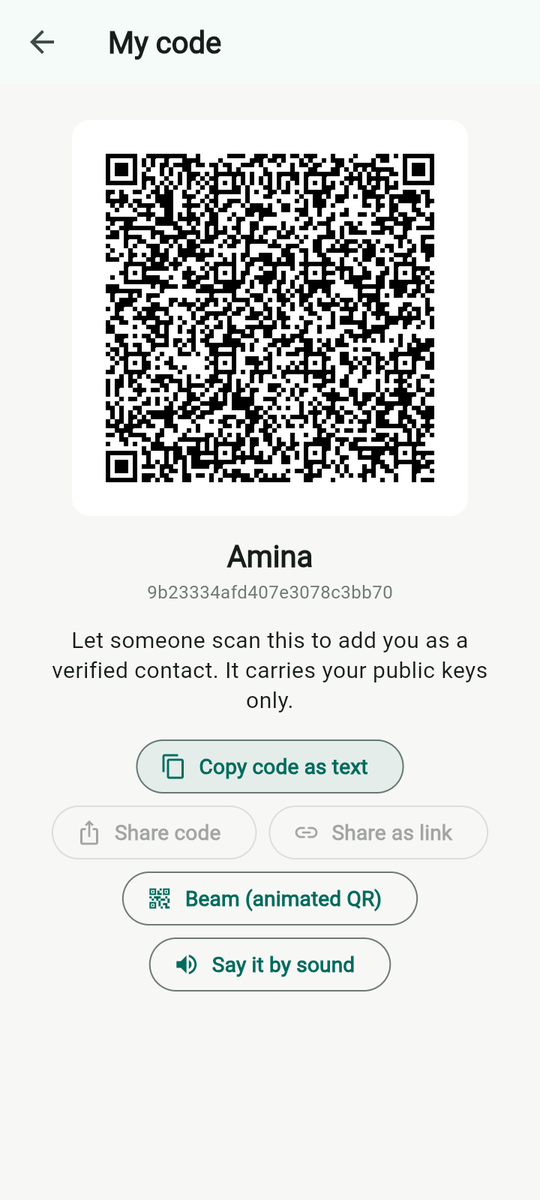
“Let someone scan this to add you as a verified contact. It carries your public keys only.” Under the QR:
- Copy code as text puts a “yap1:…” code on the clipboard: “Code copied. Send it any way you like; the other phone pastes it.”
- Share code hands the same text to any app through Android's share sheet.
- Share as link shares it as a “https://yapmesh.com/add#yap1:…” link, which opens straight into the app on a phone that has it.
- Beam (animated QR) shows the code as a changing sequence of QR frames (“frame 14”, “3 blocks · 441 characters”) for a camera that cannot read one dense code: “Point the other phone's Yap scanner at this. It keeps changing; the other phone stops on its own once it has enough.”
- Say it by sound plays it as chirps. Since October 2026 a code too big for one burst goes as up to eight bursts in a row, so a full contact code fits. Only something bigger than that is refused, with its size and “Use Beam or Share instead.”
- NFC needs no button: “NFC: hold the phones back to back and the other phone reads this code from yours.”
Your photo. Add a photo (contacts only) on My code sets a picture: “Photo set. Only your contacts get it; people nearby still see your initials.” It travels sealed, only to your contacts. Change photo and Remove photo (“Photo removed. Your contacts are told.”) do what they say. Built, not yet on a phone
The Reach me over the internet card at the bottom of My code belongs to the typed-address rung. If you host a mailbox for someone, My code carries it too; see mailboxes.
The ways in, one by one
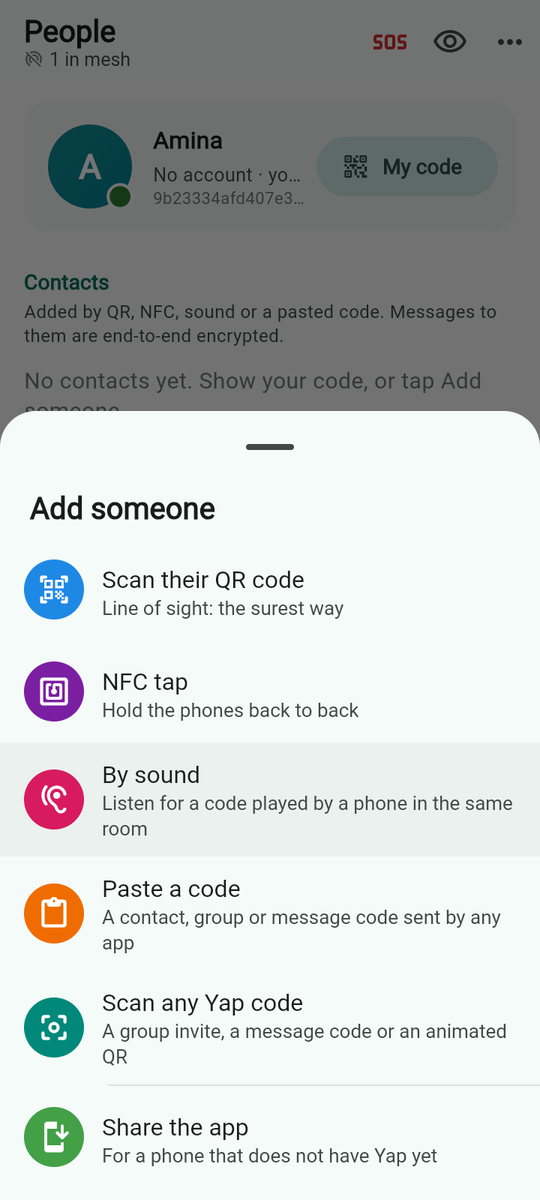
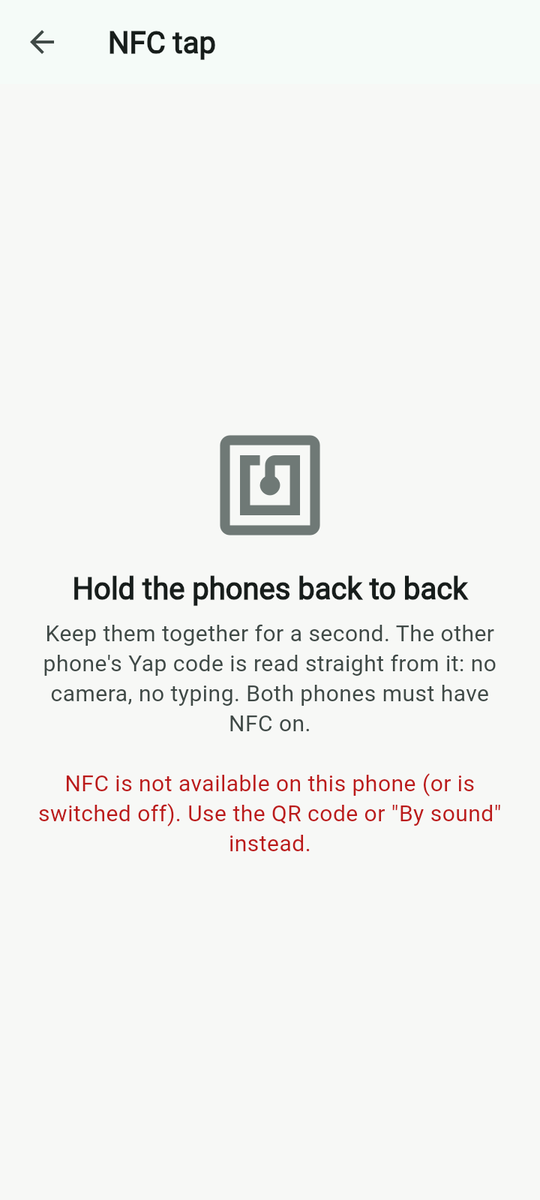
| Way | How | What the app says |
|---|---|---|
| Scan their QR | Scan their QR code opens the camera with the hint “Point at the other phone's Yap code”. It reads still and animated codes; on an animated one it shows “Receiving 40%” and “Keep the camera on the moving code”. | “Added Amina as a verified contact”. If the camera is refused: “Camera permission is needed to scan a code”. |
| NFC tap | “Hold the phones back to back”. “Keep them together for a second. The other phone's Yap code is read straight from it: no camera, no typing. Both phones must have NFC on.” The screen waits with “Waiting for a tap…” and offers Try again. | “Added Amina as a verified contact — same table”; “Nothing read. Hold the phones still, back to back, and try again.”; or “NFC is not available on this phone (or is switched off). Use the QR code or “By sound” instead.” |
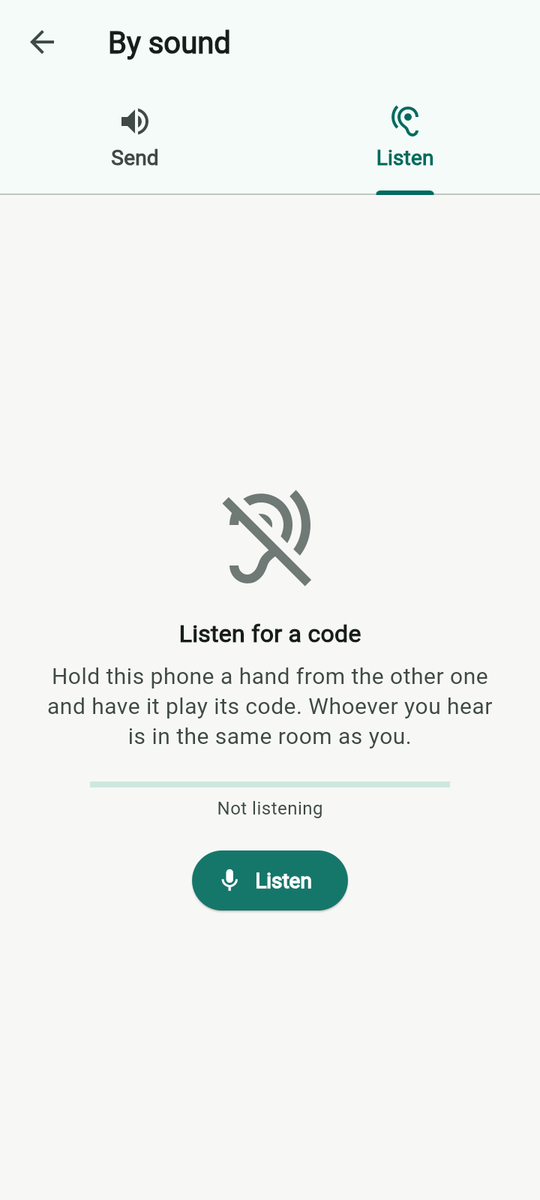
| By sound | Listen tab: “Hold this phone a hand from the other one and have it play its code. Whoever you hear is in the same room as you.” A level line reads “level 62% · SNR 14 dB · 1 heard”. Needs the microphone. | “Added Amina as a verified contact — same room”; “Microphone permission is needed to listen”; “Cannot listen on this device: …”. |
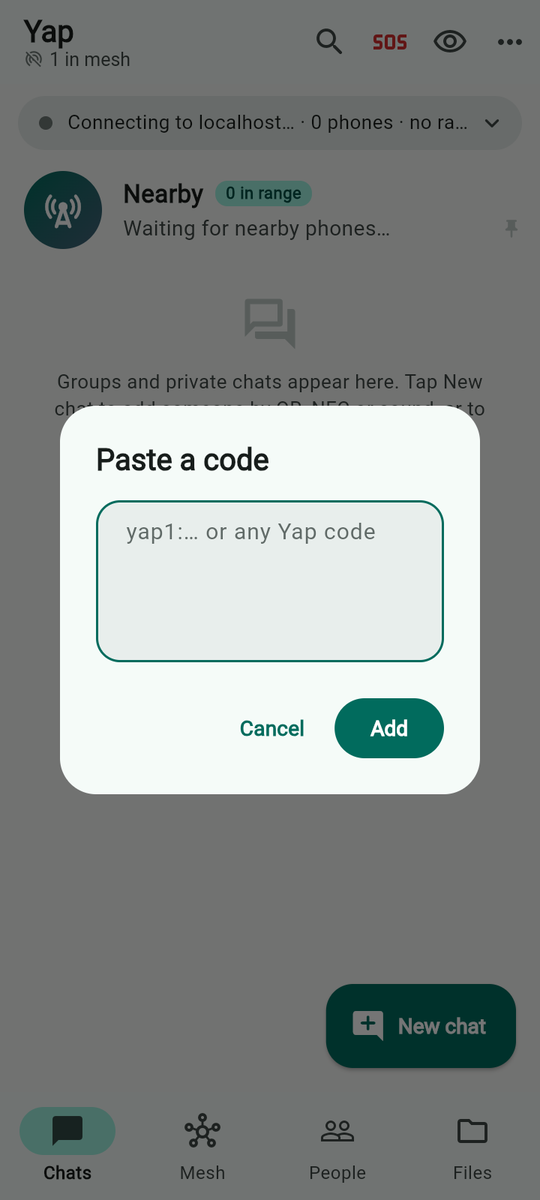
| Paste a code | A dialog with the hint “yap1:… or any Yap code” and Add. Takes a contact code, a group invite (“yapg1:…”) or a hand-carried message. | “Added …”, “Joined …”, “Message received”, “Not a Yap code”, “That code is damaged”, “Part of a longer code; send the rest”, “A Yap code this version does not know”. |
| A link | A “yapmesh.com/add#…” link someone sent by any app opens in Yapmesh directly. | The same messages as pasting. |
| A contact card in a chat | Someone sends My contact card or introduces a third person from the attach sheet. The bubble reads “Amina's contact card · Signed keys · adds a verified contact” or “Introduced by you · signed by Bilal”, with Add. | “Added Amina as a verified contact” or, for an introduction, “Added Chen, introduced by Bilal. Scan their code in person to verify”. |
Every code is signed. A forged or damaged one fails its signature and is dropped; the app never adds a key it cannot verify. QR, NFC and sound are proximity channels: the tier they prove (“same table”, “same room”) is remembered and used by presence.
Safety number
Every contact has a safety number, under their name → Safety number & ways to reach → Safety number in the person sheet. The screen shows a QR and sixty digits in groups, and says “Verified on this phone” or “Not yet verified in person”. Scan their screen compares the two phones: “Matched. Amina is verified on this phone.” or “No match. One of you may be talking to a different key — compare the digits, and if they differ too, do not trust this chat.”
A contact added by scanning, tapping or sound in person is already verified. One added from a pasted code, a link or an introduction is not, until you compare numbers. Built, not yet on a phone
The Nearby room
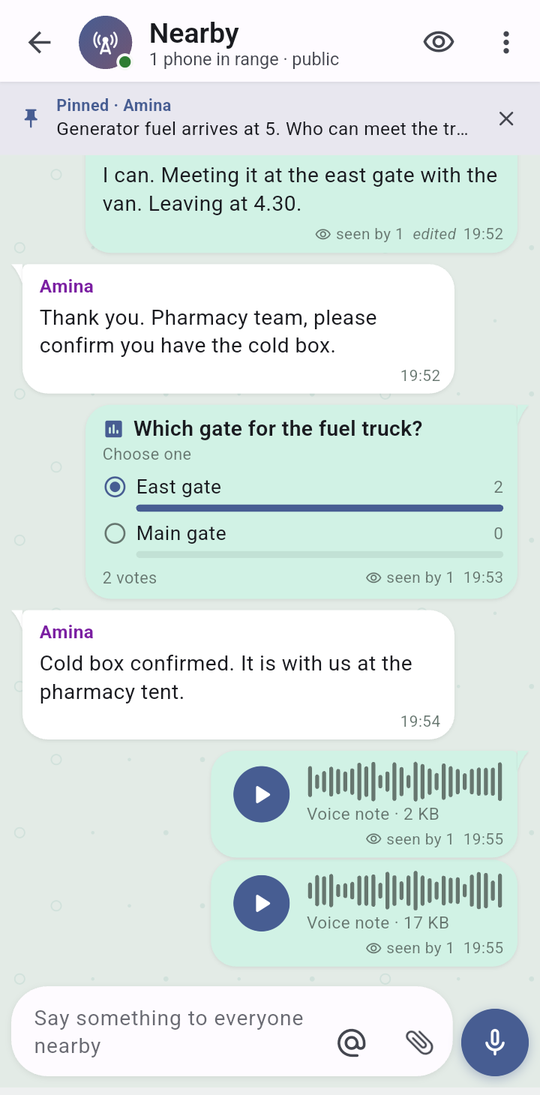
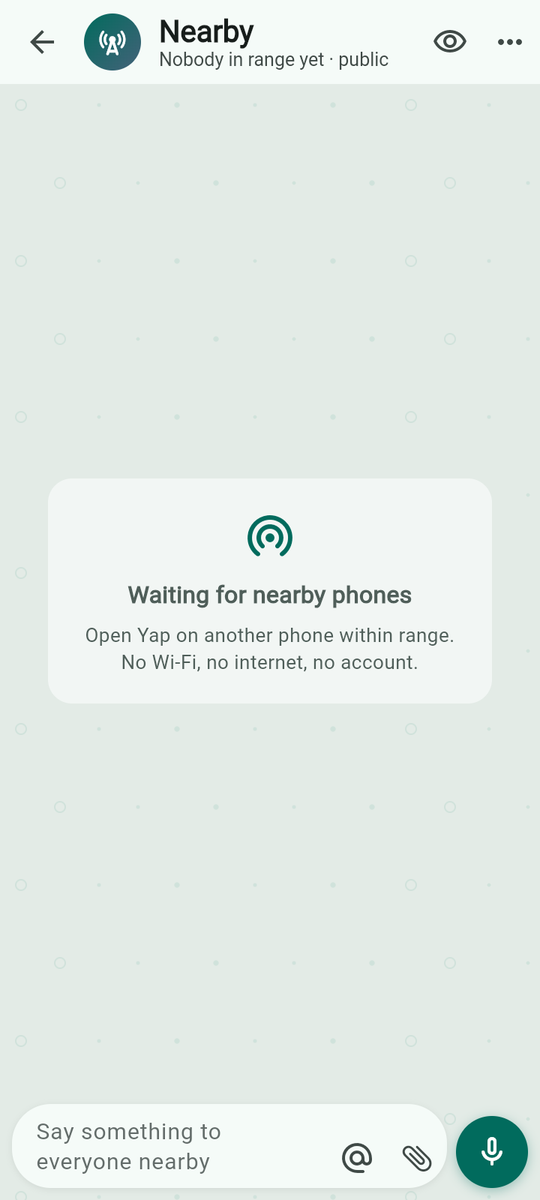
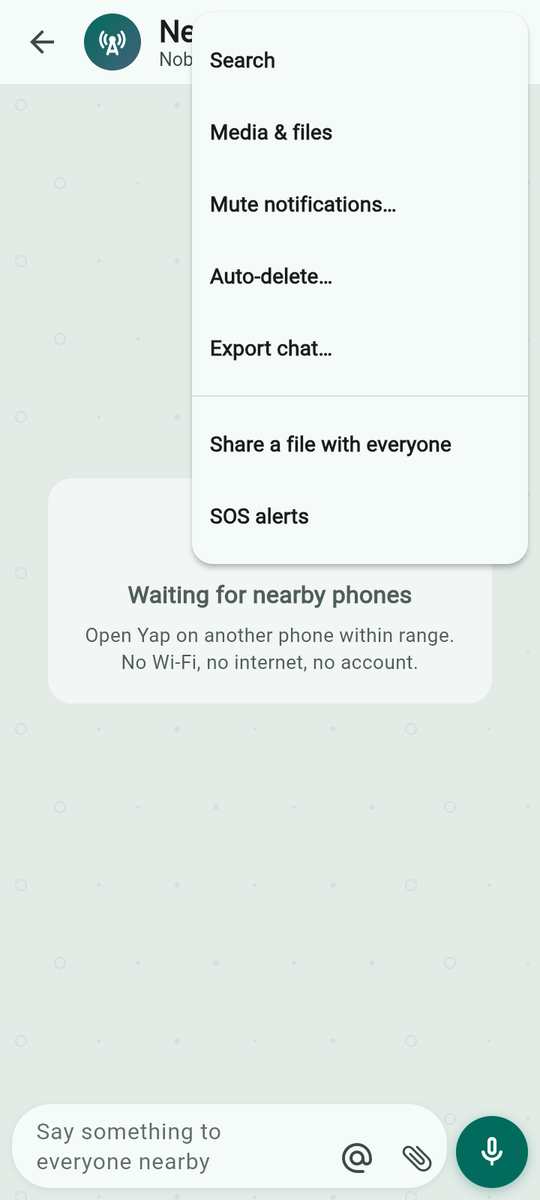
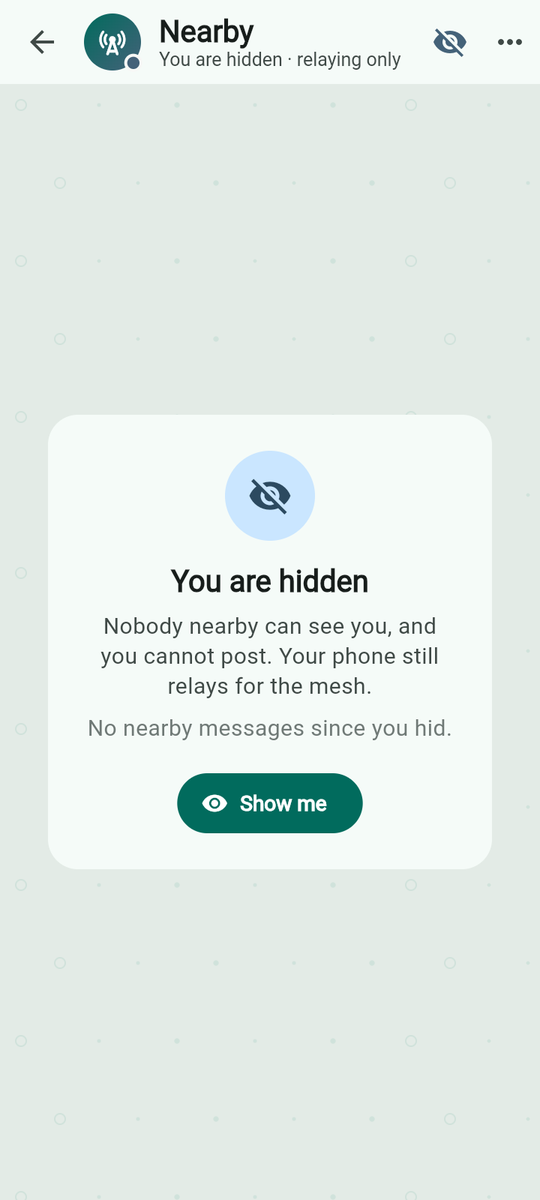
Nearby is the one public place: “Public to everyone in range · relayed phone to phone”. Everything said here is signed with the sender's key but not encrypted, and every phone in radio range, contact or stranger, can read it and pass it on. The header counts “N phones in range · public”. Your own messages show “seen by N”: the number of phones that acknowledged them, including hidden ones.
The empty states are honest about why: “Waiting for nearby phones — Open Yap on another phone within range. No Wi-Fi, no internet, no account.” when no phone is linked, and “Nobody has said anything yet — Everyone within radio range reads this room. Say hello.” when phones are linked but quiet.
The menu offers Search, Media & files, Share a file with everyone, Mute notifications… and SOS alerts, then More… with Auto-delete…, Read this chat aloud and Export chat…; each is explained under chat tools. Holding the Nearby row on the Chats tab offers Go quiet (“Vanish from nearby and hold its messages; your phone keeps relaying”) or Come back.
While hidden the room replaces its composer with “You are hidden. Nobody nearby can see you, and you cannot post. Your phone still relays for the mesh.” and a count of messages waiting; Show me brings you back. Trying to post while hidden says “Hidden nodes do not speak to nearby”.
Your name in the room. People who are not your contacts see the name you chose. If you switch off Show my name to everyone nearby (see Private profile), they see only a handle such as “@yap#4821”, whose digits come from your key, so the same phone keeps the same handle. Your contacts still see your name. Built, not yet on a phone
The abuse filter (on by default, see Safety) refuses abusive text before it leaves the phone: “Yap will not send that: it reads as abuse. Say it another way.”
Private chats
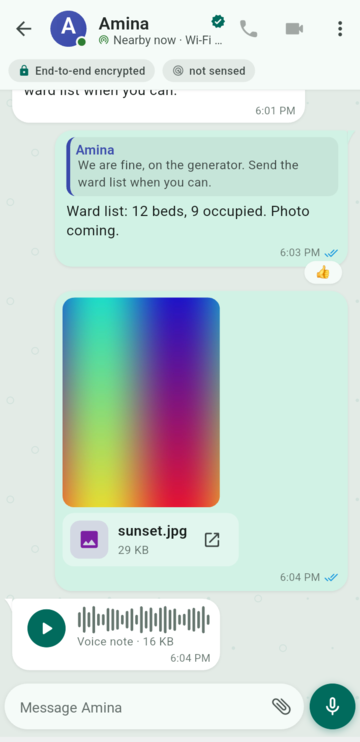
A private chat opens from a contact's row in Chats, People or the New chat sheet. Everything in it is end-to-end encrypted: “Messages and files are end-to-end encrypted. Only the two of you can read them.” The empty state says the same with the mechanism: “Messages and files are sealed to their key on this phone. Relays carry ciphertext; nothing is stored anywhere else.”
The header shows the person, a tick if verified, and a live line: “Nearby now · Bluetooth” when linked, otherwise “Last heard 12 min ago · messages wait for a path” or “Not heard yet · messages wait for a path”. Two pills sit above the thread: End-to-end encrypted and the presence tier (“not sensed”, “reachable”, “same network”, “same area”, “same room”, “same table”). Tapping the header opens the person sheet.
The call buttons (Voice call, Video call) light up only when there is a Wi-Fi or internet path to that phone; otherwise their tooltip reads “Calls need a Wi-Fi or internet link to this person”. Since October 2026 that path can also be a Nearby link running over Wi-Fi, or a Wi-Fi Aware link, not only a shared network. Bluetooth alone is never enough. Calls are one hop: signalling rides the mesh, the media goes direct. Built, not yet on a phone; the newer Wi-Fi paths have not been tried on a phone.
The chat's ⋮ shows Block, allow or remove…, Search, Media & files, Mute notifications… and Auto-delete…. More… holds Pin chat, Deliver when they are…, Hand-carry all queued (N)…, Let them sense me…, Read this chat aloud and Export chat….
The five delivery states
| State | Tick | Meaning |
|---|---|---|
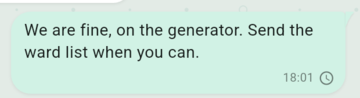
| “Queued” | one grey tick | In your outbox; no phone has it yet. It is offered to every phone that appears. |
| “Stuck” | one amber tick and a row of buttons | Every radio was tried for eight seconds and nothing came back. The bubble offers to hand it over by hand; see Hand-carrying. |
| “Riding” | one purple tick | Another phone took custody and is carrying it, sealed. The tooltip says “Riding with 2 phones”. Chen cannot read it. |
| “Delivered” | two ticks | Their phone has it. A receipt came back, itself sealed. |
| “Read” | two coloured ticks | They opened it. Off if they switched read receipts off in Chat settings; groups always send them. |
Tap any bubble for its details trailer: “direct” or “3 hops”, “via Bluetooth”, and “Sent 19:52:07” or “Received …” to the second.
Deliver when they are…
From ⋮ → More… → Deliver when they are…, the chat holds a message until the other phone proves a closeness: now (“as soon as any path exists”), same network (“on the same Wi-Fi or hotspot”), same area (“in radio range”), same room (“after a sound handshake”), same table (“after an NFC tap or a scan”). A banner reads “Delivering when they are same room” with Send now; a held bubble reads “waiting until they are same room”. Built, not yet on a phone
Let them sense me
Presence is a grant you give per person, not a setting. Let them sense me… asks “Let Amina sense me when we are…”: same network, same area, same room, or same table. From then on that person's phone can tell when you are within that closeness and no closer; “Amina can now sense you at same room or closer”. Stop sharing presence withdraws it. Everyone else sees only a token that changes every fifteen minutes and means nothing without the secret you gave. Verified on phones
The person sheet shows both directions: “They sense you: same room” or “They cannot sense you”, and “You sense them: …” or “You cannot sense them”.
Writing messages
The composer
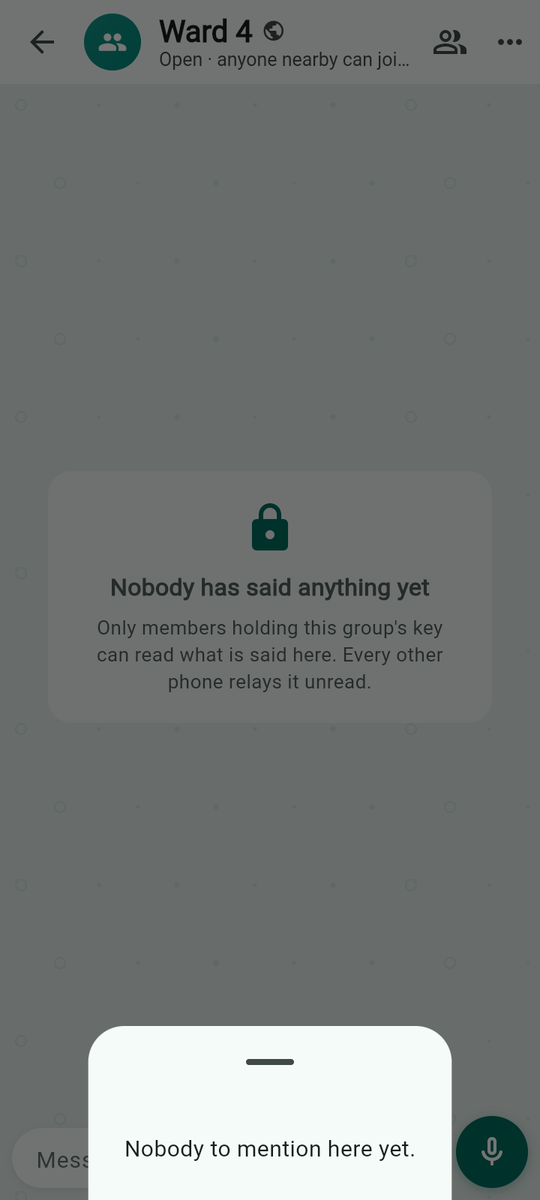
The bar at the bottom has the text field (up to 4,000 characters, five lines before it scrolls), the @ button (“Mention someone”), the paperclip (“Send a file”) and the round button. The round button is a microphone while the field is empty: “Hold to record a voice note”, then “Recording… release to send”. It becomes Send once you type. A reply strip above the field shows who you are answering, with Cancel reply.
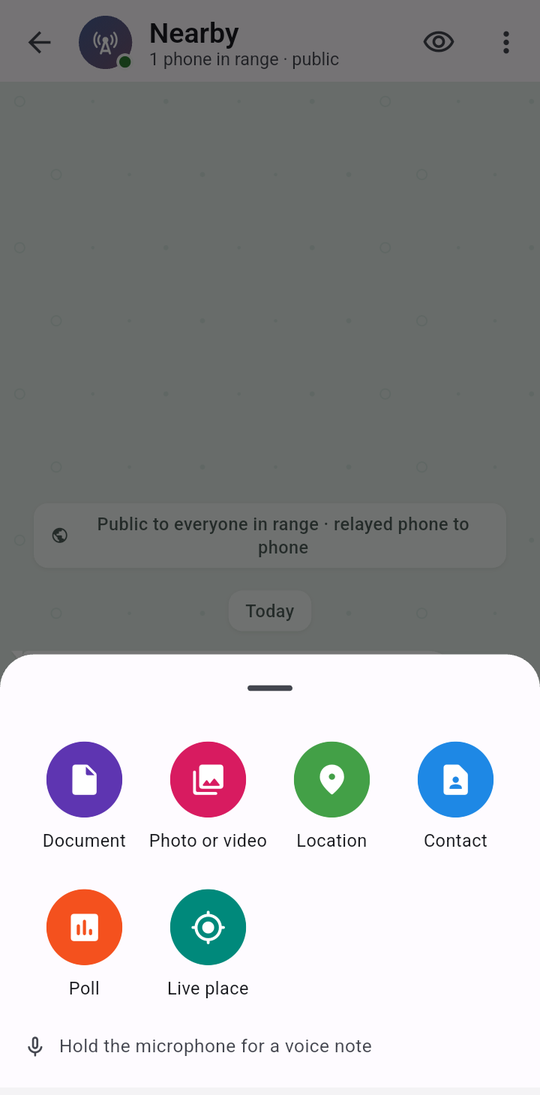
The paperclip opens six choices: Document, Photo or video, Location, Contact, Poll, Live place, and the reminder “Hold the microphone for a voice note”. Voice notes need the microphone (“Microphone permission is needed for voice notes”); a four-second note is about 20 KB. Location asks for the location permission at that moment and says “Location is off or was refused; nothing sent” if it cannot.
In a group, @ lists the members; a mention is bold in the bubble and the mentioned person gets a notification on its own channel. Typing sends a hint to the other phone every three seconds while it is within one radio hop, never further; the other phone's header shows it. Switch it off in Chat settings.
Polls
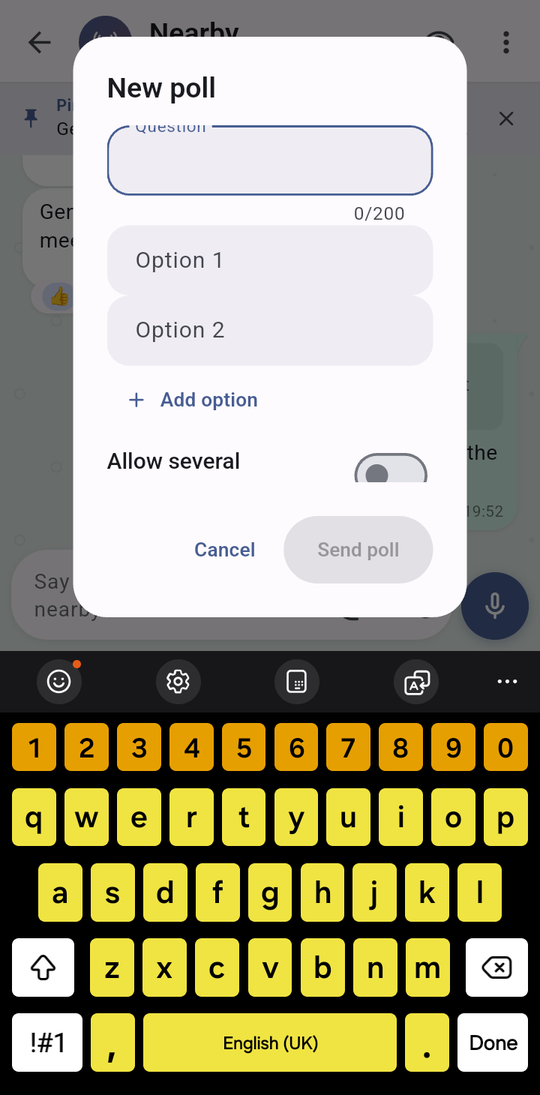
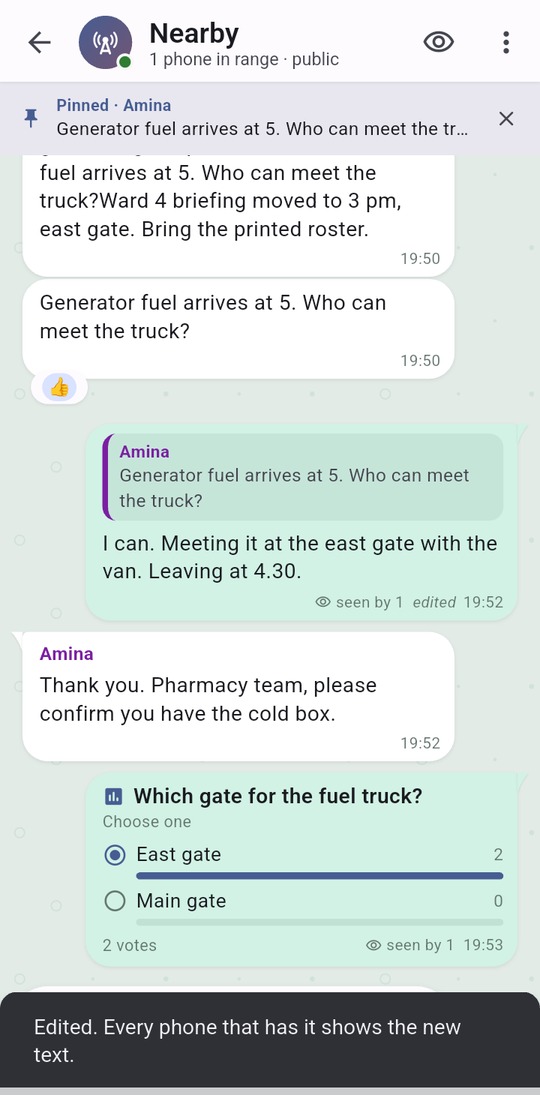
Poll asks for a Question (200 characters), two to twelve options (Add option), and Allow several answers. Send poll refuses an empty question (“Type the question first”) or a single option (“Pick one option”). The bubble reads “Choose one” or “Choose one or more”, shows a bar and count per option and “N votes”. Tap an option to vote; tap again to withdraw; in a single-choice poll a new vote replaces the old. Each phone counts the signed votes itself; there is no tally server. Partly verified
Location and live place
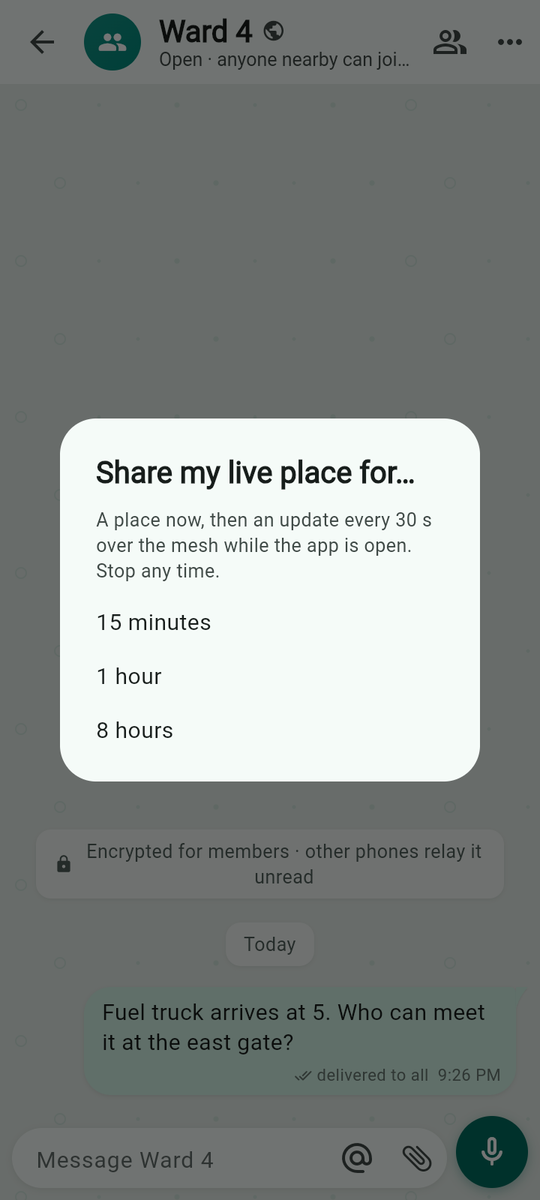
Location sends where you are once, as a pin: “lat, lon · tap to open in maps”. Live place keeps it updating: “A place now, then an update every 30 s over the mesh while the app is open. Stop any time.” for 15 minutes, 1 hour or 8 hours. A bar above the composer reads “Sharing your live place · 42 min left” with Stop; the bubble on the other side reads “Live place” and later “Live place · ended”. Built, not yet on a phone
Sending a contact
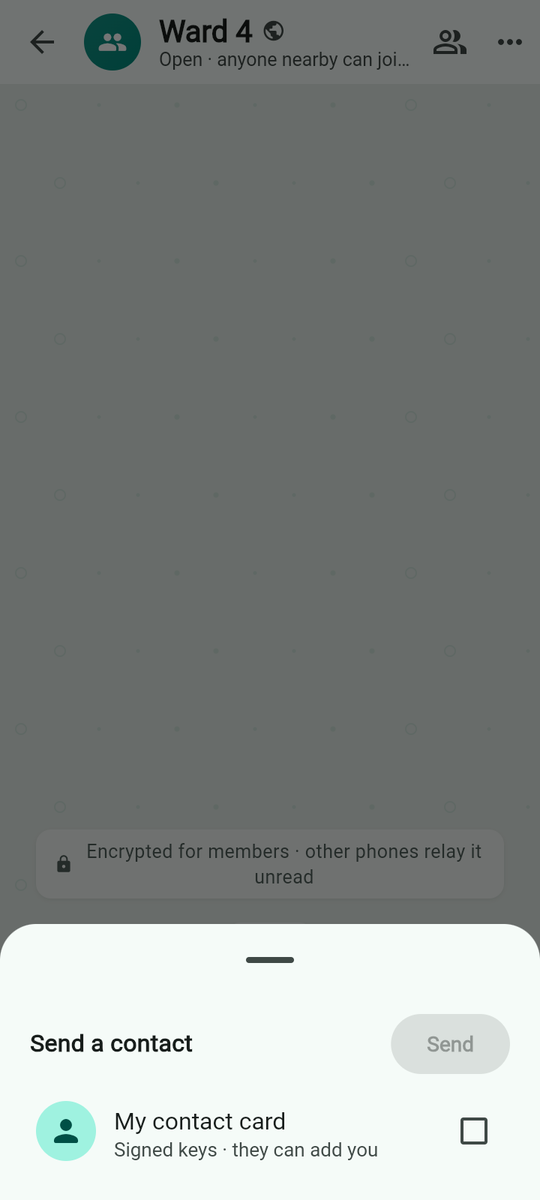
Contact opens Send a contact. My contact card — “Signed keys · they can add you” — is the same code as My code. Below it, each of your contacts can be introduced: “Introduce · signed by Amina” if you verified them, “Introduce · unverified, signed by Amina” if not, or “No card kept · ask them to share their code again”. The recipient sees a card with Add.
What you can do with a message
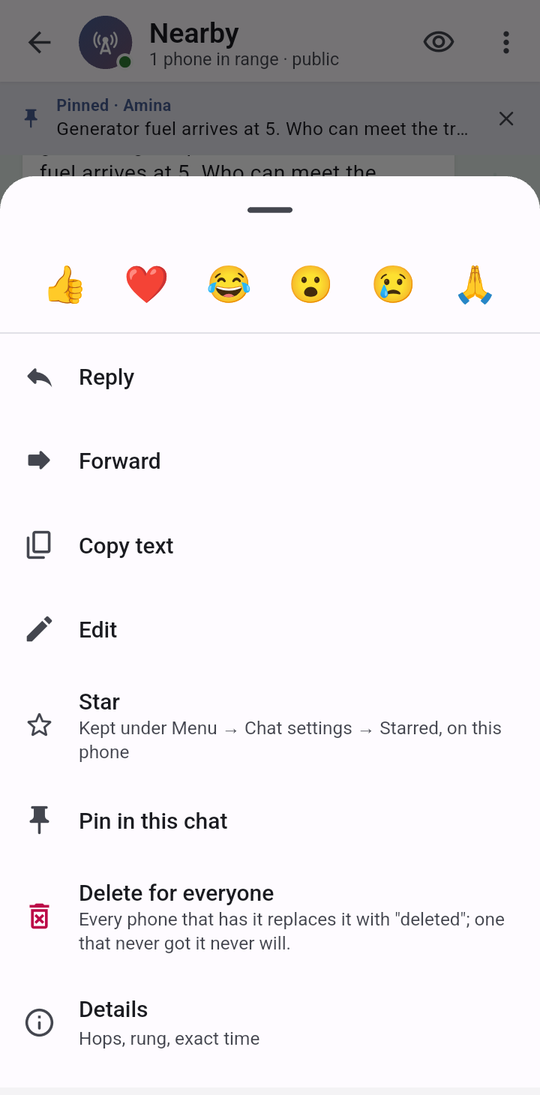
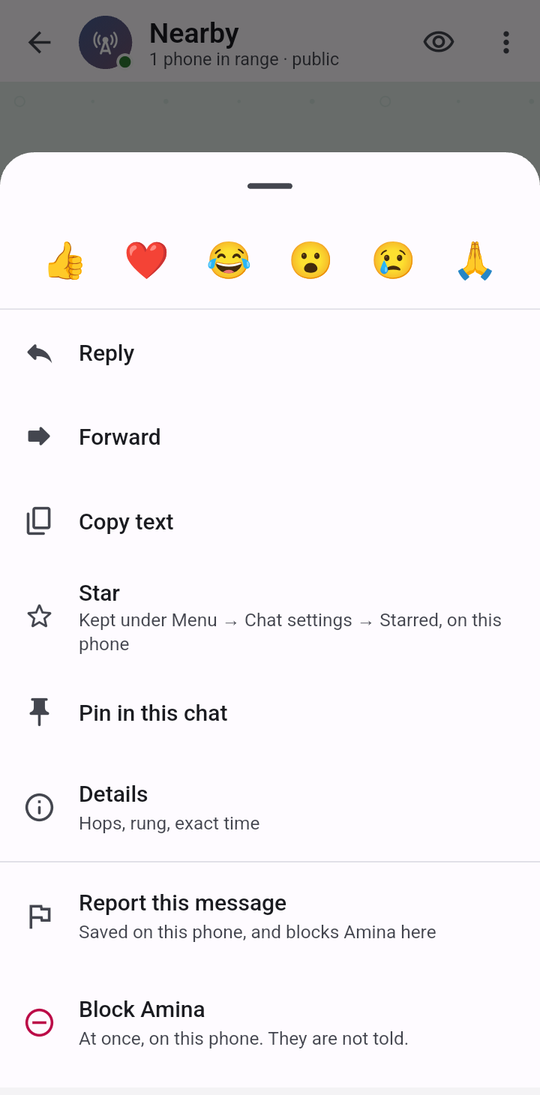
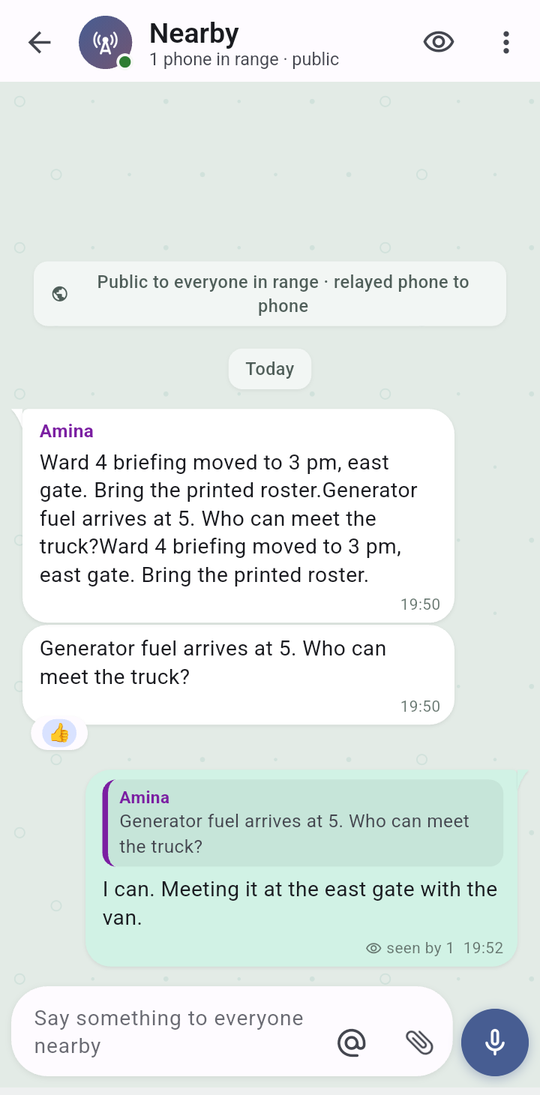
Hold any bubble. The sheet starts with six quick reactions: 👍 ❤️ 😂 😮 😢 🙏. Tap one to react; tap your own reaction again to withdraw it. Reactions pile up under the bubble; tapping the pile lists who reacted (“Nobody yet” when empty). Under the reactions is one row of four big buttons, Reply, Forward, Copy text and Star, for the things people do most. The rest is a list below. Report this message and Block Amina are always in that list for someone else's message. All of them:
| Action | What it does | Notes |
|---|---|---|
| Reply | Quotes the message above yours. The quote shows the author (or “You”), the text, or “Message” for media, or “Not on this phone” if the original never arrived here. | Verified on phones |
| Forward | Opens Forward to: the Nearby room, groups you can post in, and contacts; Send (2). The copy is marked “Forwarded”. “Forwarded to 2 chats”. | A file must be downloaded first: “Download the file first, then forward it”. Built, not yet on a phone |
| Copy text | “Copied” | |
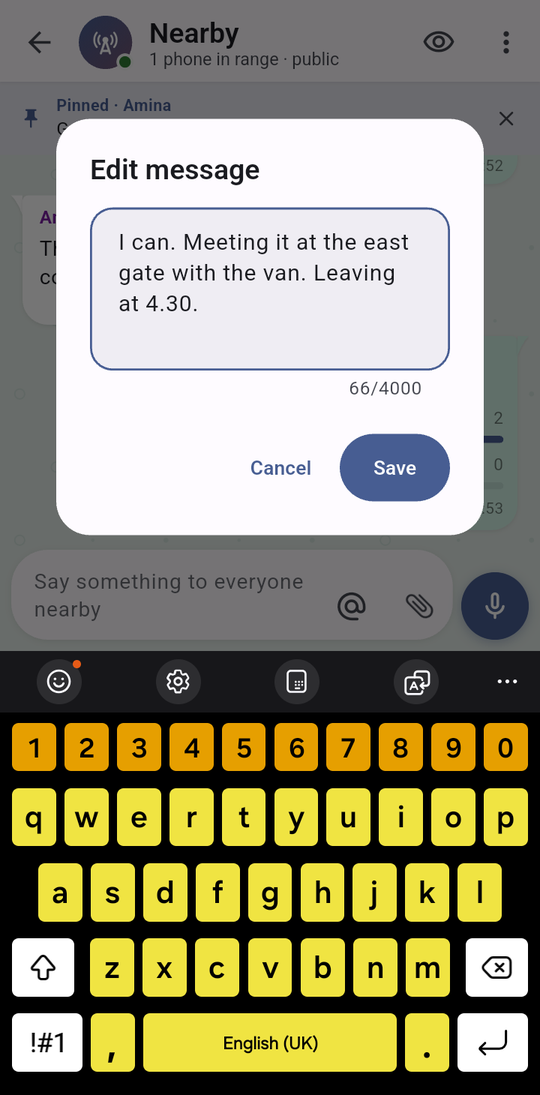
| Edit | Your own text only. Edit message with the hint New text, then Save: “Edited. Every phone that has it shows the new text.” The bubble is marked “edited”. | “Only your own messages can be edited”, “Only text can be edited”, “Type the new text first”. Partly verified |
| Star / Unstar | “Kept under Menu → Settings → Chat settings → Starred, on this phone” | Local only; nothing is sent. The list is now at Menu → Settings → Chat settings → Starred messages. |
| Pin in this chat / Unpin | A bar at the top of the chat: “Pinned · Amina — Generator fuel arrives at 5…”, with an unpin cross. | Partly verified |
| Delete for everyone | “Every phone that has it replaces it with “deleted”; one that never got it never will.” | Shows as “You deleted this message” / “This message was deleted”. Built, not yet on a phone |
| Add contact | On a contact card. | |
| Details / Hide details | “Hops, rung, exact time” | |
| Report this message | On others' messages: “Saved on this phone, and blocks Amina here”. Opens the report screen. | |
| Block Amina | “At once, on this phone. They are not told.” → “Amina is blocked on this phone. Undo it under Menu → Settings → Safety.” | Undo is now at Menu → Settings → Safety → Blocked people. |
Other things a bubble can show: “Forwarded” above a forwarded message; “Hidden by your abuse filter · tap to show” when the filter folded it; a date chip (“Today”, “Yesterday”, a weekday, “12 March”); and for group messages you sent, the per-member summary described under group chats.
Files, photos, video and voice in a chat
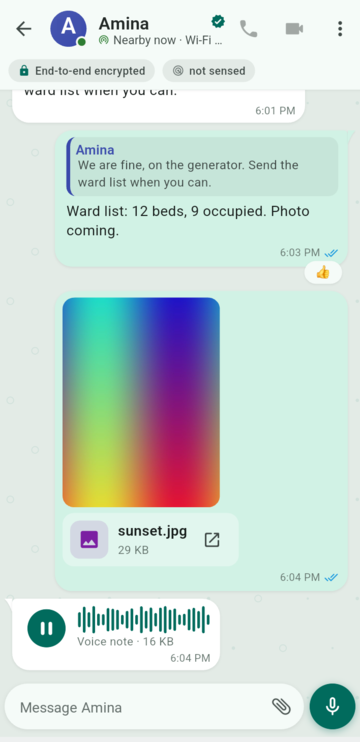
A file bubble tells you exactly where the file is: “sending…”, “receiving…”, “downloading… 44%”, “Waiting for the file”, “2.1 MB · tap to open”, “1.3 MB · tap to play”, or a hold line such as “Tap to download”, “From someone not in your contacts · tap to download”, “Too large to download automatically”. A half-arrived photo or video never opens: the bubble waits for the last chunk before it draws anything. Open with another app hands a file to the phone.
Voice notes and any audio file play in the bubble: a waveform that fills as it plays, a clock, pause and resume, and tap-to-seek on the waveform. Photos open in the viewer with pinch-zoom up to 6×; videos play with scrub and replay, and a video the phone cannot decode says “This build cannot show the file itself.” with Open with another app.
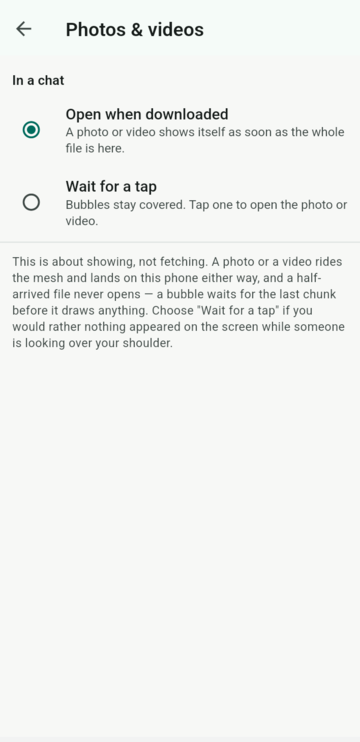
Menu → Settings → Photos & videos decides showing, not fetching: Open when downloaded (“A photo or video shows itself as soon as the whole file is here.”) or Wait for a tap (“Bubbles stay covered. Tap one to open the photo or video.”) for when someone is looking over your shoulder. The same screen has Match my wallpaper (Android 12 and newer take the colours the phone picked from your wallpaper; off keeps Yap teal) and Link previews, off by default because fetching a preview tells that website your phone looked.
Chat tools: search, media, mute, auto-delete, pin, export
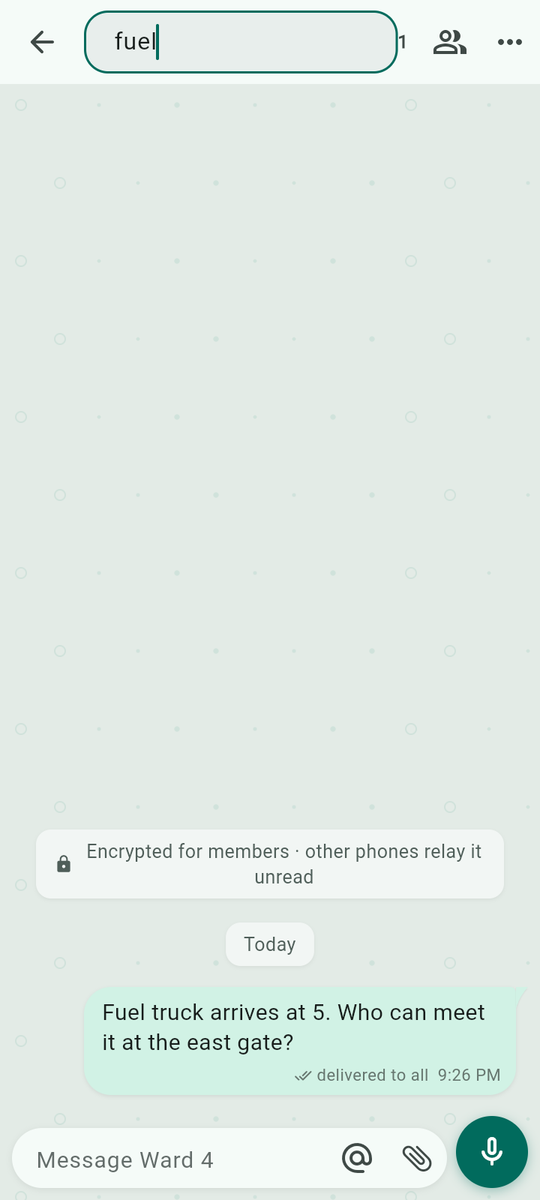

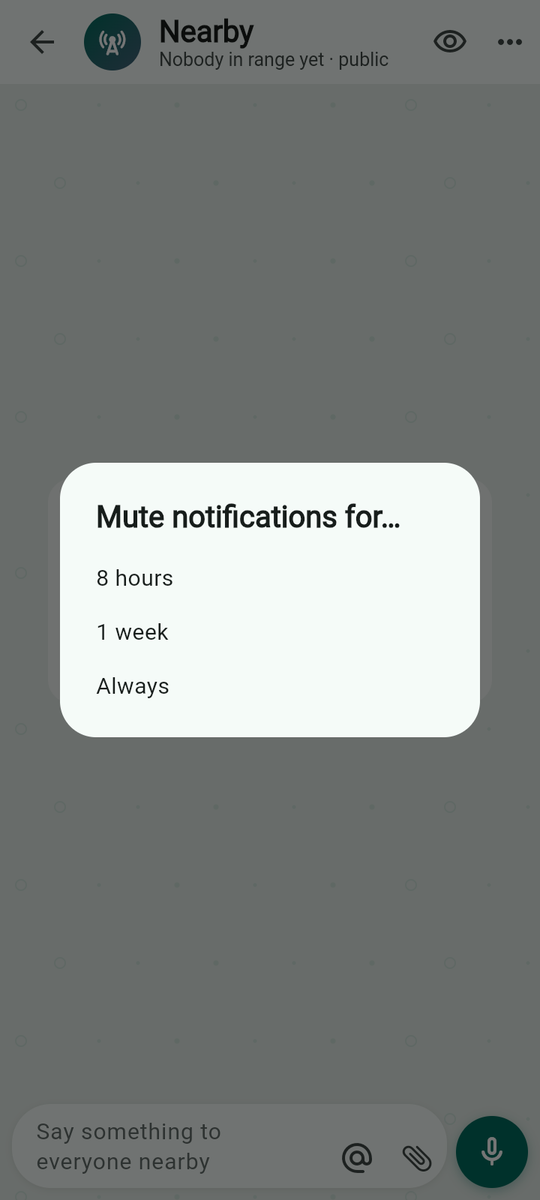
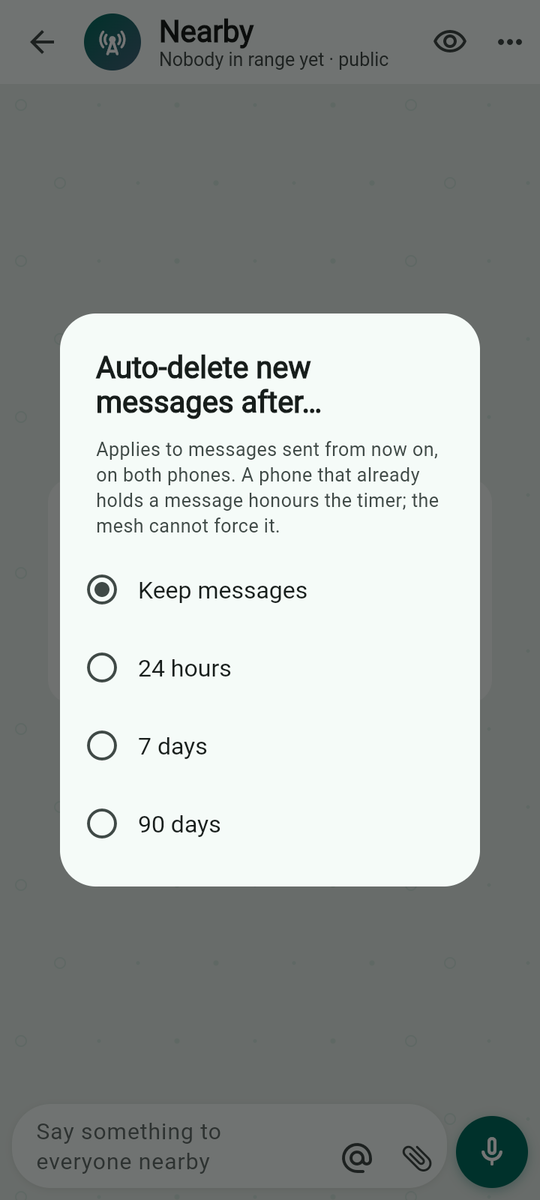
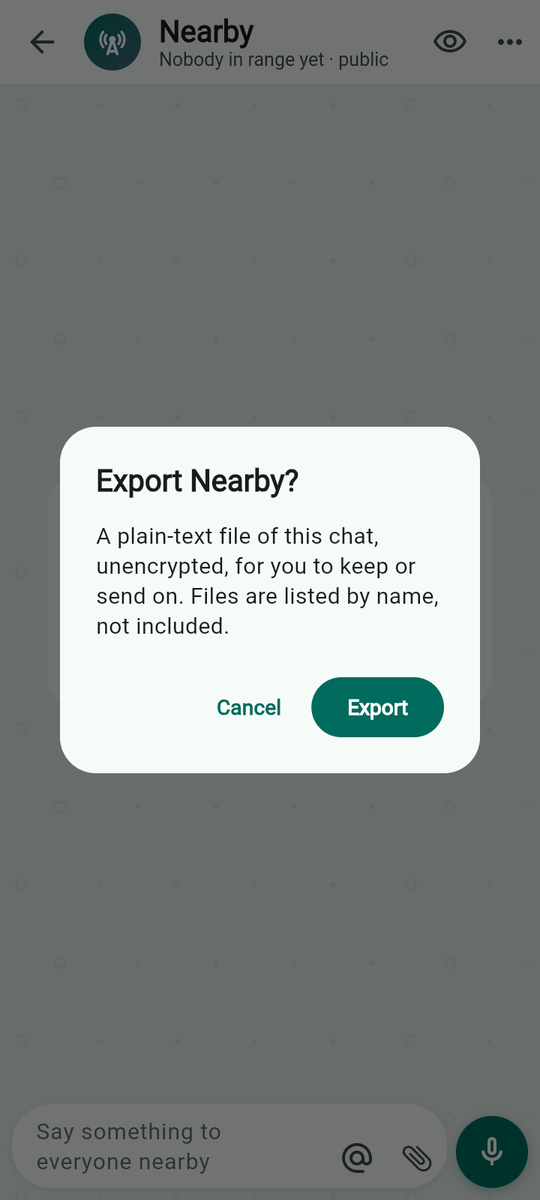
Every chat's ⋮ shows five items, the ones people use most, always in the same place. Everything else is one tap deeper under More…, in a sheet from the bottom. In a private chat the five are Block, allow or remove…, Search, Media & files, Mute notifications…, Auto-delete…; in a group Group info, Search, Media & files, Mute notifications…, Invite someone; in Nearby Search, Media & files, Share a file with everyone, Mute notifications…, SOS alerts. The tools:
| Item | What it does |
|---|---|
| Search | The title becomes a field, “Search this chat”, with a match count. “Nothing matches — Try another word.” |
| Media & files | A list titled “Media · Nearby”: every photo, file and voice note of that chat with who sent it, when, its size and “not on this phone” if it was never fetched. “No photos, files or voice notes here yet.” |
| Mute notifications… | 8 hours, 1 week or Always: “Muted for 8 hours. The badge still counts.” The row shows a bell-off icon; Unmute notifications says “Notifications are back on”. |
| Auto-delete… | Keep messages, 24 hours, 7 days, 90 days. “Applies to messages sent from now on, on both phones. A phone that already holds a message honours the timer; the mesh cannot force it.” |
| Pin chat / Unpin chat | Keeps the chat at the top of the Chats tab. |
| Export chat… | “A plain-text file of this chat, unencrypted, for you to keep or send on. Files are listed by name, not included.” Then Android's share sheet. “Could not export: …” on failure. |
| Read this chat aloud / Stop reading this chat aloud | Under More…. New messages in this chat are spoken by the phone's own voice. See listening. Built, not yet on a phone |
Mute, auto-delete, typing hints, read-receipt switches, star, pin, forward, search, media lists, export and send-to-many are Built, not yet on a phone; edit, pin, reply, react and polls were exercised between a phone and a browser node on 11 September 2026.
Groups
Making a group
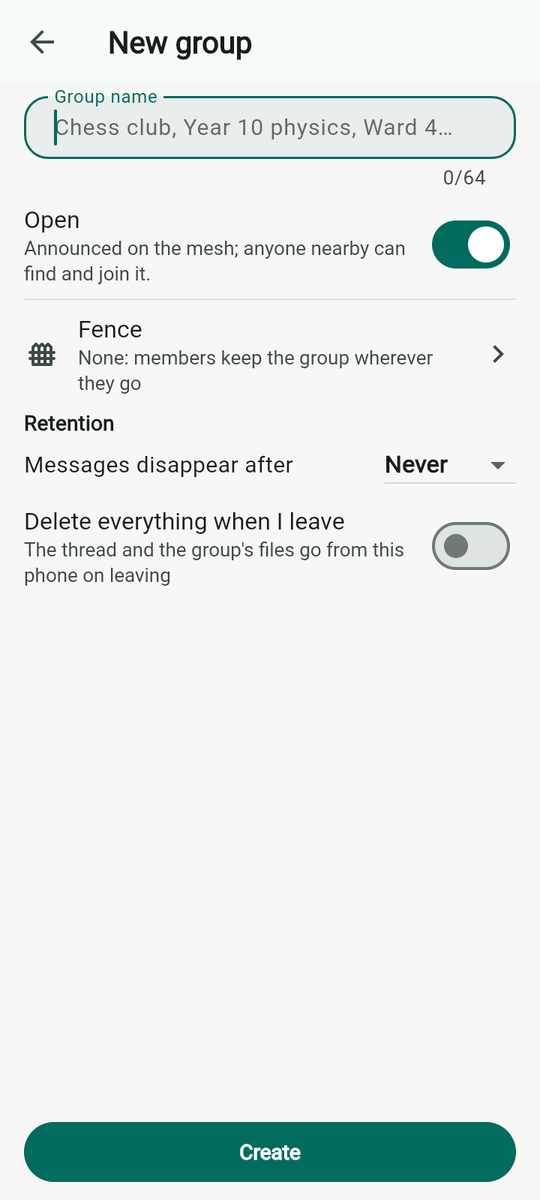
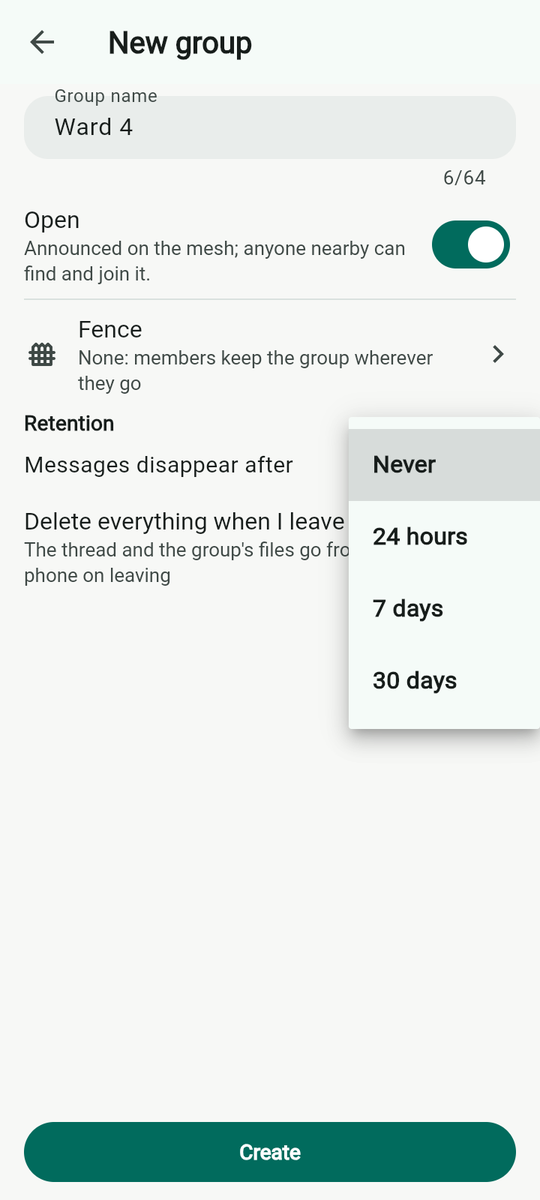
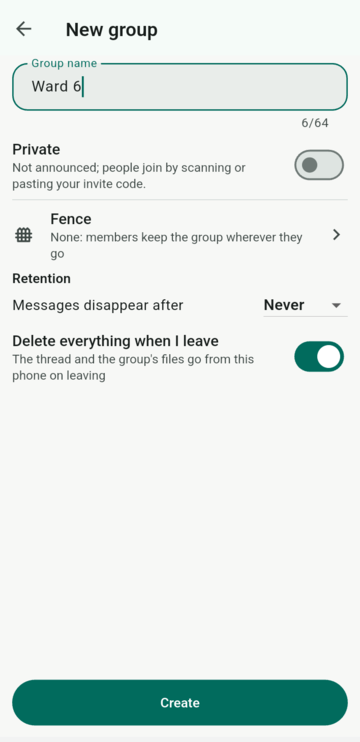
Menu → New group or New chat → New group. Give it a Group name (“Chess club, Year 10 physics, Ward 4…”, up to 64 characters). Then:
- Open (default on): “Announced on the mesh; anyone nearby can find and join it.” Off makes it Private: “Not announced; people join by scanning or pasting your invite code.” A fenced group is always Private (fenced): “A fenced group is never announced; people join by invite and keep the key only inside.”
- Fence: “None: members keep the group wherever they go” until you choose one; see Fences.
- Retention — Messages disappear after Never, 24 hours, 7 days or 30 days, enforced on every member's phone; and Delete everything when I leave: “The thread and the group's files go from this phone on leaving”.
Create says “Created Ward 4. Phones nearby can now find it.”, “Created Ward 4. Share its invite code to let people in.” or, fenced, “Created Ward 4, fenced to …. Share its invite code to let people in.”. An empty name: “Give the group a name”.
Who is in a group is a signed record on every member's phone, not a server's opinion. Keys rotate when someone leaves or is removed; every sender has its own key chain per epoch, so a message read later never unlocks the ones before it. Verified on phones for open and private groups on three phones; fences Built, not yet on a phone.
Joining, inviting, members
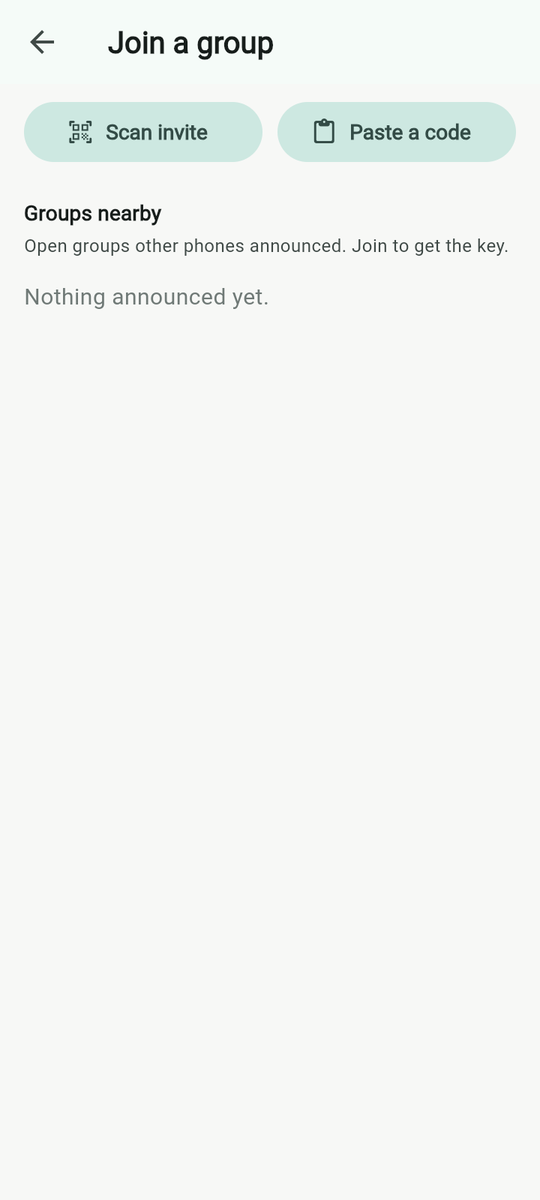
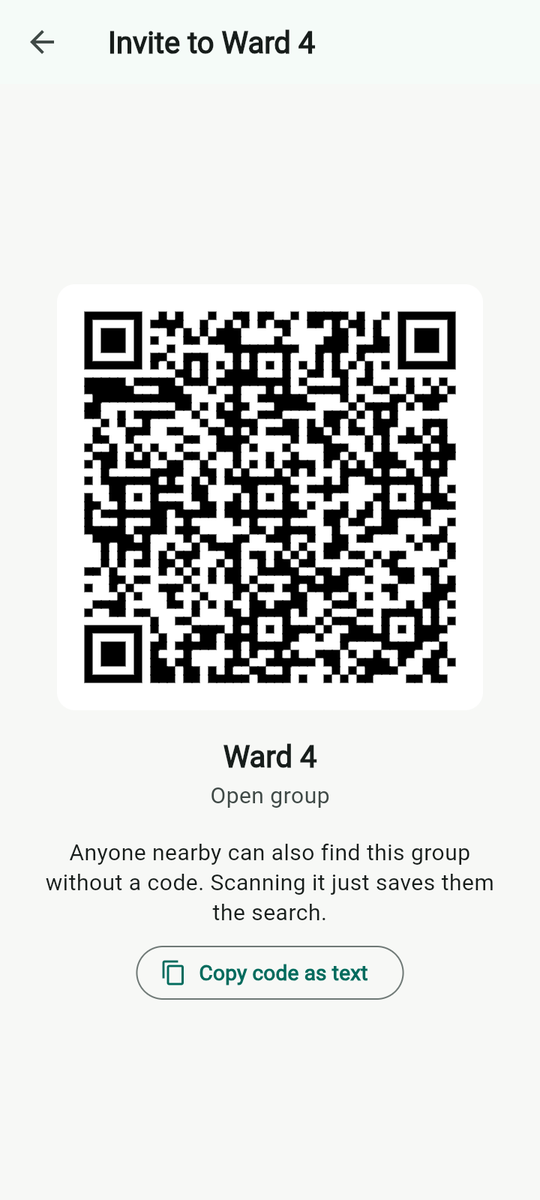
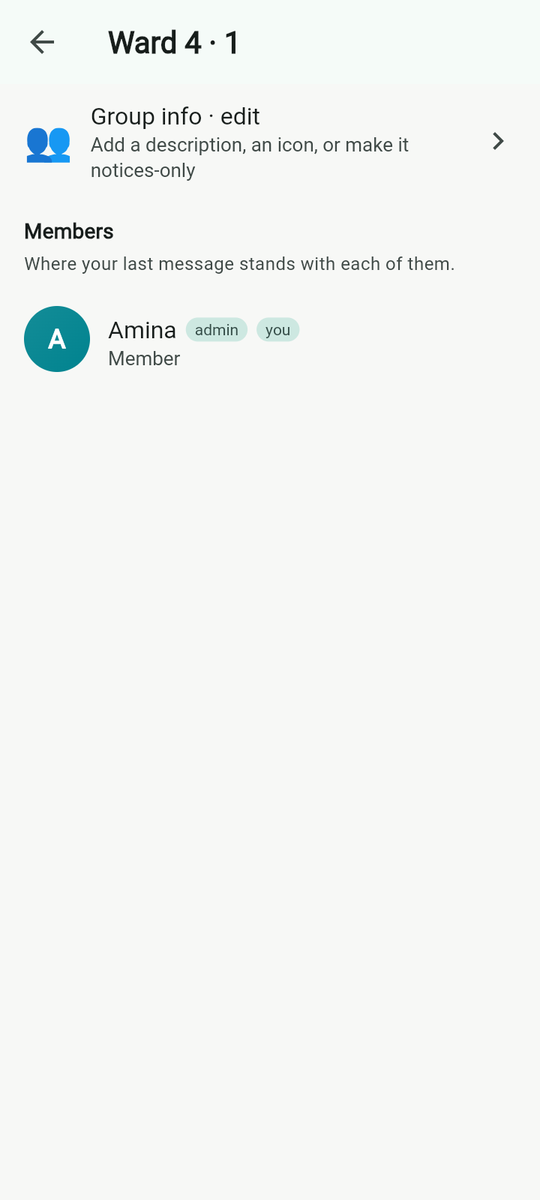
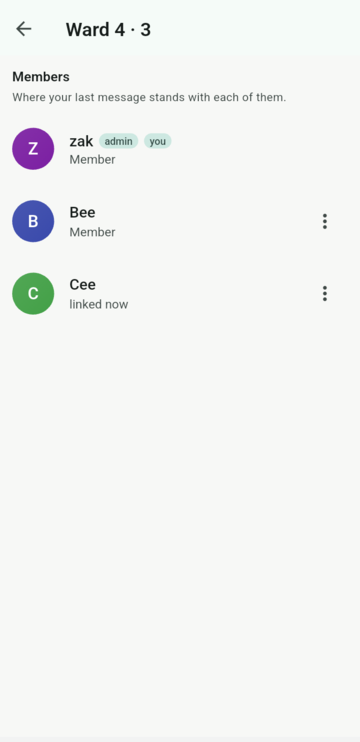
Join a group offers Scan invite (“Point at the group's invite code”), Paste a group code (“yapg1:… or the 24-letter code”) and Groups nearby: “Open groups other phones announced. Join to get the key.” Success is “Joined Ward 4”.
Invite someone (chat menu or group actions) shows the invite as a QR with Copy code as text. An open group's code “Anyone nearby can also find this group without a code. Scanning it just saves them the search.”; a private group's code “is the only way in. It carries the group key: anyone who has it can read the group.”
A code you can say. An open group's invite screen also shows Code to write on the board or read out: 24 letters and digits in six groups of four, such as “K7M2-9QXA-…”, with no I, L, O or U so nothing is misheard. “Anyone near a member types it in Join a group, then Paste a group code. It names this group; it is not a password.” It is for a teacher's board or a loudspeaker, where a QR is no use. It works only within reach of a member, because the phone matches it against the groups it hears announced. A private group has no spoken code. Built, not yet on a phone
Members (the people icon in the chat) lists everyone with tags “admin”, “anchor”, “you” and “Where your last message stands with each of them”: “linked now”, “last message: read”, “Left”. In a fenced group a newcomer waits “At the door: tap their phone, chirp, or scan their code to let them in” until a member taps Admit: “Let Bilal in? Only after you tapped phones (NFC), chirped, or scanned their code in person. That is the proof they are inside.” → “Bilal is in; the key is on its way”. The admin can Remove from group: “The key rotates; they cannot read what is said from now on, and cannot re-join with the old invite.” → “Bilal removed; key rotated”.
Group info: icon, description, notices only
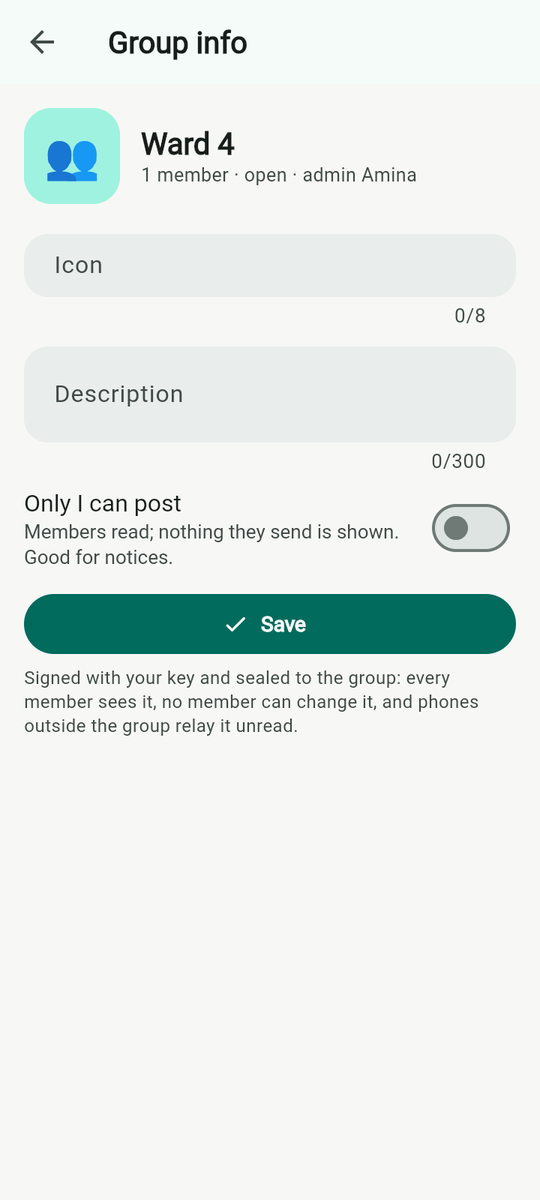
Tap the group's title, or Group info · edit. The admin can set an Icon (“An emoji, like 🎻”), a Description (“What this group is for”, 300 characters) and Only I can post — “Members read; nothing they send is shown. Good for notices.” Save says “Saved and sent to every member”. “Signed with your key and sealed to the group: every member sees it, no member can change it, and phones outside the group relay it unread.” Members see “Only the admin posts here. You can read.” or “Every member can post.”, and “Only the admin can change this.”. In a notices-only group a member's phone refuses to send and every holder drops a non-admin message. Built, not yet on a phone
Inside a group chat
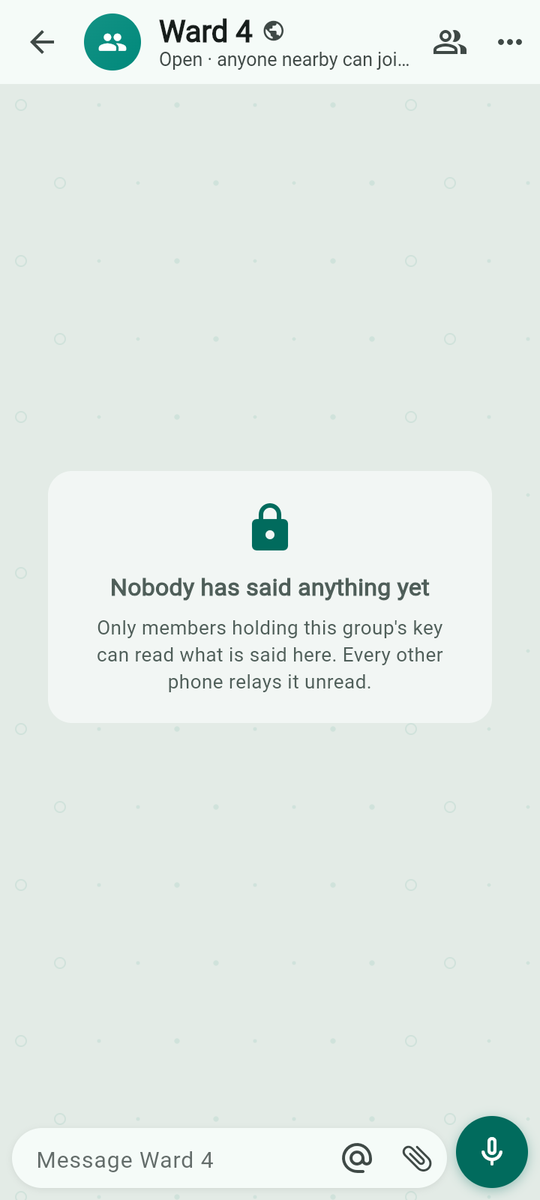
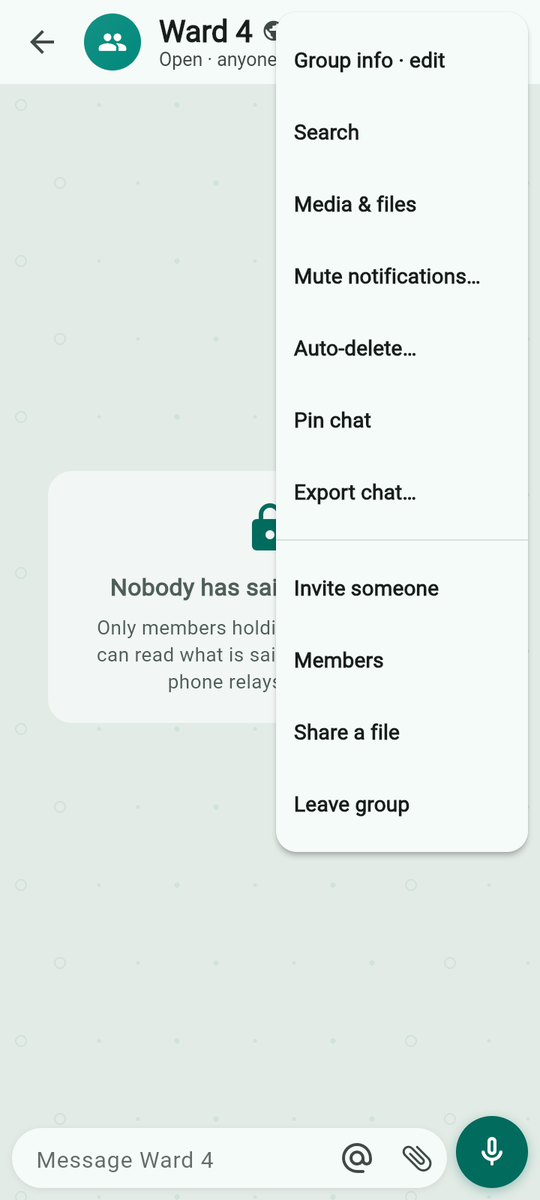
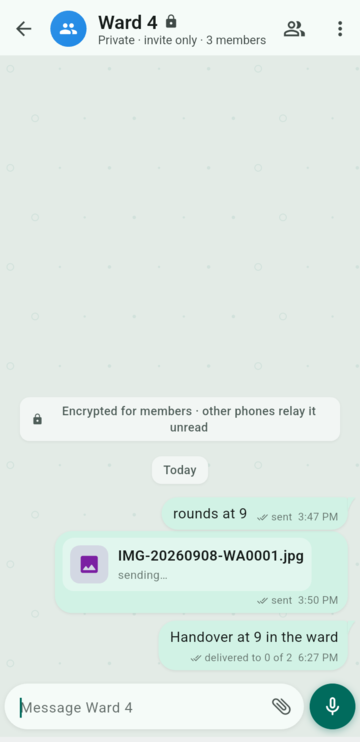
The header shows the icon, name and “Open · anyone nearby can join · 3 members” or “Private · invite only · …”, the description if one is set, or the fence label, and a fence chip. The menu adds Group info, Invite someone, Members, Fence (fenced only), Share a file and Leave group to the usual chat tools.
Your own messages carry a per-member summary: “delivered to 3 of 5 · read by 2 · riding for 1”, settling to “delivered to all” and “read by all”; “nobody else in the group yet” while you are alone. A phone that hides receives but does not count. Verified on phones
Bars that can appear above the thread: “Amina at the door: tap phones, chirp or scan to let them in”; the pinned message; “No key yet. A member sends it after your join.” (the thread reads “Waiting for the key — A member will send this phone the key once your join reaches them. Until then nothing here can be read.”); “Only the admin posts here. You can read.”; “You are hidden. Show yourself to post.” with Show me; and the fence re-entry bar described below.
Leave group asks “Leave Ward 4? Its messages will be deleted from this phone. You can rejoin with an invite code.” — Stay / Leave. The row then reads “You left this group”.
The group actions sheet
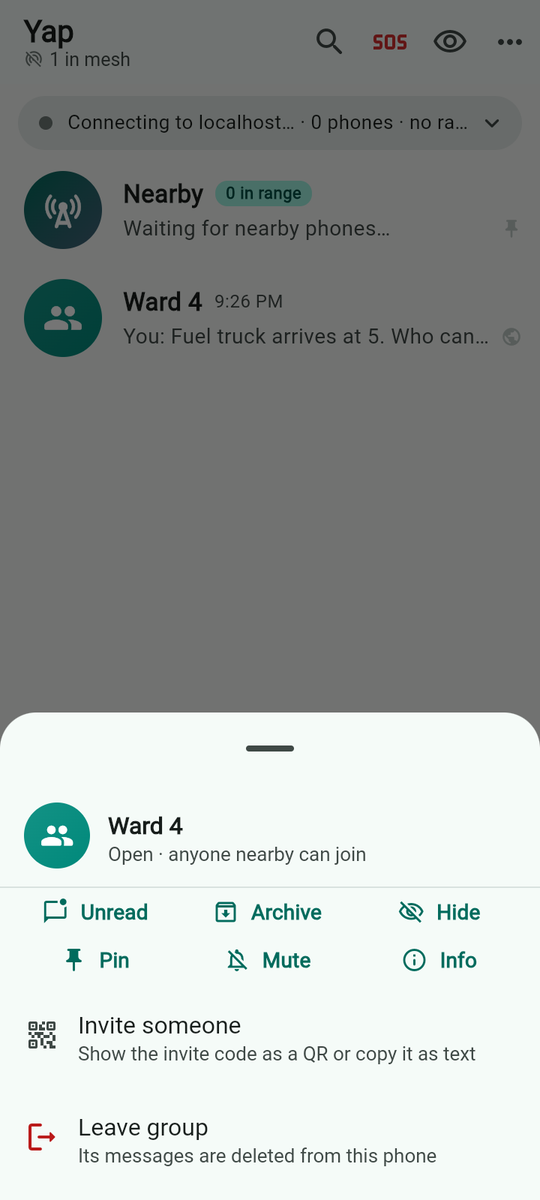
Hold a group in Chats: Unread/Read, Archive/Unarchive, Hide/Unhide, Pin/Unpin, Mute/Unmute, Info, then Invite someone (“Show the invite code as a QR or copy it as text”) and Leave group (“Its messages are deleted from this phone”). Unread, archive and hide are local marks; nothing is sent.
Fences: groups that exist only in a place
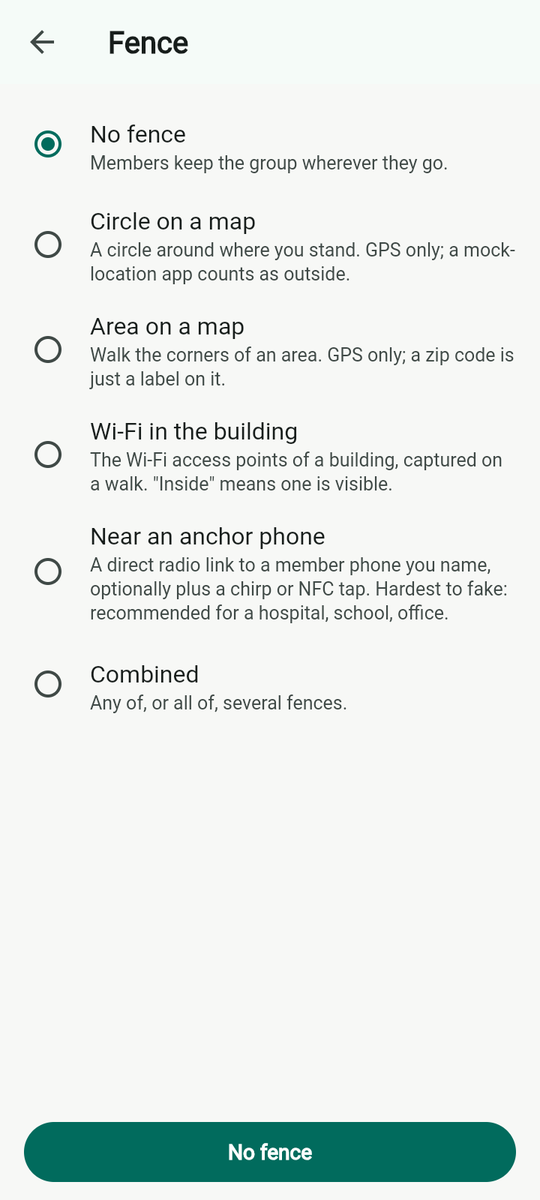
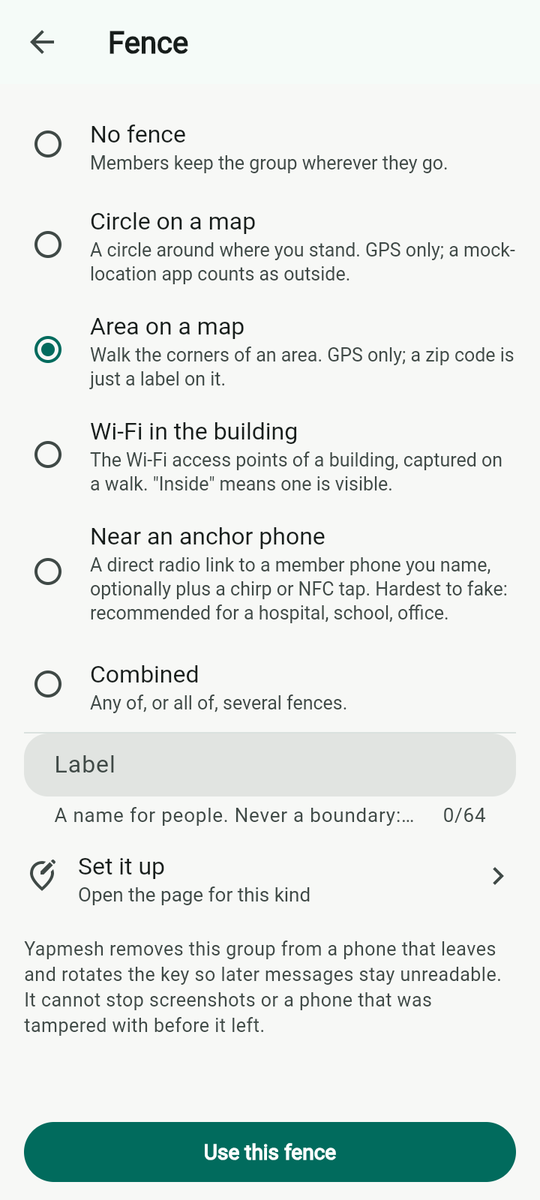
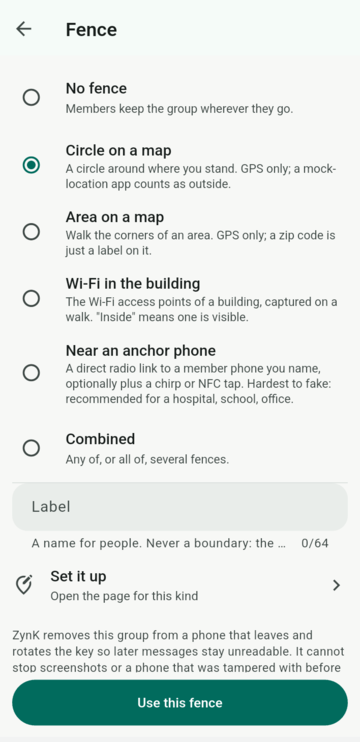
A fence ties a group to a place. A member's phone that leaves the place loses the key; the rest of the group rotates it, so what is said afterwards stays unreadable on the phone that left. Built, not yet on a phone: fences pass every automated test and have not yet been tried on a phone.
| Kind | The app's own description | Setting it up |
|---|---|---|
| No fence | “Members keep the group wherever they go.” | |
| Circle on a map | “A circle around where you stand. GPS only; a mock-location app counts as outside.” | “There is no map in this build. The circle is centred on where this phone is right now; pick how wide it is.” A grid with your dot, Radius: 250 m from 25 to 2,000 m, Read position again, Use this circle. “A phone counts as inside when its fix is within this radius; clearly beyond it is outside; a fix too fuzzy to tell is unknown, and unknown for longer than the grace period counts as outside.” |
| Area on a map | “Walk the corners of an area. GPS only; a zip code is just a label on it.” | Add a corner here at each corner, or tap the grid (“100 m per square, north up”); three or more corners make the shape. “Corner 3 added (±12 m)”; “That is a mock location; not added.”; Use this area. |
| Wi-Fi in the building | “The Wi-Fi access points of a building, captured on a walk. “Inside” means one is visible.” | Scan here in each part of the building: “4 new access points (6 in view)”. “No scan: Wi-Fi is off, or the location permission (which Android needs for a Wi-Fi scan) is missing.” Use these access points. |
| Near an anchor phone | “A direct radio link to a member phone you name, optionally plus a chirp or NFC tap. Hardest to fake: recommended for a hospital, school, office.” | Pick the phones that stay put (“the ward desk, the staff room”); anchors must be members. Inside means: A radio link to an anchor (“Radio range: the area, not the walls”), A link plus a chirp or NFC tap (“The same room: sound does not cross walls”), or An NFC tap with an anchor (“The same table, renewed every 5 minutes”). |
| Combined | “Any of, or all of, several fences.” | Inside any of them / Inside all of them, Add a fence. |
The Label (“Zip 75001, Ward 4, Lincoln High”) is “A name for people. Never a boundary: the phone has no postal maps.”
Rules set with the fence on the New group screen: When a phone leaves the fence — Lock (“Drop the keys, keep the sealed messages, show “you left””) or Wipe (“Also delete the thread and the group's files from that phone”); Coming back in — Automatic (“The phone re-joins by itself when it is inside again”) or Needs a proof (“An NFC tap, a chirp or a QR scan with a member who is inside”); Grace period of 2, 5 or 15 minutes or 1 hour; Replay on re-entry of Nothing, Last 6 hours, Last 24 hours or Last 3 days.
Living inside one. The chat header carries a chip: “Inside”, “Outside 04:31” (the grace period counting down), “Unknown”, “Checking”, “Locked out”. The phone sends a liveness beacon every half grace period. When the grace runs out outside, a tombstone appears: “You left Ward 4 — This phone was outside for more than 5 minutes. Its keys were dropped and the rest of the group rotated theirs; the sealed messages stay here, unreadable.” (or, with wipe, “Its keys, thread and files were deleted”). Back inside, either “Back inside? The phone re-joins by itself.” with Re-enter, or “To re-enter: tap a member's phone, chirp, or scan their code.” The Fence page in the chat menu shows all of this plus Try to re-enter now.
Files
The Files tab: the drop zone
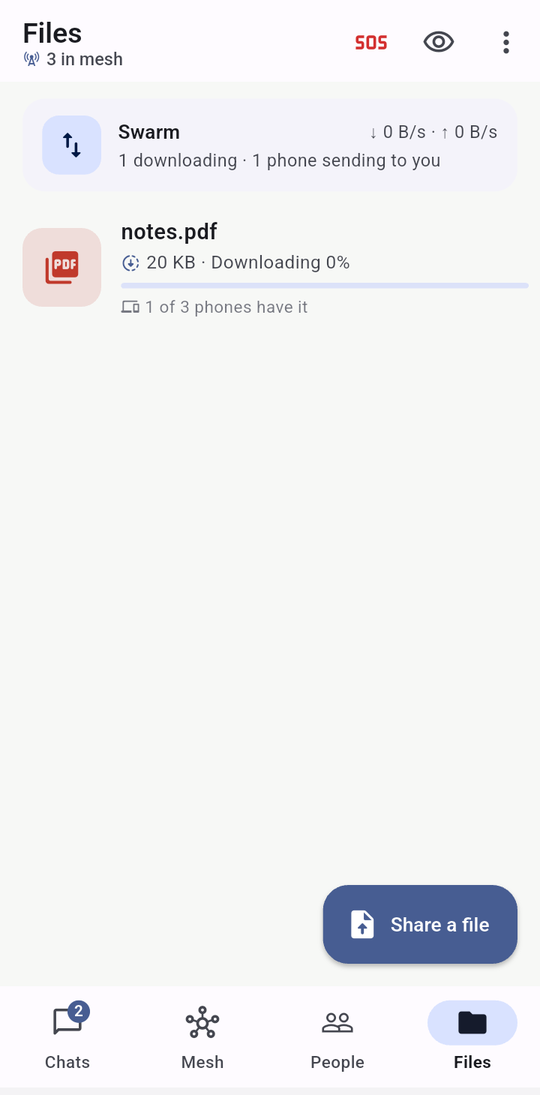
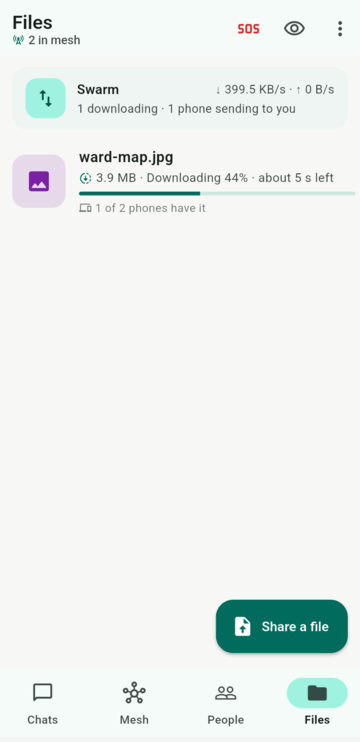
“Whatever is shared here reaches every phone in range and spreads phone to phone. No Wi-Fi, no internet, no account. Drop a file to start.” Share a file picks any file; “Dropped notes.pdf: every phone in range gets it”. A file is cut into 16 KiB chunks under a Merkle root that is its name; every phone that holds a piece serves it, rarest piece first, and each chunk is proven against the root before it is kept, so a bad chunk is dropped before it is stored. Verified on phones: 5 MB in 320 chunks, 0 rejected, over Bluetooth alone in 2 min 53 s.
The Swarm panel shows “↓ 399.5 KB/s · ↑ 0 B/s” and “1 downloading · 1 phone sending to you” or “Nothing downloading”. Each file row shows its size and state (“Downloading 44% · about 5 s left”, “On this phone”, “Tap to download”), “Offered by …”, and “2 of 3 phones have it”. Holding a file offers Open and Share the file another way (“Quick Share, Bluetooth, email, any app — for a phone that is not on the mesh”). Tapping a waiting file when nobody has it says “Nobody in reach has this file right now”. While hidden: “You are hidden. Tap Show me to share files.”
Sharing in from another app. When you share a photo or file into Yapmesh from the gallery or any other app, it asks where it goes: “Send holiday.jpg to”, with Files tab, for everyone nearby, the Nearby room, your groups and your contacts. Nothing is sent until you pick. Before October 2026 a shared-in file went to everyone nearby. Built, not yet on a phone
Files in a group are encrypted with the group's key before they are chunked, so a phone that relays every chunk holds a box it has no key for. Files in a private chat are sealed to the one recipient.
Files & downloads: what arrives by itself
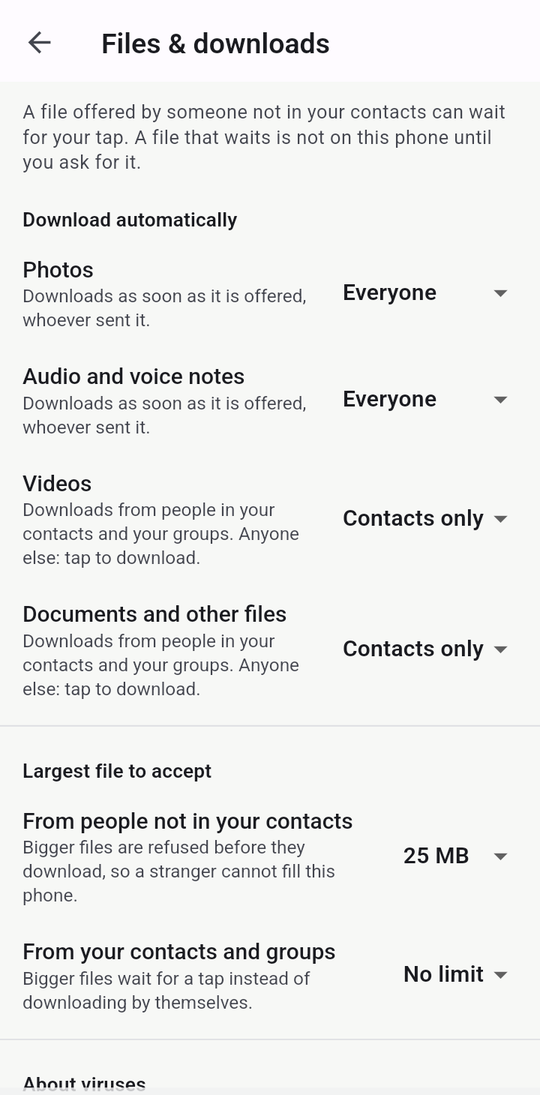
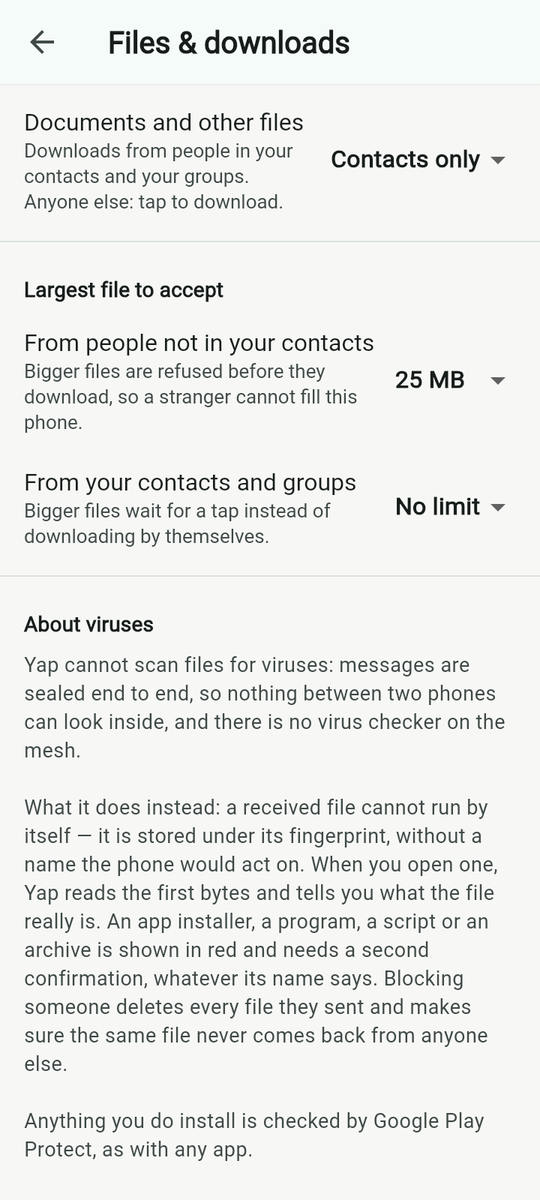
Menu → Settings → Files & downloads. “A file offered by someone not in your contacts can wait for your tap. A file that waits is not on this phone until you ask for it.” Built, not yet on a phone
| Kind | Default | Choices |
|---|---|---|
| Photos | Everyone | Everyone — “Downloads as soon as it is offered, whoever sent it.”; Contacts only — “Downloads from people in your contacts and your groups. Anyone else: tap to download.”; Never — “Always waits for a tap.” |
| Audio and voice notes | Everyone | the same three |
| Videos | Contacts only | the same three |
| Documents and other files | Contacts only | the same three |
| From people not in your contacts (largest file) | 25 MB | “Bigger files are refused before they download, so a stranger cannot fill this phone.” 5, 25, 100, 500 MB or No limit |
| From your contacts and groups (largest file) | No limit | “Bigger files wait for a tap instead of downloading by themselves.” |
What opens, and what is caught. “Yap cannot scan files for viruses: messages are sealed end to end, so nothing between two phones can look inside, and there is no virus checker on the mesh.” Instead a received file is stored under its fingerprint, without a name the phone would act on, and when you open one the app reads its first bytes. An app installer, a program, a script or an archive is shown in red and needs a second confirmation whatever its name says:
- “This file installs an app on your phone. An app can read your messages, your photos and your contacts.”
- “This file is a program. Opening it runs code on the device that opens it.”
- “This file is a script: a list of commands for the device to run.”
- “This is an archive. What is inside cannot be seen until it is opened, and it may hold a program.”
- “This file may not be what it says it is.”
- and, when the name lies: “It was sent with a name that says otherwise: “holiday.jpg” looks like a photo, but the bytes are an archive”; the bubble carries a red “Sent as photo, really archive”.
The dialog offers Delete file, Cancel, Open anyway: “Deleted setup.apk. It will not be downloaded again.” Blocking someone deletes every file they sent and makes sure the same file never comes back from anyone else.
SOS
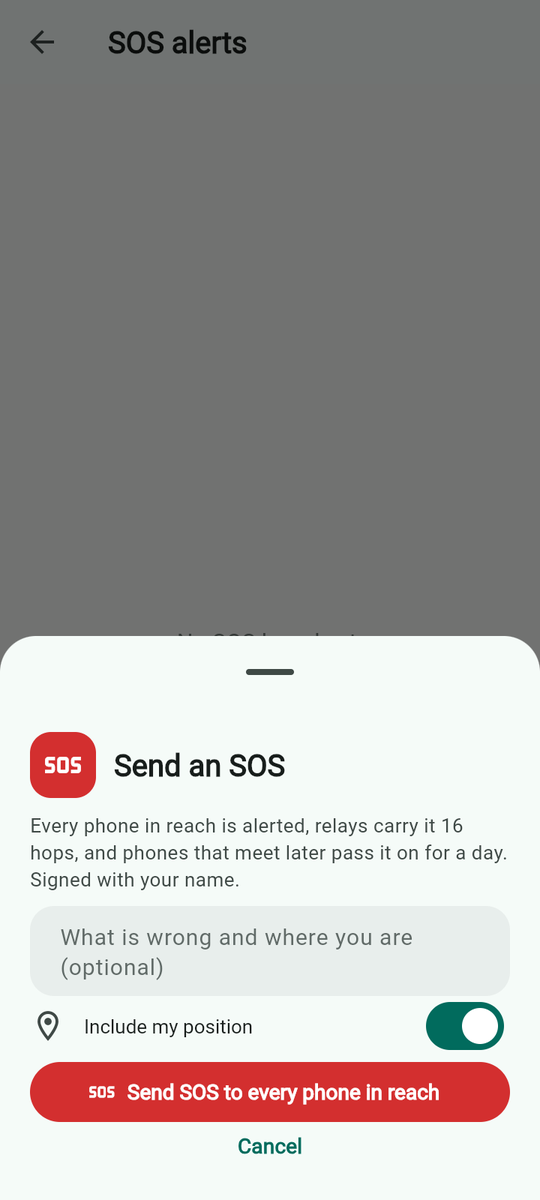
Long-press the red SOS in the app bar, or Menu → Settings → SOS alerts → Send SOS. “Every phone in reach is alerted, relays carry it 16 hops, and phones that meet later pass it on for a day. Signed with your name.” Add a line (“What is wrong and where you are (optional)”), keep or clear Include my position (on by default; it also sends your battery level), and tap Send SOS to every phone in reach. If location is refused: “SOS sent without a position: location is off or was refused”. Verified on phones on two phones on 7 September 2026.
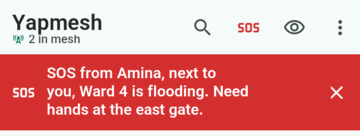
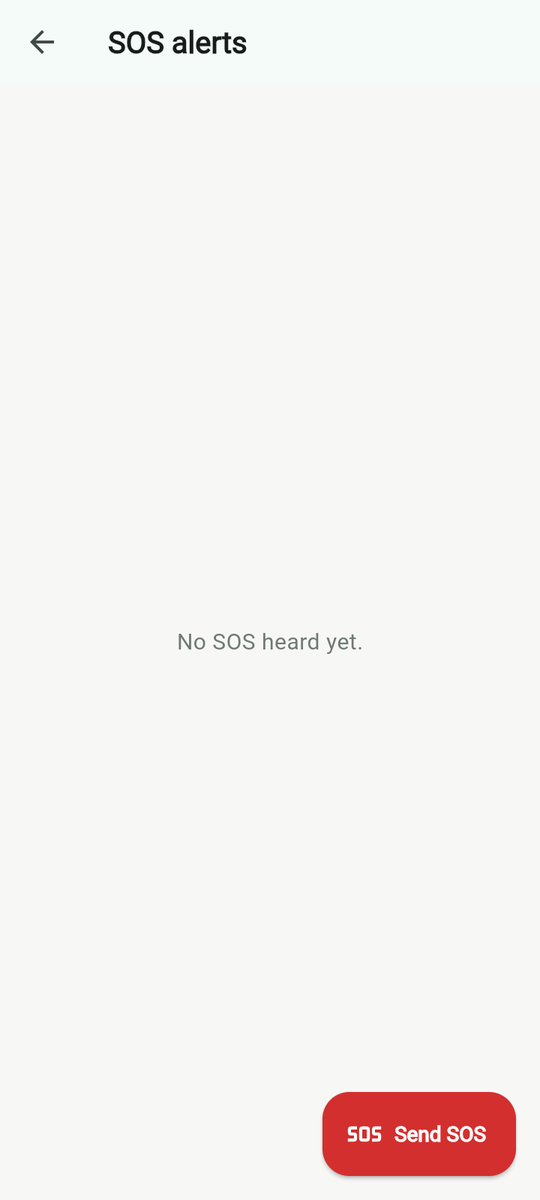
Every phone that receives one shows a red banner at once, before it even reads it: “SOS from Amina, next to you, Ward 4 is flooding, tap for details” or “… 3 hops away …”. Hidden phones alert too, and acknowledge, so the sender's count is honest. SOS alerts lists every SOS heard with its sender, time, “mine” for your own, “next to you” or “2 hops away”, “battery 62%” and the position. “No SOS heard yet.” otherwise.
Two switches sit at the top of SOS alerts. Two-tap SOS: “A tap on the SOS button opens the send sheet, for switch access and shaky hands. Holding the button still works.” And Quick wipe from SOS: “The SOS sheet gets "Hold to wipe this phone", with one more confirm. Everything in Yap is deleted and cannot come back.” With it on, the send sheet has a red Hold to wipe this phone button under Cancel. A tap only says “Hold the button to wipe. A tap does nothing.” A hold closes the sheet and asks the same question as Delete everything. It is off by default. Built, not yet on a phone
The Mesh tab
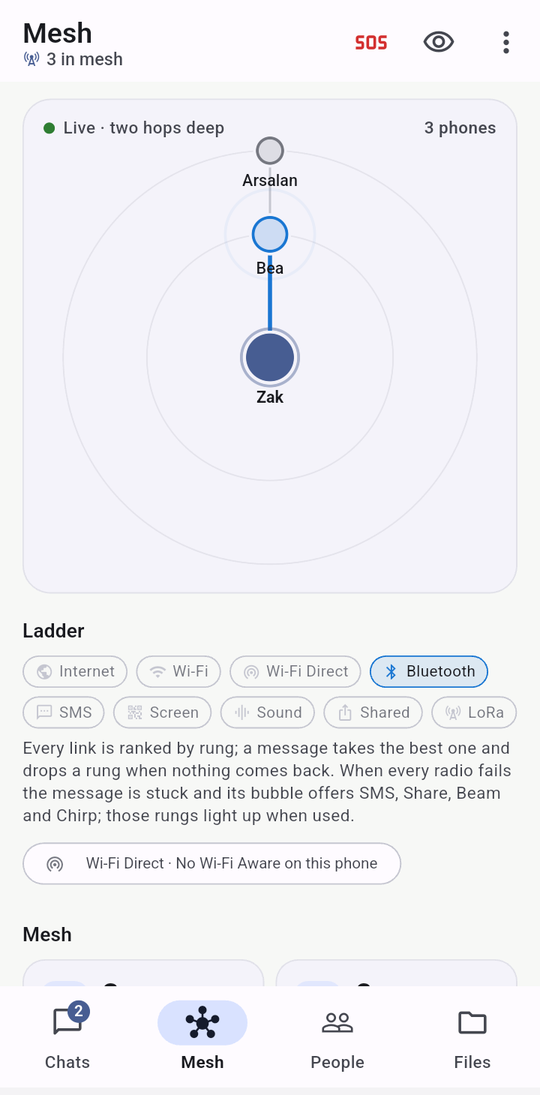
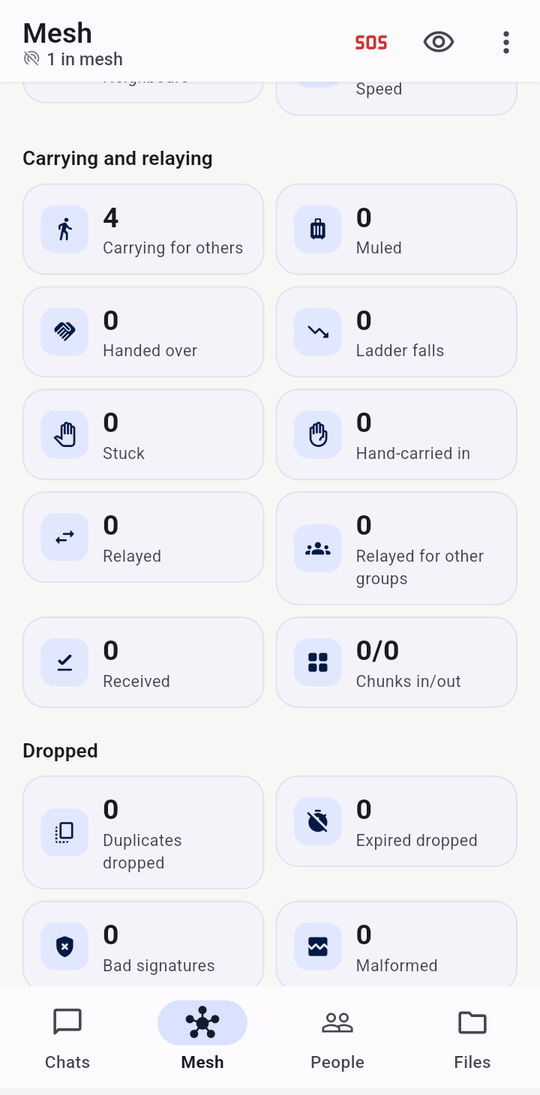
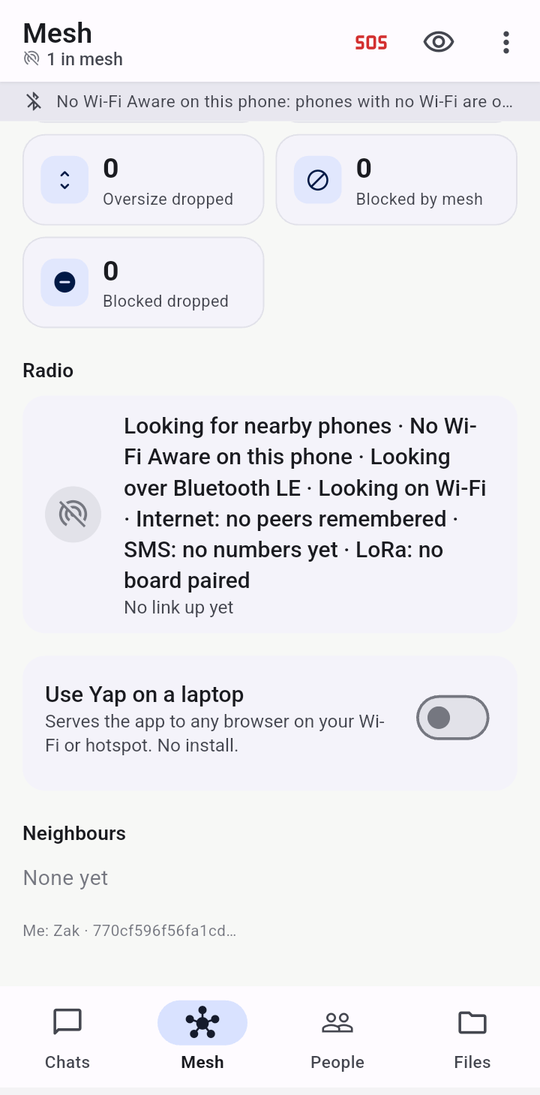
The map draws you in the centre, your direct neighbours on the first ring and their neighbours on the second: “Live · two hops deep” and “3 phones”, or “Alone · waiting for a link”. Hidden phones are drawn as “hidden”.
Ladder shows one chip per rung, lit when a link of that kind is up: Internet, Wi-Fi, Wi-Fi Direct, Bluetooth, SMS, Screen, Sound, Shared, LoRa. “Every link is ranked by rung; a message takes the best one and drops a rung when nothing comes back. When every radio fails the message is stuck and its bubble offers SMS, Share, Beam and Chirp; those rungs light up when used.”
Idle rungs. A grey chip such as “Bluetooth · Bluetooth off”, “Bluetooth · Bluetooth permission refused”, “Wi-Fi Direct · Nearby Wi-Fi permission refused” or “Wi-Fi Direct · No Wi-Fi Aware on this phone” explains why a rung is not running; tapping it opens the phone's Bluetooth or app settings. This is where a permission refused at first run can be granted later.
Counters. Mesh: Mesh size, Links, Neighbours, Speed. Carrying and relaying: Carrying for others (sealed messages this phone holds for people it may meet), Muled (delivered that way), Handed over, Ladder falls, Stuck, Hand-carried in, Relayed, Relayed for other groups, Received, Chunks in/out. Dropped: Duplicates dropped, Expired dropped, Bad signatures, Malformed, Oversize dropped, Blocked by mesh, Blocked dropped.
Radio is the transports' own words: “Looking for nearby phones · Looking over Bluetooth LE · Looking on Wi-Fi · Internet: no peers remembered · SMS: no numbers yet · LoRa: no board paired”, with “No link up yet” or “Up: Wi-Fi + Bluetooth”. With phones linked, the Bluetooth part can read “4 BLE links · scanning 40 %”: in a crowd the phone looks for new phones only part of each ten seconds, to save battery. With two or fewer phones around it scans all the time; at twenty it scans a fifth of the time. Built, not yet on a phone Then the laptop switch (below), Neighbours (each with its transport, protocol version, “via relay” or “direct, punched”, and a tick if verified), Recent errors and the footer “Me: Zak · 770cf596f56fa1cd…”.
The ladder: nine ways a message can travel
You never choose a rung. Every link is ranked; a message takes the best one it has, waits eight seconds for a reply, drops to the next, and floods last. The technical page has the exact frame limits and test log for each; this table is the user's view.
| Rung | When it is used | What you do |
|---|---|---|
| Internet | The other phone's address is known, or Internet reach is on and you both have internet. | Nothing, once set up. See Over the internet. |
| Wi-Fi | Both phones on one Wi-Fi network, or one phone's hotspot. | Join the same network. |
| Wi-Fi Direct | Two phones with Wi-Fi on, no router. | Leave Wi-Fi on and allow Nearby devices. |
| Bluetooth | The everyday link: a room, sometimes a building. | Leave Bluetooth on and allow it. |
| SMS | A stuck message, when the other person's number is known. | Tap SMS on the stuck bubble; press Send in your messaging app. |
| Screen | A stuck message, arm's length, line of sight. | Tap Beam; the other phone scans. |
| Sound | A code, a receipt or a whole short message, same room. | Tap Chirp; the other phone listens. |
| Shared | A stuck message through any app: WhatsApp, e-mail, a USB stick, paper. | Tap Share; the other phone pastes or opens the link. |
| LoRa | Short messages for kilometres through a paired Meshtastic board. | Pair a board under Menu → Settings → Advanced → LoRa radio. |
Pocket-riding: when nobody is nearby
A message you cannot deliver waits in your outbox and is offered to every phone that appears. A phone that accepts it carries it, sealed, until it meets the phone it is for, then hands it over and sends the receipt back the same way. Your tick reads “Riding”. The phone in the middle cannot read it, and its Mesh tab counts it under Carrying for others. Verified on phones: on 8 September 2026 a message crossed between two phones that never met, in 108 seconds, through a third.
Hand-carrying a stuck message
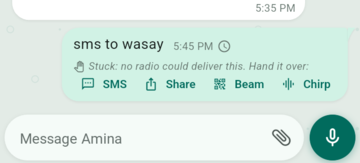
After eight seconds with no way through, a message is marked stuck and its bubble reads “Stuck: no radio could deliver this. Hand it over:” with four buttons. Nothing is sent without your tap. Verified on phones for SMS, Share and Beam; Chirp Built, not yet on a phone.
| Button | What happens |
|---|---|
| SMS | The first time it asks “Phone number for Amina” (“+44 7700 900123”; “That is not a phone number” if it is not). The contacts button in that box, Pick from contacts, opens Android's own contact picker; Yapmesh gets only the one number you pick, never your address book. Then it opens your own messaging app with the sealed code as the text: “This message needs 3 texts. Send this one, then tap SMS again for the next.”, “Send this one; 1 more to go — tap SMS again.”, “Last piece. Send it and the message is on its way.” You press Send each time. The receiving phone, if it allowed SMS, puts the pieces back together and shows the message in the chat. |
| Share | “Hand the code to any app”: the sealed message as text or a link through Android's share sheet. The other person pastes it (New chat → Paste a code) or opens the link. |
| Beam | “Show it as an animated QR for their camera”: the Beam this message screen. The other phone uses Scan any Yap code. |
| Chirp | “Play it as sound (small frames only)”: opens By sound with the message. Since October 2026 a whole message goes as up to eight short bursts in a row; the listening phone joins them and drops the lot if one is damaged, so play it again. Only a bigger one is refused, with its size and “Use Beam or Share instead.” |
By satellite. On a Pixel 9 or newer, or a Galaxy S25-family phone, with Android 15 or newer, a fifth row appears: By satellite (your phone's service). It first says “This is not Yapmesh. Your phone opens its messages app with this text, and sends it by satellite if there is no tower. It goes as a plain SMS: your carrier can read it, and it may cost money.” It needs their number (“Add their phone number first: tap SMS once.”). Unlike the other rows, this sends the plain text, not a sealed code. Other phones never show the row. Built, not yet on a phone; not yet tried on such a phone.
With several stuck messages for one person, the chat menu offers Hand-carry all queued (N)…: “One code holds them all, still sealed to their recipients.” with Share as one code or Beam as one animated QR. Whatever the road, the code is the same sealed frame: an SMS gateway, a WhatsApp server or a poster on a wall carries a box it cannot open, and the receipt comes back over the radio later.
Over the internet, without a server
A typed address
The plainest way. The Reach me over the internet card on My code reads “Listening on port 7734. Works only where this phone can be reached: the same network, a VPN such as Tailscale, or a router that forwards the port. No server, no DHT.” and shows “My address” and “On this network” with copy buttons. Give that host:port to a contact; they enter it under their name → Safety number & ways to reach → Reach over the internet in the person sheet: “Reach Amina over the internet — host:port (from their My code screen)”. “Their phone must be reachable: the same network, a VPN such as Tailscale, or a router that forwards the port. No server and no DHT: two phones both behind NAT cannot find each other this way.” Verified on phones on 8 September 2026 over a tunnelled path.
Internet reach: meeting through public relays
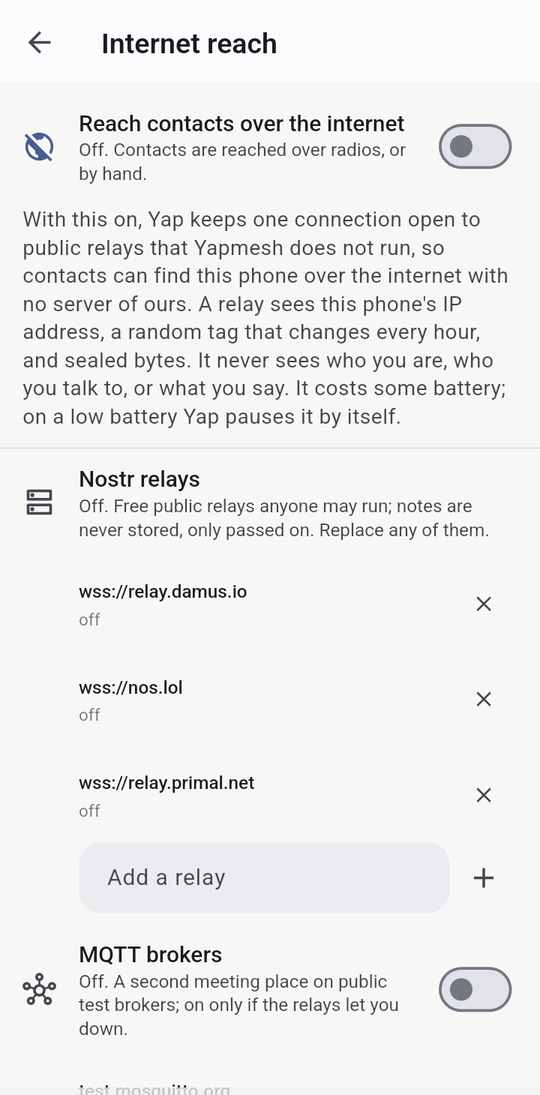
Menu → Settings → Internet. On by default since September 2026; the Settings row says “On · friends can reach you when you are both online” or “Off · friends are reached over radios only”. “Friends you have already added can reach this phone over the internet when you are both online, with no account and no server of ours. Yap borrows free public relays that Yapmesh does not run. A relay sees this phone's IP address, a random tag that changes every hour, and sealed bytes. It never sees who you are, who you talk to, or what you say. On a low battery Yap pauses it by itself.”
- Reach friends over the internet: the master switch. Under it, “Online lately: Amina” or “No friend online yet”.
- Let friends wake this phone: “Off: this phone is reachable only while Yap is open.” On, “A friend with a message for you can wake Yap. The push server sees only a random topic.” “With the ntfy app installed, the phone's own push wakes Yap for free, like WhatsApp. Without it, Yap must stay open.”
- Technical details unfolds the rest: the Nostr relays (“Free public relays anyone may run; notes are never stored, only passed on. Replace any of them.”, with Add a relay), the MQTT brokers (“Off. A second meeting place on public test brokers; on only if the relays let you down.”), Mailbox (see below), Right now (“12 beacons sent · 3 received · 2 notes posted · 1 opened”) and Direct connections (public STUN servers, with Add a STUN server).
“Per friend: open a person from Chats and turn "Find them over the internet" off to keep them to radios only. Two people who have never added each other cannot meet here; that is by design.” The switch is in the person sheet under Safety number & ways to reach: “Off for Amina: radios and hand-carry only.” / “On: you meet on public relays under a tag only you two can derive.”
Built, not yet on a phone — proven from a laptop against real public relays on 11 September 2026 (met in 1.3 s, delivered and acknowledged in 2.7 s); the phone edges have not yet run on hardware. Battery & background (below) matters here: without the Doze exemption Android closes the relay connection minutes after the screen goes off.
Internet spools: mailboxes
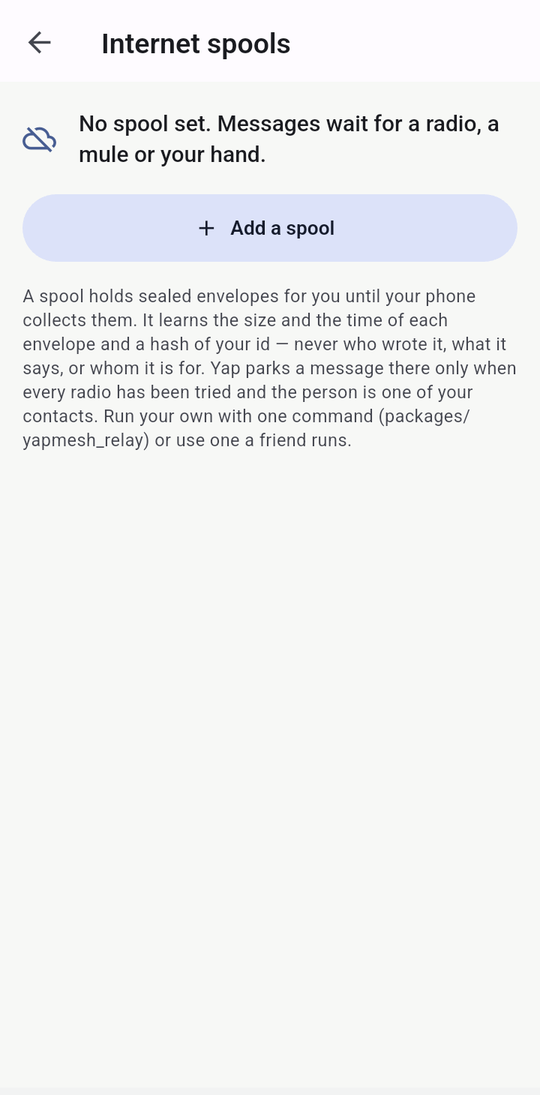
Menu → Settings → Advanced → Internet spools. Advanced is folded at the bottom of Settings: “Extra radios and mailboxes. Not needed to chat.” “A spool holds sealed envelopes for you until your phone collects them. It learns the size and the time of each envelope and a hash of your id — never who wrote it, what it says, or whom it is for. Yap parks a message there only when every radio has been tried and the person is one of your contacts. Run your own with one command (packages/yapmesh_relay) or use one a friend runs.” Add a spool takes “https://spool.example.org/”; “That is not an http(s) address” otherwise. Envelopes expire after seven days. Built, not yet on a phone
Giving a mailbox to a contact. Two ways, so nobody has to type an address:
- On Internet spools, the send button by a spool (Send to a contact) sends it in a chat as “Our family mailbox, for when the internet is cut: …”. The bubble on their phone has Add this mailbox; tapping it says “Mailbox added. Messages that cannot go any other way wait there for up to 7 days.” It works only between contacts.
- If you run a spool for someone, put its address under Menu → Settings → Internet → Technical details → Host a mailbox for someone. It then rides inside your My code. Whoever adds you from that code starts using it, and their person sheet for you shows Their mailbox under Safety number & ways to reach.
Built, not yet on a phone; neither way has been tried on a phone. A neighbour with internet cannot yet collect mail for a phone without it.
LoRa radio
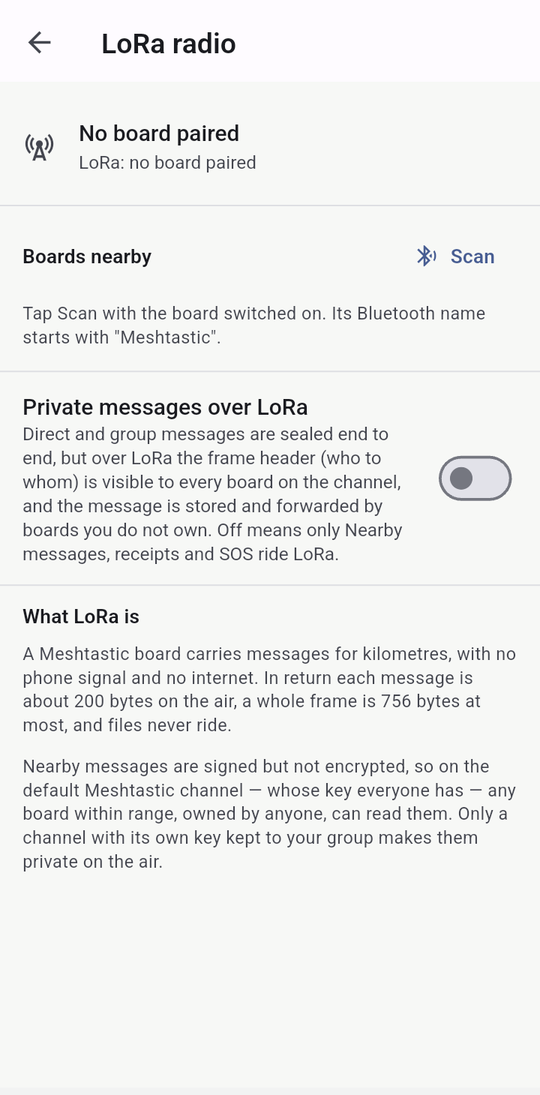
Menu → Settings → Advanced → LoRa radio, only in builds that carry LoRa. “A Meshtastic board carries messages for kilometres, with no phone signal and no internet. In return each message is about 200 bytes on the air, a whole frame is 756 bytes at most, and files never ride.” Switch the board on, tap Scan (“Its Bluetooth name starts with “Meshtastic”.”), tap Pair. Private messages over LoRa is off by default: “Direct and group messages are sealed end to end, but over LoRa the frame header (who to whom) is visible to every board on the channel, and the message is stored and forwarded by boards you do not own. Off means only Nearby messages, receipts and SOS ride LoRa.” “Nearby messages are signed but not encrypted, so on the default Meshtastic channel — whose key everyone has — any board within range, owned by anyone, can read them. Only a channel with its own key kept to your group makes them private on the air.” Built, not yet on a phone; no board has been paired on a real phone.
Using Yapmesh on a laptop
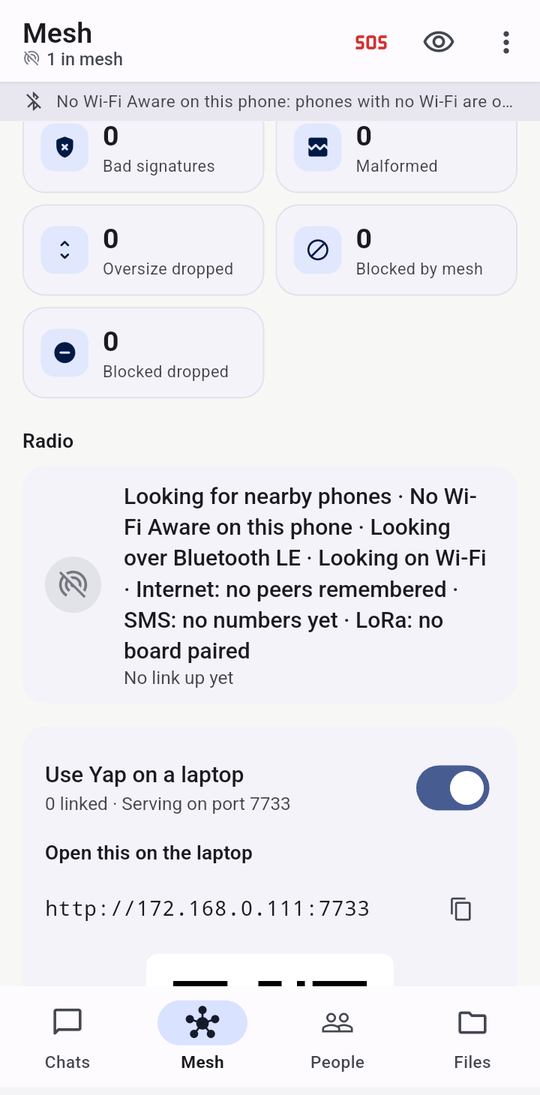
On the Mesh tab, Use Yap on a laptop: “Serves the app to any browser on your Wi-Fi or hotspot. No install.” Switch it on and the card shows “Open this on the laptop”, an address such as “http://172.168.0.111:7733” with a copy button (“Address copied”), and a QR. Join the phone's Wi-Fi or hotspot from the laptop, open the address, and the browser becomes its own node: it makes its own keys, has its own name, chats, files and map, and this phone relays for it. “The laptop becomes its own node with its own keys; this phone only relays for it. No Wi-Fi in the room? Turn on your hotspot and let the laptop join it.” Verified on phones; on 11 September 2026 the manual's own browser pictures were made this way and a poll was voted from the browser and counted on the phone.
What the browser copy cannot do, in its own words: send a private file (“Private files can be sent from a phone; the browser has no file path to seal”), start a hotspot or a gateway (“This build cannot host the gateway.”), lock with a fingerprint, use Bluetooth, SMS, NFC or LoRa. It reaches other phones only through the phone that serves it.
Files stay in the browser. Since October 2026 the browser keeps every file it shares or downloads in its own storage on the laptop, and offers them to the mesh again after a reload. A laptop left open on a shelf keeps seeding. Clearing the browser's site data removes them. Built, not yet on a phone; checked in Chrome on a desk, not yet with phones.
Hiding
The eye in the app bar hides you: Hide me / Show me. Hidden, your name leaves the air: nearby phones see “Hidden phone” on their map with “relay only”, you cannot post to Nearby (“Hidden nodes do not speak to nearby”), to groups, offer files, or vote (“Hidden nodes do not vote”); your app bar reads “Hidden · 3 in mesh”; the Chats tab shows “You are hidden” with how many Nearby messages are waiting; and your phone keeps relaying everything for everyone. Private chats still work: a hidden phone receives, and its sender still gets receipts. An SOS still reaches a hidden phone and it still acknowledges. Verified on phones on 6 September 2026.
Safety
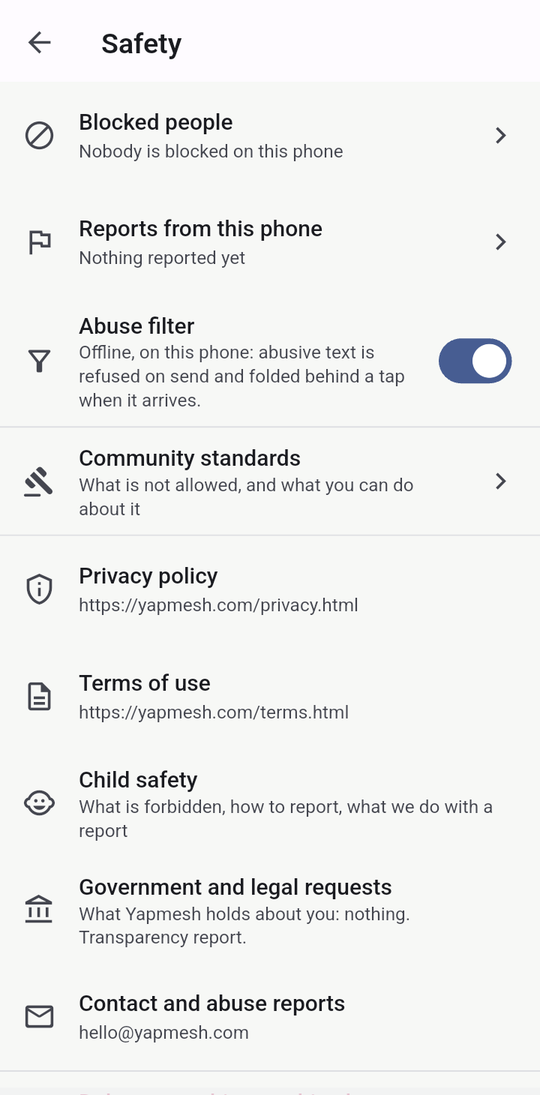
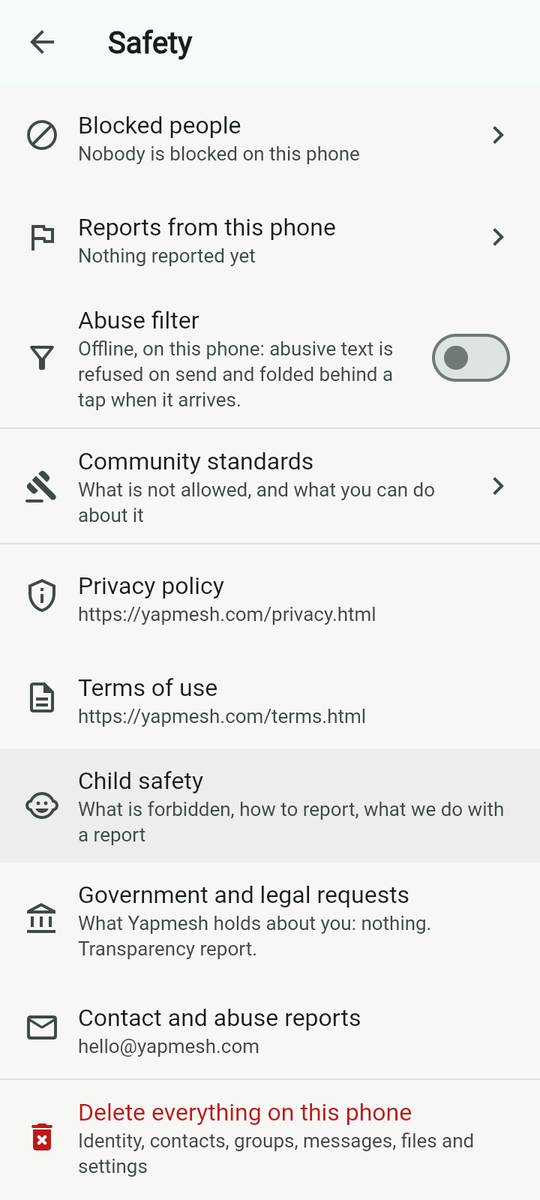
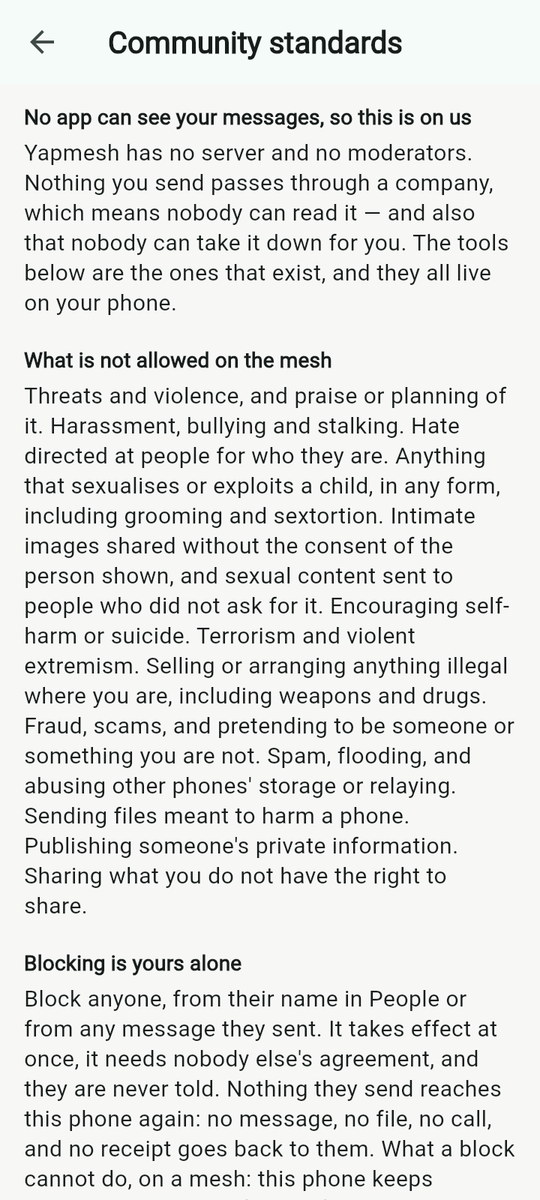
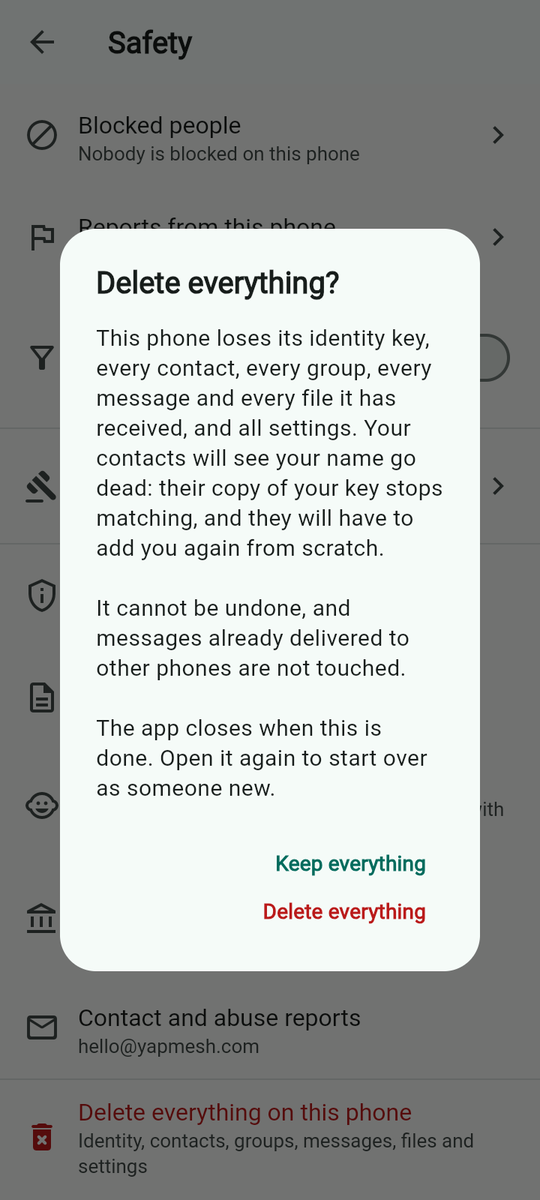
Menu → Settings → Safety gathers everything: Blocked people, Reports from this phone, the Abuse filter switch, Private profiles, Set up phones for a school or ward, Community standards, Help and how-to, Privacy policy, Terms of use, Child safety, Government and legal requests (“What Yapmesh holds about you: nothing. Transparency report.”), Contact and abuse reports ([email protected]) and Delete everything on this phone. Its footer: “Yapmesh has no accounts and no server, so there is no account to close and nothing of yours held anywhere else. Everything the app knows is on this phone. Copies of messages already delivered to other phones belong to those phones and cannot be recalled.”
Blocking
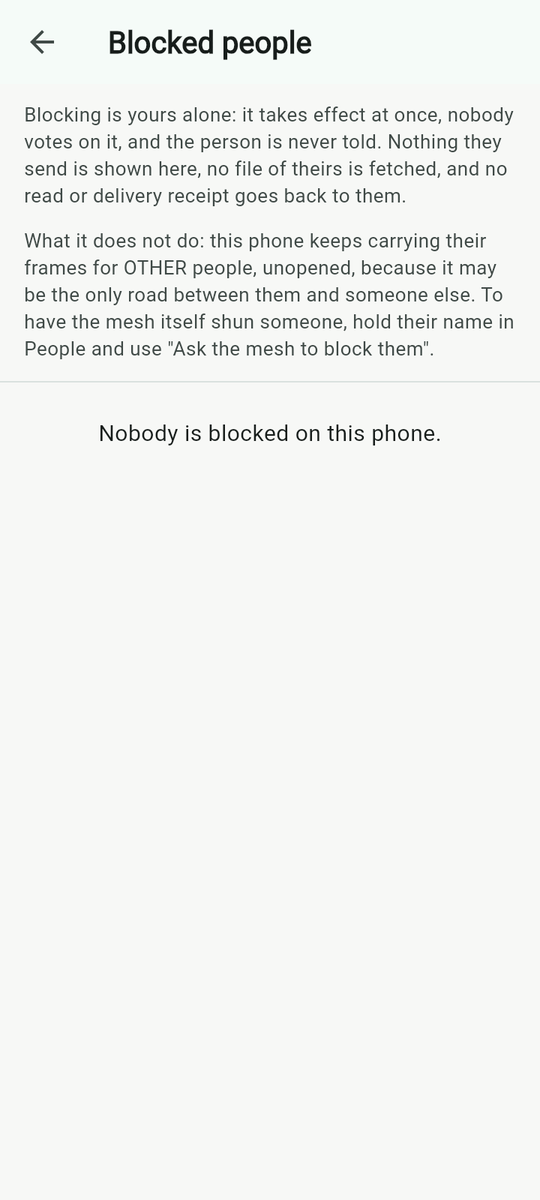
Block from a message (Block Amina), from the person sheet (Block on this phone) or from People. “Blocking is yours alone: it takes effect at once, nobody votes on it, and the person is never told. Nothing they send is shown here, no file of theirs is fetched, and no read or delivery receipt goes back to them.” Every file they ever sent is deleted and its hash denied, so it cannot come back from anyone. Unblock is under Blocked people.
Reporting
Report this message or Report Amina opens Report Amina: the message quoted, What is wrong? — Spam or flooding, Harassment or bullying, Hate speech, Violence or a threat, Sexual content, Child safety, A scam or impersonation, Something else — a note of up to 1,000 characters, and Block them on this phone too (on by default). In a group there is one more switch: Also send it to the group admin, Amina — “Sealed so only the admin's phone can read it. It goes over the mesh, not to any server.” Save this report.
The screen's own note is about the copy on your phone. The one exception is that group switch: with it on, the report also travels, sealed and over the mesh, to the admin's phone, where it appears under the admin's Reports from this phone marked “From Bilal”. Nobody else can read it, and it needs the admin's phone to be on the October 2026 build or newer. Built, not yet on a phone
Reports from this phone lists them as “Amina · Harassment or bullying” with an export button per report (the share subject is “Yapmesh abuse report — Amina”), and Clear: “Delete every report? The blocks stay. Only the written records go.”
The abuse filter
On by default. “Offline, on this phone: abusive text is refused on send and folded behind a tap when it arrives.” It is a word list for English, Urdu script and Roman Urdu with spelling tricks folded in; it runs on the phone, it can be switched off, and it is not a judge. Explicit images are blocked in the Nearby room and blurred in private chats and groups. No cloud service looks at anything. Built, not yet on a phone
The mesh vote
Separately from your own block, the person sheet offers Ask the mesh to block them: “A vote. Blocked for everyone when more than 5% of the mesh agrees; your vote goes to everyone, signed.” When that share is reached, every phone around stops carrying anything of theirs; People lists them under Blocked by the mesh with “X of Y allow votes”, and Vote to allow (or Withdraw my block, vote to allow) undoes it by the same share. If it happens to you, a banner says “The mesh has blocked you — More than 5% of the phones around you voted to block you. Nothing you send is shown or relayed, and nothing addressed to you is carried, until more than 5% vote to allow you again.”, names who voted, and says how many more allow votes are needed: “Talk to people near you: in Yap they open People, find you under “Blocked by the mesh”, and tap “Vote to allow”.” Built, not yet on a phone
Private profiles: a second Yapmesh nobody sees
Menu → Settings → Safety → Private profiles: “A second Yapmesh on this phone that nothing shows”. “A private profile is a second Yapmesh on this phone, with its own key, contacts and chats. Nothing in the app shows that it exists: no list, no switch, no lock screen. You open it by typing *PIN# into People → Add someone → Paste a code. A wrong PIN gets the same answer as any wrong code.” Choose a PIN, 4 to 12 digits, type it twice and tap Make the profile.
- Start it as a private profile: the new profile begins with the Private profile switch already on: “No notification previews, chats delete after 24 hours, photos wait for a tap, hidden from nearby, no read receipts.”
- Make it a decoy: “Opening it deletes this profile and shows an empty app.” The app asks you to confirm with I understand, because it cannot be undone.
- “It closes by itself two minutes after you leave the app, and the next person to open Yapmesh sees this profile. Messages for a private profile arrive only while it is open.”
Built, not yet on a phone
Phones handed out by a school, ward or employer
Menu → Settings → Safety → Set up phones for a school or ward makes a setup code for phones you hand out: “A setup code that turns features off on the phones you hand out”. It can switch off the Nearby room, open groups, the internet or strangers, demand a screen lock, and preload you or a group. Each phone scans or pastes the code once (People → Add someone), and your phone becomes its manager.
If your phone came from an organisation, Settings may show “Managed by …”: “Some settings on this phone were set by its manager and cannot be changed here.” A device-management system can also give such a phone a list of contacts and groups to add, and name one manager phone that may wipe Yapmesh on it remotely. After that you see “This phone was wiped by its manager. Close and reopen Yapmesh.” None of this applies to a phone you set up yourself. Built, not yet on a phone; never tried with a real management system.
Delete everything on this phone
“Delete everything? This phone loses its identity key, every contact, every group, every message and every file it has received, and all settings. Your contacts will see your name go dead: their copy of your key stops matching, and they will have to add you again from scratch. It cannot be undone, and messages already delivered to other phones are not touched. The app closes when this is done. Open it again to start over as someone new.” Keep everything / Delete everything. Then “Everything is deleted. Close and reopen Yapmesh.”
The person sheet
Hold a name in People or Chats, tap a chat's header, or choose Block, allow or remove… from a chat menu. The sheet shows the person, their presence and the vote state, then:
- Chat marks: Unread/Read, Archive/Unarchive, Hide/Unhide, Pin/Unpin, Mute/Unmute, Export. “Amina is archived”, “Amina is under Menu → Hidden chats”, “Amina is back in Chats”.
- Safety number & ways to reach — “Check the key, internet address, SMS number”. One line that unfolds the technical rows:
- Safety number — “Compare sixty digits or scan, to verify their key in person”.
- Reach over the internet — “No address yet. Type the host:port shown on their My code screen.” or “Dialling …”; “That is not a host:port”; “Internet address for Amina forgotten”.
- Find them over the internet — the per-contact switch for the internet.
- Phone number for SMS — “No number yet. Used only when you tap SMS on a stuck message.”; “SMS for Amina will go to +44 …, when you tap SMS”. Entering it offers Pick from contacts.
- Their mailbox — only when their My code carried one; see mailboxes.
- Block on this phone / Unblock on this phone; Report Amina; Ask the mesh to block them / Vote to allow.
- Remove contact — “Their messages will be deleted from this phone.”
Settings
Where everything is in Settings
Menu → Settings holds everything that is not used every day, in small groups. Each row has one line saying what it is for. Older versions of this manual and of the app put many of these straight in the menu; they are all here now.
| Group | Rows |
|---|---|
| (top) | My code (your card, name and photo), Back up your key (“So a new phone is still you”), Language |
| Connections | Internet (the internet), Battery & background (below), SOS alerts (SOS), Safe & notices (“I'm safe roll call, notice board, find someone”) |
| Chats | Chat settings (below), Photos & videos (files in a chat), Files & downloads (file safety), Hidden chats |
| Privacy & safety | Screen lock (below), Safety (Safety) |
| Help | How to use Yap (this page), Share the app, About Yap (About) |
| Advanced | Folded shut: “Extra radios and mailboxes. Not needed to chat.” LoRa radio (LoRa) and Internet spools (mailboxes), each only in builds that carry it. |
Chat settings, starred, send to many, export all
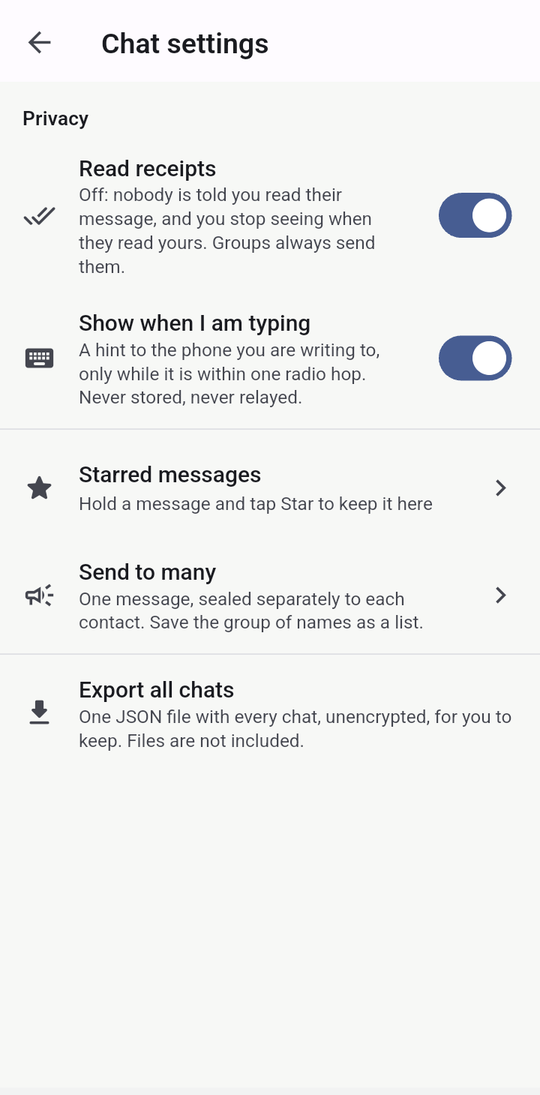
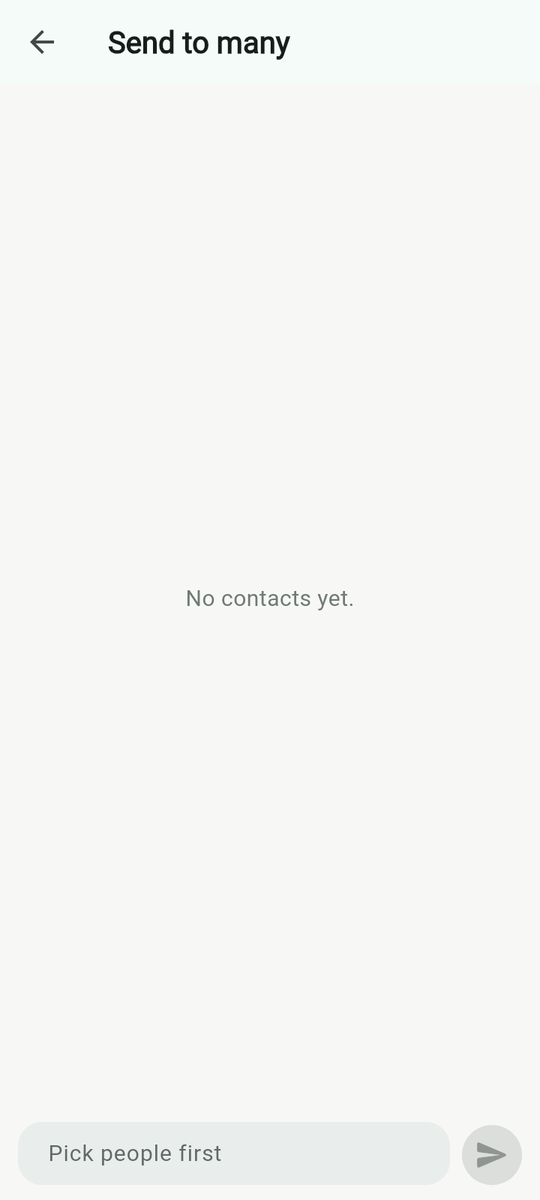
Menu → Settings → Chat settings. Read receipts (on): “Off: nobody is told you read their message, and you stop seeing when they read yours. Groups always send them.” Show when I am typing (on): “A hint to the phone you are writing to, only while it is within one radio hop. Never stored, never relayed.” Then the three listening switches (Big tiles and listening), Private profile, Show my name to everyone nearby and Notification previews (below).
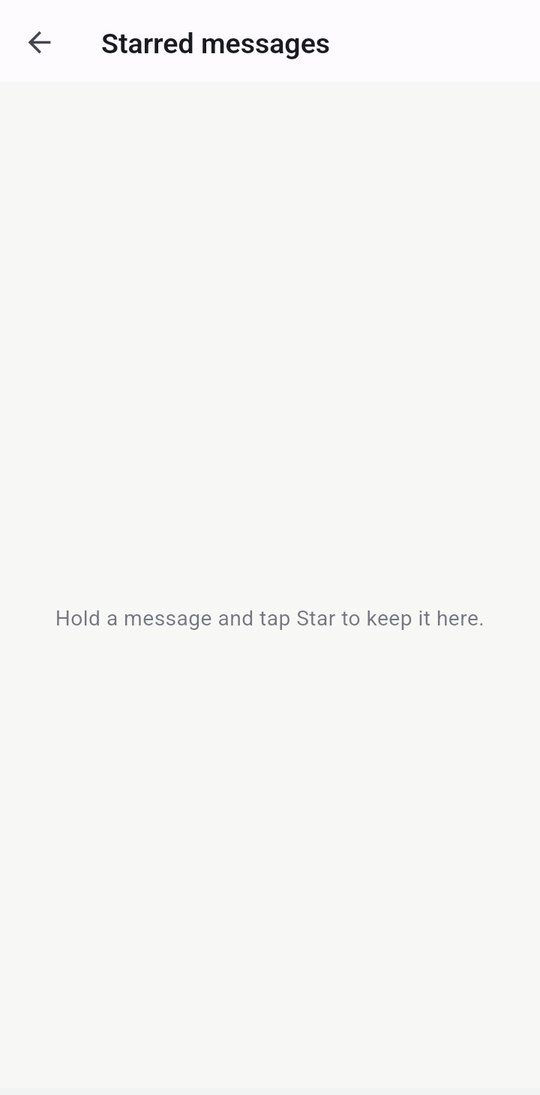
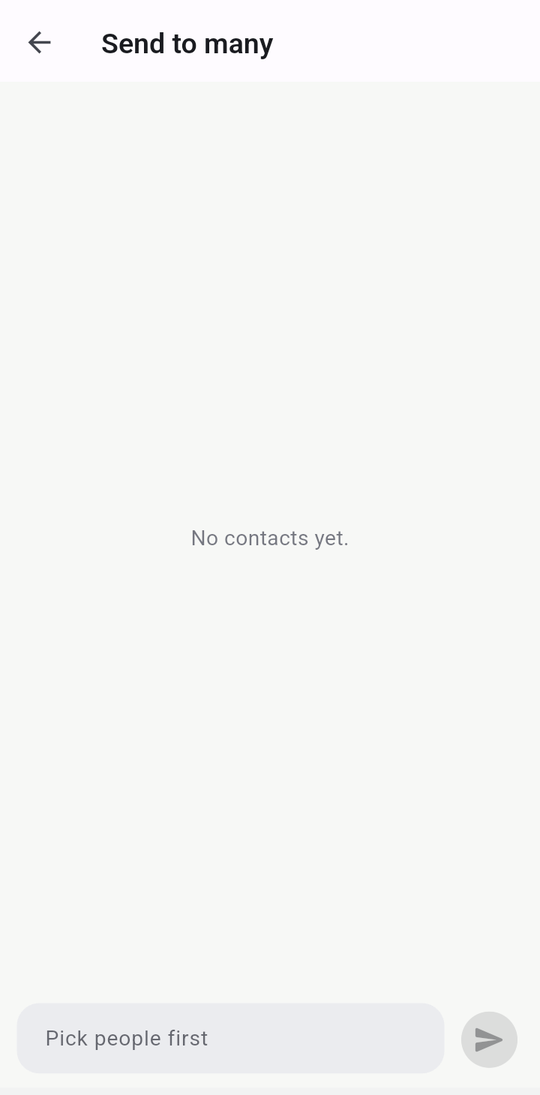
Starred messages: “Hold a message and tap Star to keep it here.”, each with who and which chat. Send to many: pick people, write once, and “Sent to 4 people, each sealed separately”; the bookmark icon saves the names as a list (“Save as a list”, a chip “Ward team · 4” you can delete). It is deliberately not a broadcast list: nobody sees the list, and each copy is sealed to one person. Export all chats: “One JSON file with every chat, unencrypted, for you to keep. Files are not included.” → “Export all chats? The file is readable by anyone who gets it. Keep it somewhere safe.”
Private profile, your name nearby, previews
Three switches in Menu → Settings → Chat settings for a phone that others may see or pick up. Built, not yet on a phone
| Switch | What it does |
|---|---|
| Private profile | One switch for five things: “No notification previews, chats delete after 24 hours, photos wait for a tap, hidden from nearby, no read receipts.” |
| Show my name to everyone nearby | On by default. “Off: people nearby see @yap#4821. Your contacts still see your name.” The digits come from your key. Turning on Private profile turns this off too, unless you set it yourself. |
| Notification previews | “Off: a notification only says "New message", not who or what.” |
This switch is not the same as Private profiles under Safety, which make a second, hidden Yapmesh. A new hidden profile can start with this switch already on.
Back up your key
Menu → Settings → Back up your key. “Your key is who you are on Yapmesh. If this phone is lost, a backup brings you back as the same person, so nobody has to scan you again. Messages are not in any backup: they live only on the phones that received them.” There are two kinds:
- 24 recovery words: Show my words. “Write them on paper, in order, and keep the paper somewhere safe. Anyone who sees them can become you. Do not photograph them.” Words bring back your key only; contacts come back as you meet them.
- Backup code with a passphrase: “Your key, your contacts and your groups, sealed with a passphrase you choose.” Type a passphrase of 8 characters or more twice and tap Make the backup code. Then Copy, Save or send, Save as a file (“Saved. Keep the passphrase somewhere else.”) or Show as a moving code, an animated QR the new phone scans.
Restoring. On the new phone's first screen choose I already have Yapmesh. Bring back your key offers Backup code (paste it, or Open a backup file, or Scan the other phone: “On the old phone: Back up your key, then Show as a moving code”) and 24 words. Then the passphrase, your name and Restore. “Wrong passphrase, or the code was changed or cut short.” if it does not open. The file and moving-code ways are Built, not yet on a phone.
Screen lock
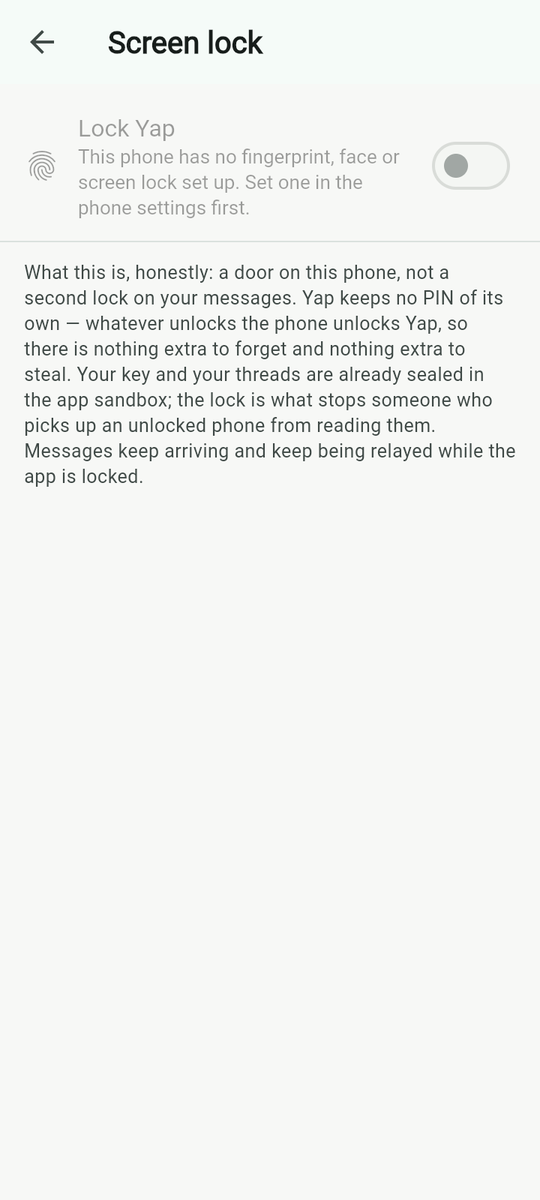
Menu → Settings → Screen lock. Lock Yap: “Ask for the fingerprint, face or screen lock of this phone before Yap opens”. On a phone without one: “This phone has no fingerprint, face or screen lock set up. Set one in the phone settings first.” Turning it on raises the phone's own prompt; refusing it says “Not unlocked, so nothing changed”. Then Lock again Immediately, After 1 minute or After 30 minutes: “After you leave Yap. A glance at a notification is not worth a fingerprint every time.” Lock now appears in the menu once the lock is on. The locked screen reads “Yap is locked — Unlock with the fingerprint, face or screen lock of this phone.” and “Messages keep arriving while the app is locked; nothing is shown until it is open.” Partly verified
Battery & background
Menu → Settings → Battery & background. Keep Yap awake in the background: “On: Android leaves Yap out of battery optimisation” / “Off: Android may pause Yap when the screen is off”. Without it Android's Doze closes radio and relay connections minutes after the screen goes off; with it the mesh keeps running under the “Yap is on the mesh” notification. Some phones (Samsung, Xiaomi and Huawei among them) add their own app-killing on top, in their own settings. “Turn it back off — Android only allows this from its own battery page”. Between the looks shows the Heartbeat (every 15 minutes), Movement (how often the phone started moving, which triggers a re-scan) and Re-scans.
How much this phone does now says whether a low battery has cut anything: “Battery saver: file sharing and background sync are paused (nearly finished files still complete); messages and receipts still flow.” or “Battery critical: only SOS and messages for you get through.” Full mesh for now overrides that: “Ignore the low-battery limits until Yap restarts, at most 12 hours. The battery runs down faster.” Use it on a day when the phone must keep relaying, such as an emergency. Built, not yet on a phone
Bluetooth scanning also adapts by itself: in a crowd the phone looks for new phones only part of the time (see the Radio card on the Mesh tab). Built, not yet on a phone
Honest battery figure: none yet. Every bench session ran on USB power, so no full-day number is published.
Hidden and archived chats

Archive from a person or group sheet; the row collapses into Archived on the Chats tab (“Nothing is archived.” when empty). Hide the same way; hidden chats live only under Menu → Hidden chats, also at Menu → Settings → Hidden chats (“No hidden chats.”). Both are marks on this phone; nothing is sent, and messages keep arriving.
Notifications
Yapmesh posts on six channels you can tune in Android's settings: Nearby (“Messages in the Nearby room”), Groups, Direct messages, Mentions (“Group messages that name you”), SOS (“Emergency alerts from people nearby”) and Yap mesh, the quiet permanent one that reads “Yap is on the mesh — Keeping nearby phones connected”. Bodies are the message text, or “Sticker”, “Shared a place”, “Shared a contact”, “Sent a file”, “New message”; an SOS is “SOS from Amina — Needs help nearby”. With Notification previews off (above), every message notification reads only “New message” and names nobody. Tapping one opens the chat. A muted chat still counts on the badge.
Share the app, updates and About
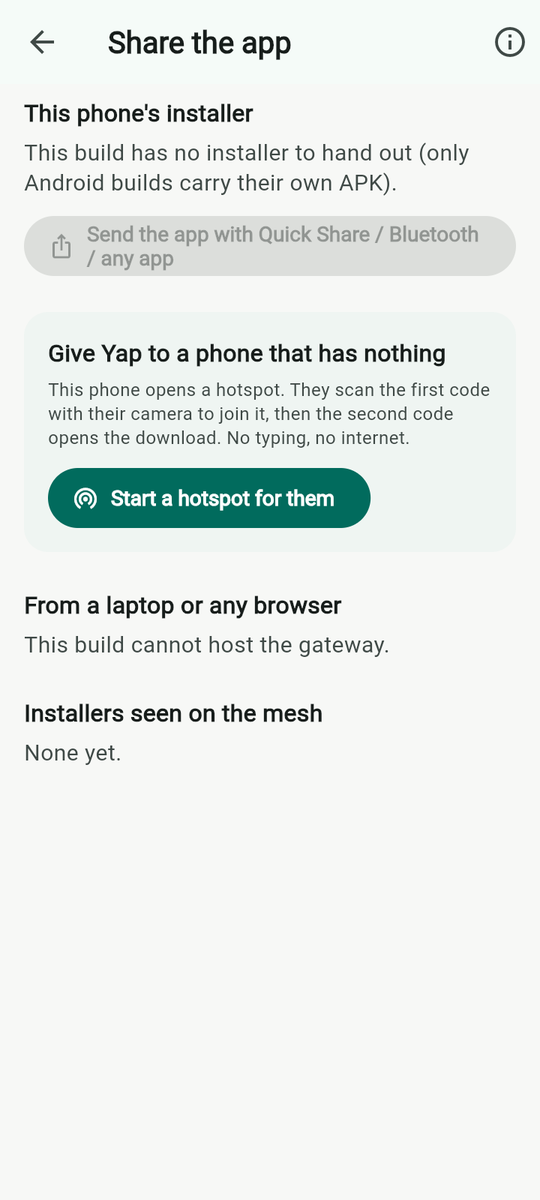
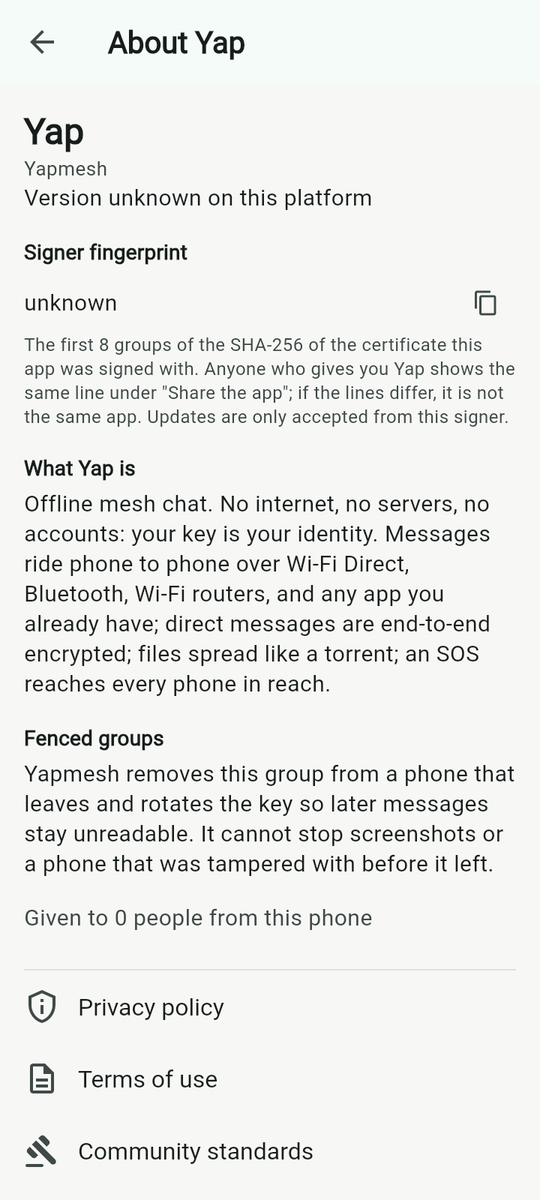
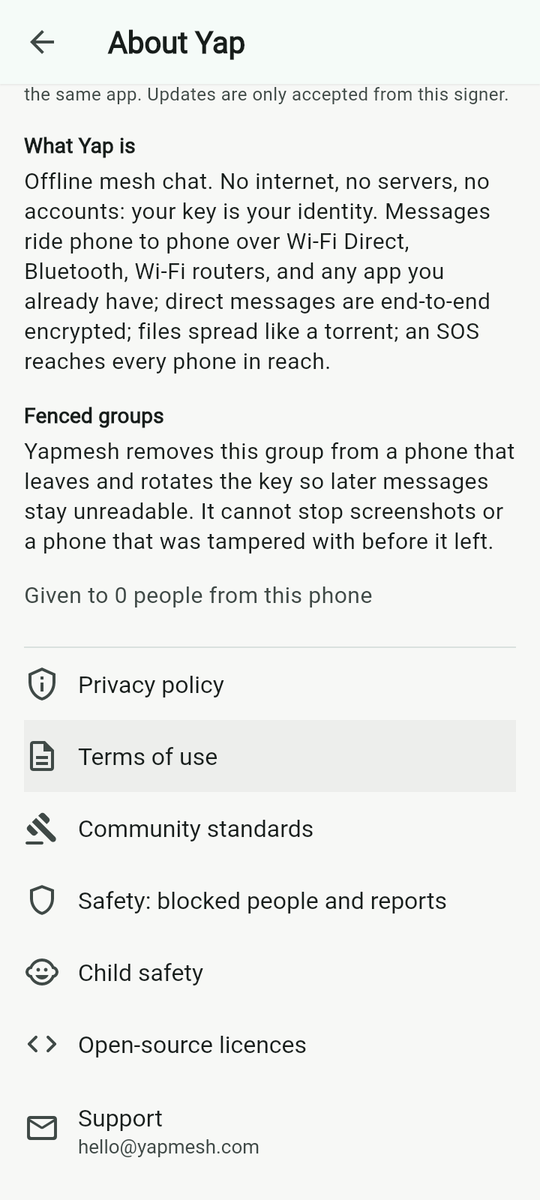
Menu → Share the app. On a phone from yapmesh.com the first card is This phone's installer: “Yap 1.1.1 (build 3) · 54.6 MB · offered to the mesh”, “Phones nearby on an older build are told about it and fetch it phone to phone, like any file.”, the Signer fingerprint, “You've given Yap to 2 people from this phone.” and Send the app with Quick Share / Bluetooth / any app. Then the hotspot card (above), From a laptop or any browser (“Turn on the gateway and a phone on the same Wi-Fi or hotspot can download the app from this one, no internet needed.” with Start the gateway), and Installers seen on the mesh. A debug build warns in red not to hand it to strangers.
The copy from Google Play shows Give Yapmesh to someone instead: “Send them this link. It opens the page that offers Yapmesh on Google Play and, for a phone with no Play Store, the signed app to download directly.” “Why not the app itself? This copy came from Google Play, and Play does not allow an app it distributes to hand out or update itself.”
Updates. When a phone nearby has a newer build, a card appears on the Files tab and on Share the app: “Update available: Yap 1.2.0 (build 4) · fetching from phones nearby”, then Install. Updates are accepted only from the same signer.
About (Menu → Settings → About Yap, or the ⓘ on Share the app) shows the version, the Signer fingerprint with a copy button, “The first 8 groups of the SHA-256 of the certificate this app was signed with. Anyone who gives you Yap shows the same line under “Share the app”; if the lines differ, it is not the same app. Updates are only accepted from this signer.”, What Yap is, the fence promise, how many people this phone has given the app to, and the links: Help and how-to, Privacy policy, Terms of use, Community standards, Safety: blocked people and reports, Child safety, Open-source licences, Support ([email protected]).
When something does not work
| What you see | What it means | What to do |
|---|---|---|
| “Waiting for nearby phones…” | No link to any phone. | Open Yapmesh on another phone within a room's distance with Bluetooth on. Check the Mesh tab for grey idle chips. |
| “Turn on Bluetooth to reach phones with no Wi-Fi” | Bluetooth is off. | Turn it on, or join the same Wi-Fi. |
| “Allow Bluetooth in Settings…” / “Allow nearby devices in Settings…” / “Allow Location in Settings…” | A permission was refused at first run. | Tap the grey chip on the Mesh tab; it opens the phone's settings page for the app. |
| “No Wi-Fi Aware on this phone: phones with no Wi-Fi are out of reach” | The phone lacks Wi-Fi Aware; Wi-Fi Direct and Bluetooth still run. | Nothing; it is a note about the hardware. |
| “Radio start failed …” / “Radio error: …” with Retry | The radios did not start. | Tap Retry. If it persists, toggle Bluetooth and Wi-Fi off and on. |
| “Stuck: no radio could deliver this.” | Eight seconds passed with no path. | Wait for the person to come in range (the message keeps trying and will ride in pockets), or hand it over by SMS, Share, Beam or Chirp. |
| “Phone not reachable, retrying…” | The browser client lost the phone that serves it. | Keep the laptop on the phone's Wi-Fi or hotspot and the phone's laptop switch on. |
| “Nobody in reach has this file right now” | A waiting file; no phone in range holds it. | Try again when the sender or another holder is in range. |
| “Camera permission is needed to scan a code” | Camera refused. | Allow it in the phone's settings, or use NFC, sound or a pasted code. |
| “Microphone permission is needed for voice notes” / “… to listen” | Microphone refused. | Allow it in the phone's settings. |
| “Location is off or was refused; nothing sent” | Location refused or off when sharing a place, an SOS position or setting up a fence. | Turn location on and allow it, then try again. |
| “Not a Yap code” / “That code is damaged” / “Part of a longer code; send the rest” / “A Yap code this version does not know” | A pasted or scanned code was not usable. | Ask for it again; for a multi-piece SMS, paste every piece; update the app if the code is newer than it. |
| “Yap will not send that: it reads as abuse. Say it another way.” | The abuse filter refused the text. | Reword it, or switch the filter off under Safety. |
| “Hidden nodes do not speak to nearby” and similar | You are hidden. | Tap the eye to show yourself. |
| “The mesh has blocked you” | More than 5% of phones around you voted to block you. | Ask people near you to open People, find you under Blocked by the mesh, and tap Vote to allow. |
| “Calls need a Wi-Fi or internet link to this person” | Only Bluetooth between you. | Join the same Wi-Fi or hotspot. |
| “Someone else is talking” | Another phone in range is using push to talk. | Wait until they let go, then hold the microphone again. |
| “No voice for this language on this phone” | Read-aloud found no speech voice for the app's language. | Install one in the phone's own text-to-speech settings, or switch the app's language. |
| “Not unlocked, so nothing changed” | The phone's own unlock prompt was refused when turning the lock on. | Try again and unlock. |
| “Could not open the help page…” | No browser, or no internet for the first visit. | Open yapmesh.com/help.html from any device; the page then works offline in that browser. |
| “Could not record: …” / “Could not share: …” / “Could not export: …” / “Could not start the hotspot: …” | The phone refused the operation; the rest of the line is its reason. | Read the reason; it is Android's. |
What has and has not run on a phone
As of 23 October 2026, from the hardware log and the automated test suite:
| Feature | Status |
|---|---|
| Text, photos, voice notes, replies, reactions in private chats and Nearby; files spreading; open and private groups with per-member counts; presence grants; hide me; SOS; hand-carry by SMS, Share and Beam; installing from a friend's phone; the laptop browser client; the Bluetooth, Wi-Fi, Wi-Fi Direct, SMS and any-app rungs; pocket-riding; a typed internet address | Verified on phones |
| Polls, edit, pin, reply and react between a phone and a browser node; the screen-to-camera rung; the app lock; the media setting; the iPhone build (runs on a real iPhone and chats with Android over Wi-Fi; Bluetooth between iPhones untested); push to talk (one A07 heard another on 23 October 2026; audio not confirmed by ear, and the links starve while someone talks) | Partly verified |
| Fences; disappearing history; forward, star, delete for everyone; mute, auto-delete, typing hints and the read-receipt switch; search, media lists, export, send to many, live place; group icon, description and notices-only; safety numbers and the link path; file safety, the abuse filter and the mesh vote; Internet reach, spools, push wake, LoRa, Wi-Fi Aware; calls; the sound rung; battery and background | Built, not yet on a phone |
| Added by 23 October 2026: the shorter menus and the Settings hub; I prefer to listen, read-aloud, spoken prompts and big tiles; contact photos; handles; Private profile and private profiles; notification previews off; quick wipe and two-tap SOS; key backup as a file and a moving code; the spoken group code; reports to a group admin; Full mesh for now and adaptive scanning; choosing where a shared-in file goes; the contact picker for SMS numbers; the satellite row; whole messages by Chirp; mailboxes in My code; calls over Nearby Wi-Fi and Wi-Fi Aware links; browser files kept after reload; managed phones | Built, not yet on a phone |
The technical page carries the same labels with the log entries behind them, and the hardware log is published unedited.
Glossary
- Mesh
- The phones that can reach each other, directly or through others, right now.
- Rung
- One kind of link, ranked on the ladder: Internet, Wi-Fi, Wi-Fi Direct, Bluetooth, SMS, Screen, Sound, Shared, LoRa.
- Hop
- One phone-to-phone step. A message can cross eight; an SOS sixteen.
- Riding / pocket-riding / muling
- A sealed message carried by a phone that is not its recipient, until they meet.
- Stuck
- A message every radio failed to deliver in eight seconds; it offers hand-carry.
- Hand-carry
- Moving a sealed message by SMS, any app, an animated QR or sound, with your own tap.
- Sealed
- Encrypted so that only the recipient's key opens it. Relays carry sealed frames unread.
- Signed
- Carrying the sender's signature, so a forged frame is dropped. Nearby messages are signed but not sealed.
- Key / identity
- The key pair made on first run. Its public half is you.
- Verified contact
- A contact whose key you got in person: scan, NFC tap, sound, or a matched safety number.
- Safety number
- Sixty digits both phones show when each holds the other's real key.
- Presence grant
- Permission you give one person to sense how close you are, at a tier: same network, area, room or table.
- Fence
- A rule that keeps a group's key only on phones inside a place.
- Anchor
- A member phone that stays put; being linked to it means being inside.
- Grace period
- How long a phone may be outside a fence before it loses the key.
- Epoch
- One period of a group's key; leaving or removing someone starts a new one.
- Swarm
- Every phone holding pieces of a file, serving them to each other.
- Chunk / Merkle root
- A 16 KiB piece of a file, and the hash tree root that names the file and proves each piece.
- Spool / mailbox
- A small relay anyone can run that holds sealed envelopes for a contact for seven days. A contact's My code can carry one.
- Push to talk
- Holding the microphone on Home to speak live to every phone in range, one hop, with nothing saved.
- Handle
- A name such as @yap#4821, made from your key, that strangers see when you do not show your name to everyone nearby.
- Private profile
- One switch that sets five private defaults. Not the same as private profiles under Safety, which are hidden second copies of Yapmesh opened by a PIN.
- Relay (Nostr, MQTT)
- A public server used only as a meeting place for two phones that both have internet; it sees an IP address and sealed bytes.
- Gateway
- The phone's own web server that hands the app to a laptop browser or a new phone.
- Signer fingerprint
- A short form of the certificate that signed the app; the same on every genuine copy.
Where to get help
Support and abuse reports: [email protected]. Security findings: the security page says how to report and what is in scope. The protocol, the code and the test log are on GitHub. This page is also reachable from inside the app under Menu → Help, Menu → Settings → How to use Yap, Menu → Settings → Safety → Help and how-to and Share the app → ⓘ → Help and how-to, and once opened it stays available offline in that browser.