For parents
Not released yet. No release-signed build of Yapmesh has been published. A teacher may be trying it with the developer's help; nobody else should hand you a copy. When a release exists, its fingerprint will be printed on this site and on the app's About screen, and the two must match. اردو میں پڑھیں
What Yapmesh is
A messaging app that sends messages, voice notes and photos from phone to phone over Bluetooth and Wi-Fi, with no internet, no SIM credit, no account and no phone number. A teacher can use it to send class notices to parents' phones at the school gate, and those phones carry the notice home and to other parents they pass.
In school, this is a teacher-to-parents tool, used on parents' own phones. It is not meant for pupils' phones in class; in Punjab pupils may not bring phones to school at all. The app's terms currently say it is for people aged 18 and over.
What it cannot do
- It cannot reach strangers far away. A phone talks only to phones within radio range, about a room or a building. There is no directory, no search and no phone-number lookup, so nobody in another town can find you or your child. A message can travel further only by passing from phone to phone, and a private message only goes to someone whose code you exchanged in person.
- It has no account. No phone number, email or password is asked for. The phone makes its own key the first time.
- It does not need the internet. Mobile data can stay off. "Internet reach" lets your phone reach your existing contacts through public relays when it happens to have internet. It is on unless you switch it off under Menu → Settings → Internet, and it never finds strangers.
- Nobody can read or delete your messages for you. There is no Yapmesh server. Private messages are locked to the person they are for. That also means we cannot take anything down: blocking and reporting happen on your phone.
What other phones nearby can see: the name you type is sent to every phone in range, and anything written in the Nearby room, or said with the hold-to-talk button, reaches everyone in range. Use a first name, and keep private things to private chats and the class group. To keep your name from people who are not your contacts, switch on Private profile in Menu → Settings → Chat settings; they then see a code such as @yap#0421. A photo you add goes to your contacts only.
If you would rather listen than read: choose I prefer to listen on the first screen. The phone then reads messages aloud and shows six large buttons instead of a list.
Blocking and reporting Built, not yet tested on phones
- Block: hold the person's name in People or in a chat, or open the ⋮ menu on one of their messages, and choose Block. It happens at once, they are not told, and every file they sent is deleted.
- Report: on their message choose Report this message, pick what is wrong (for example Harassment or bullying or Child safety), and Save this report. They are blocked in the same tap.
- Send the report to someone who can act. If it happened in the class group, tick Also send it to the group admin before saving: a sealed copy goes to the teacher's phone over the mesh. Otherwise the report stays on your phone and goes nowhere by itself. Open Menu → Settings → Safety → Reports from this phone, export it, and send it to the teacher or the head teacher. If anyone is in danger, call 1122 or 15 first. For anything that harms a child, see the child safety page.
Blocking and reporting are built and pass their automated tests; they have not yet been tested on phones in a school. This label will change when they have.
Installing it from the teacher's phone, in three steps Verified on phones
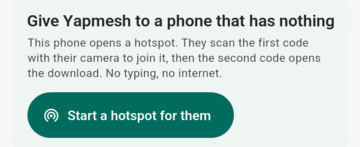
- Join the teacher's hotspot. The teacher opens Menu → Share the app → Start a hotspot for them. Scan the first code with your camera. Your phone will say the network has no internet: choose to stay connected, and switch mobile data off.
- Download and install. Scan the second code and tap Download. Allow your browser to install apps when Android asks (Samsung phones: Auto Blocker must be off), open the file again, and tap Install.
- Check it is the real app. Open Yapmesh, type your name, then compare the Signer fingerprint on the teacher's screen with yours under Menu → Share the app → ⓘ. If the lines differ, it is not the same app: delete it.
This path was tested between two phones on 7 September 2026 (a 54.6 MB install in about 45 seconds over the hotspot); it has not yet been run with many parents at a gate. Then the teacher shows the class group's invite code and you scan it under Chats → New chat → Join a group.
Removing it
Menu → Settings → Safety → Delete everything on this phone, or uninstall the app. Nothing of yours is kept anywhere else. Questions: [email protected].
والدین کے لیے
ابھی جاری نہیں ہوئی۔ یاپ میش کا کوئی باقاعدہ دستخط شدہ ورژن ابھی شائع نہیں ہوا۔ ممکن ہے کوئی استاد ڈویلپر کی مدد سے اسے آزما رہا ہو؛ کسی اور سے اس کی کاپی نہ لیں۔ جب ریلیز آئے گی تو اس کا فنگر پرنٹ اس ویب سائٹ پر اور ایپ کی About اسکرین پر چھپے گا، اور دونوں ایک جیسے ہونے چاہییں۔
یاپ میش کیا ہے
ایک پیغام رسانی ایپ جو پیغام، وائس نوٹ اور تصویریں بلوٹوتھ اور وائی فائی کے ذریعے فون سے فون تک بھیجتی ہے، نہ انٹرنیٹ، نہ بیلنس، نہ اکاؤنٹ، نہ فون نمبر۔ استاد اسے اسکول کے دروازے پر والدین کے فونوں تک کلاس کے اعلانات بھیجنے کے لیے استعمال کر سکتا ہے، اور وہ فون اعلان گھر تک اور راستے میں ملنے والے دوسرے والدین تک لے جاتے ہیں۔
اسکول میں یہ استاد سے والدین تک کا ذریعہ ہے، والدین کے اپنے فونوں پر۔ یہ کلاس میں بچوں کے فونوں کے لیے نہیں؛ پنجاب میں بچے اسکول میں فون لا ہی نہیں سکتے۔ ایپ کی شرائط فی الحال کہتی ہیں کہ یہ 18 سال اور اس سے بڑی عمر کے لوگوں کے لیے ہے۔
یہ کیا نہیں کر سکتی
- دور کے اجنبیوں تک نہیں پہنچتی۔ فون صرف ریڈیو کی حد میں موجود فونوں سے بات کرتا ہے، تقریباً ایک کمرہ یا ایک عمارت۔ نہ کوئی فہرست ہے، نہ تلاش، نہ فون نمبر سے ڈھونڈنا، اس لیے کسی اور شہر میں کوئی آپ کو یا آپ کے بچے کو نہیں ڈھونڈ سکتا۔ پیغام آگے صرف ایک فون سے دوسرے فون تک جا کر پہنچتا ہے، اور نجی پیغام صرف اسی کو جاتا ہے جس سے آپ نے آمنے سامنے کوڈ کا تبادلہ کیا ہو۔
- کوئی اکاؤنٹ نہیں۔ نہ فون نمبر، نہ ای میل، نہ پاس ورڈ۔ فون پہلی بار خود اپنی کنجی بناتا ہے۔
- انٹرنیٹ کی ضرورت نہیں۔ موبائل ڈیٹا بند رہ سکتا ہے۔ "Internet reach" آپ کے فون کو، جب اتفاق سے اس پر انٹرنیٹ ہو، عوامی ریلے کے ذریعے آپ کے پہلے سے موجود رابطوں تک پہنچاتا ہے۔ یہ تب تک آن رہتا ہے جب تک آپ اسے بند نہ کریں، Menu ← Settings ← Internet میں، اور یہ کبھی اجنبیوں کو نہیں ڈھونڈتا۔
- کوئی آپ کے پیغام آپ کی جگہ پڑھ یا مٹا نہیں سکتا۔ یاپ میش کا کوئی سرور نہیں۔ نجی پیغام صرف اسی شخص کے لیے بند کیا جاتا ہے جس کے لیے ہے۔ اس کا مطلب یہ بھی ہے کہ ہم کچھ ہٹا نہیں سکتے: بلاک اور شکایت آپ کے فون پر ہوتی ہے۔
آس پاس کے دوسرے فون کیا دیکھ سکتے ہیں: جو نام آپ لکھتے ہیں وہ حد میں موجود ہر فون کو جاتا ہے، اور Nearby کمرے میں لکھی، یا بات کرنے والا بٹن دبا کر کہی گئی، ہر بات حد میں موجود ہر شخص تک پہنچتی ہے۔ صرف پہلا نام لکھیں، اور ذاتی باتیں نجی چیٹ اور کلاس گروپ میں رکھیں۔ اپنا نام ان لوگوں سے چھپانے کے لیے جو آپ کے رابطے نہیں، Menu ← Settings ← Chat settings میں Private profile آن کریں؛ پھر انہیں @yap#0421 جیسا ایک کوڈ نظر آتا ہے۔ آپ جو تصویر لگائیں وہ صرف آپ کے رابطوں کو جاتی ہے۔
اگر آپ پڑھنے کے بجائے سننا پسند کریں: پہلی اسکرین پر I prefer to listen چنیں۔ پھر فون پیغامات اونچی آواز میں پڑھ کر سناتا ہے اور فہرست کی جگہ چھ بڑے بٹن دکھاتا ہے۔
بلاک اور شکایت بنا ہوا، ابھی فونوں پر آزمایا نہیں
- بلاک: People یا کسی چیٹ میں اس شخص کے نام کو دبا کر رکھیں، یا اس کے کسی پیغام کا ⋮ مینو کھولیں، اور Block چنیں۔ یہ فوراً ہو جاتا ہے، اسے بتایا نہیں جاتا، اور اس کی بھیجی ہر فائل مٹ جاتی ہے۔
- شکایت: اس کے پیغام پر Report this message چنیں، مسئلہ چنیں (مثلاً Harassment or bullying یا Child safety)، پھر Save this report۔ اسی ٹیپ میں وہ بلاک بھی ہو جاتا ہے۔
- شکایت ایسے شخص کو بھیجیں جو کچھ کر سکے۔ اگر بات کلاس گروپ میں ہوئی ہو تو محفوظ کرنے سے پہلے Also send it to the group admin پر نشان لگائیں: ایک مہر بند نقل میش کے ذریعے استاد کے فون تک جاتی ہے۔ ورنہ شکایت آپ کے فون پر رہتی ہے؛ خود بخود کہیں نہیں جاتی۔ Menu ← Settings ← Safety ← Reports from this phone کھولیں، ایکسپورٹ کریں، اور استاد یا ہیڈ ٹیچر کو بھیجیں۔ اگر کسی کو خطرہ ہو تو پہلے 1122 یا 15 پر فون کریں۔ بچے کو نقصان پہنچانے والی کسی بھی بات کے لیے بچوں کی حفاظت کا صفحہ دیکھیں (انگریزی میں)۔
بلاک اور شکایت بنے ہوئے ہیں اور اپنے خودکار ٹیسٹ پاس کرتے ہیں؛ انہیں ابھی کسی اسکول میں فونوں پر آزمایا نہیں گیا۔ جب آزمایا جائے گا تو یہ نشان بدل جائے گا۔
استاد کے فون سے انسٹال، تین قدموں میں فونوں پر تصدیق شدہ
- استاد کے ہاٹ اسپاٹ سے جڑیں۔ استاد Menu ← Share the app ← Start a hotspot for them کھولتا ہے۔ اپنے کیمرے سے پہلا کوڈ اسکین کریں۔ آپ کا فون کہے گا کہ اس نیٹ ورک پر انٹرنیٹ نہیں: جڑے رہنا چنیں، اور موبائل ڈیٹا بند کر دیں۔
- ڈاؤن لوڈ اور انسٹال۔ دوسرا کوڈ اسکین کریں اور Download دبائیں۔ جب اینڈرائیڈ پوچھے تو اپنے براؤزر کو ایپ انسٹال کرنے کی اجازت دیں (سام سنگ فون پر Auto Blocker بند ہونا چاہیے)، فائل دوبارہ کھولیں، اور Install دبائیں۔
- تسلی کریں کہ یہ اصل ایپ ہے۔ یاپ میش کھولیں، اپنا نام لکھیں، پھر استاد کی اسکرین پر Signer fingerprint کو اپنے فون کے Menu ← Share the app ← ⓘ سے ملائیں۔ اگر لائنیں مختلف ہوں تو یہ وہی ایپ نہیں: اسے مٹا دیں۔
یہ طریقہ 7 ستمبر 2026 کو دو فونوں کے درمیان آزمایا گیا (ہاٹ اسپاٹ پر 54.6 ایم بی تقریباً 45 سیکنڈ میں)؛ ابھی دروازے پر بہت سے والدین کے ساتھ نہیں آزمایا گیا۔ پھر استاد کلاس گروپ کا دعوتی کوڈ دکھاتا ہے، اور آپ اسے Chats ← New chat ← Join a group میں اسکین کرتے ہیں۔
ہٹانا
Menu ← Settings ← Safety ← Delete everything on this phone، یا ایپ اَن انسٹال کر دیں۔ آپ کی کوئی چیز کہیں اور محفوظ نہیں رہتی۔ سوالات: [email protected]
ایپ کے بٹن ابھی انگریزی میں ہیں، اس لیے اوپر ان کے نام انگریزی میں لکھے ہیں۔ یہ اردو متن ابھی کسی اہلِ زبان نے جانچا نہیں۔